
If you decide to create a new cPanel account or are transferring between web hosts, you will want to set up a migration for your emails to go from one account to another. Luckily, this is easy to do.
Transferring Emails Within the Same Account
If you are looking to transfer mail between addresses within the same cPanel account, you can simply copy the files from one address and paste them into another using the File Manager.
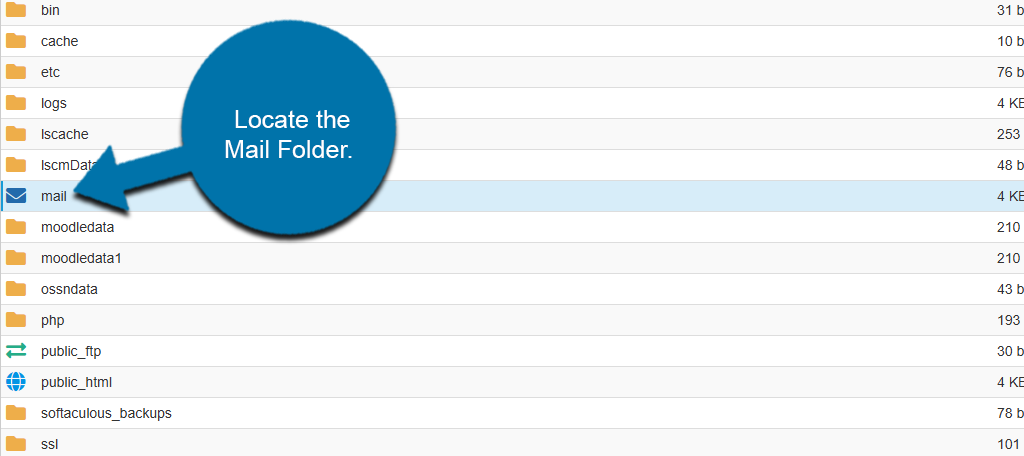
To begin, go to your cPanel account. Once there, access the File Manager and locate the Mail Folder.
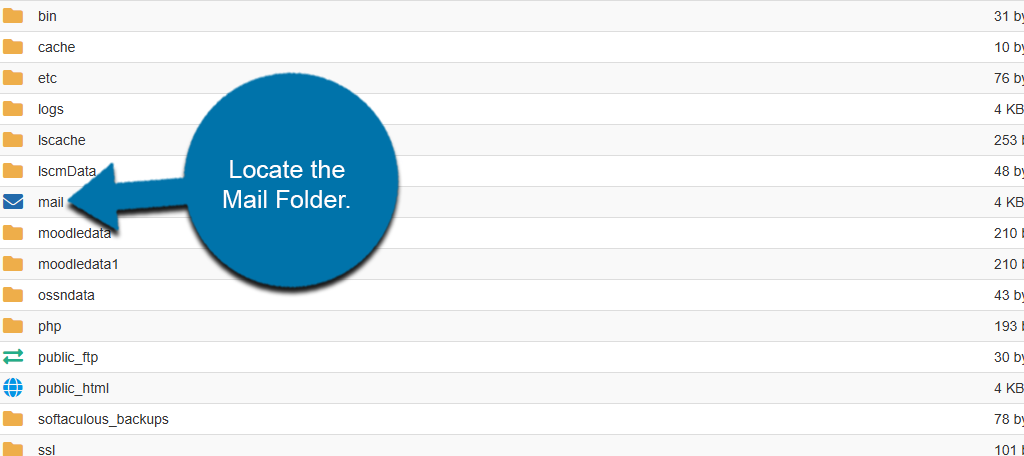
Inside, this folder contains all of the mail for the cPanel account. Simply locate the folder for the domain that contains the mail you want to transfer from and open it.
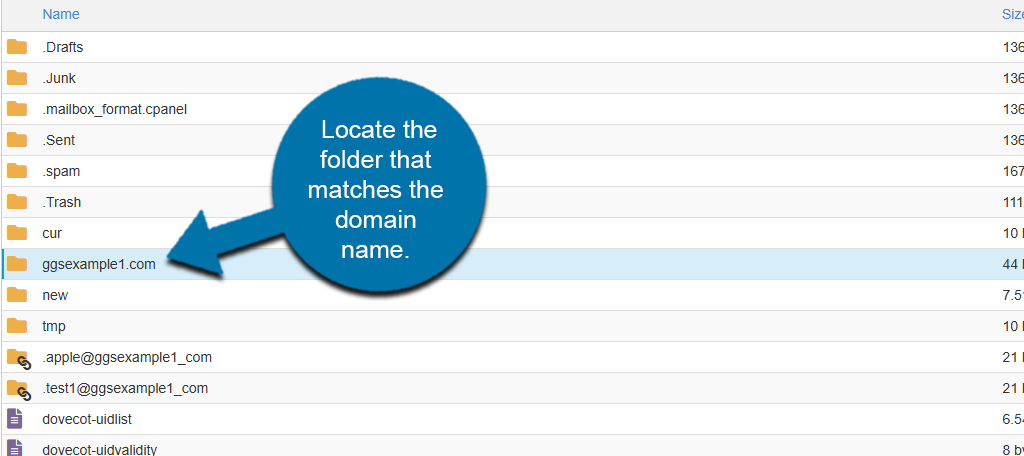
Then locate the folder for the email address itself within that domain.
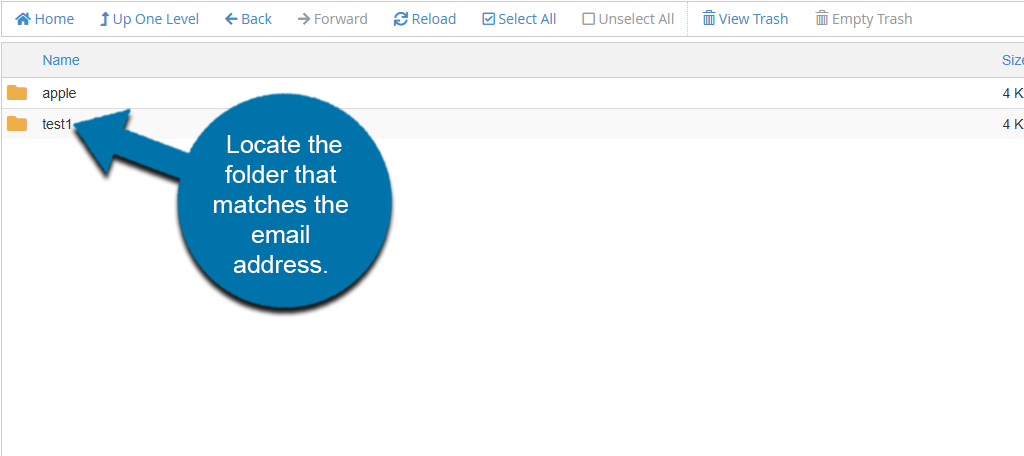
Once inside this folder, you can copy the cur, new, and the maildirsize files.
Note: This process may take a lot of time depending on how much data is stored.
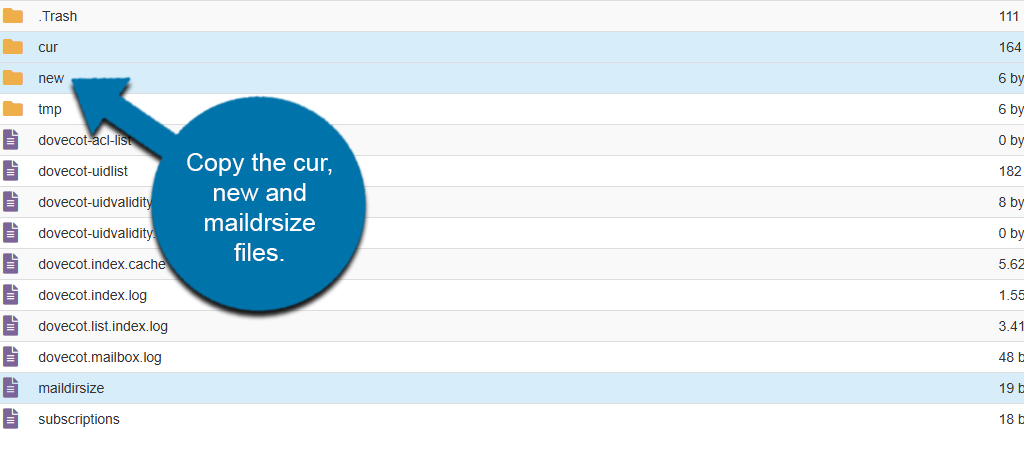
With these files copied, simply go back to the Mail folder and locate the email address that you want to transfer these files to. Replace the cur, new, and maildrsize files with the files you just copied.
It may take a few moments before the changes propagate fully.
Transfer Mail Between Different cPanel Accounts
If you want to transfer mail between different cPanel accounts, then you’ll need to compress the mail files, download them, and then upload them to the other cPanel account. The method is very similar to the previous step, but instead of copying, we will be compressing the files.
Log in to your cPanel account that you want to transfer mail from. Go to the file manager and locate the Mail Folder.
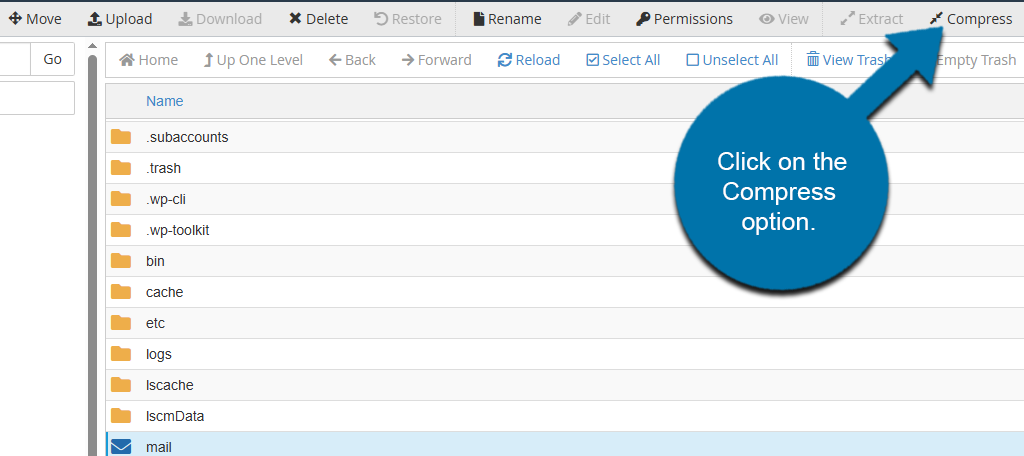
With the mail folder highlighted, click on the Compress option on the top toolbar.
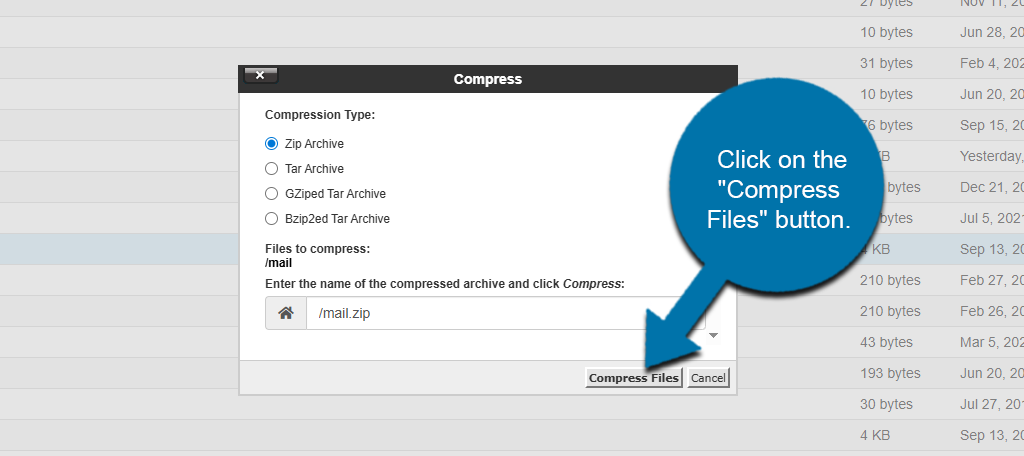
You will then be asked the compression type. Choose the Zip Archive option and click on the “Compress Files” button.
You will now see a Creating Archive message appear. This may take several minutes, depending on the size of the files. Alternatively, instead of compressing the entire folder, you can compress specific email addresses that you wish to transfer, following the same steps.
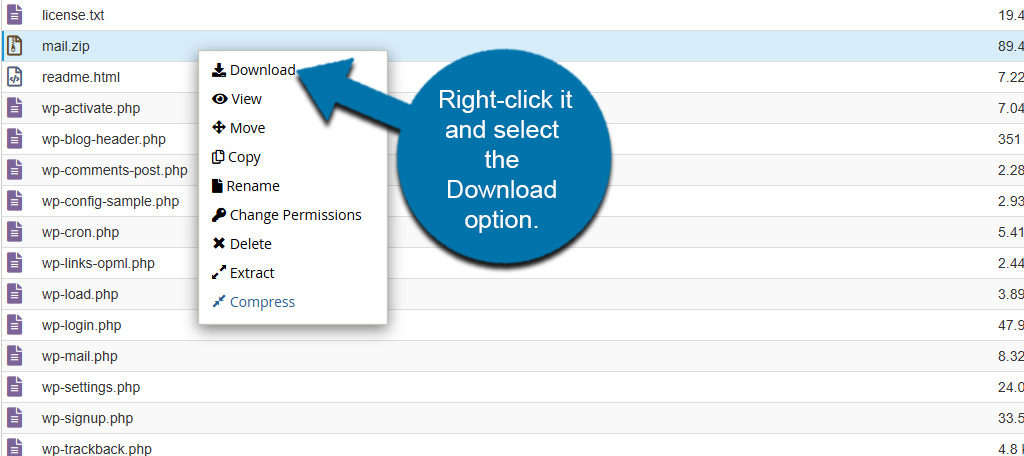
Once the process is complete, you will see a results screen that lists all of the files that were compressed. Reload the File Manager and locate the mail.zip file you just created. Right-click it and select the Download option.
The file will be added to your computer’s download folder. With that complete, all you need to do is go to your new cPanel account and upload the mail.zip file you just downloaded. To do so, go to the File Manager and click on the Upload option on the toolbar.
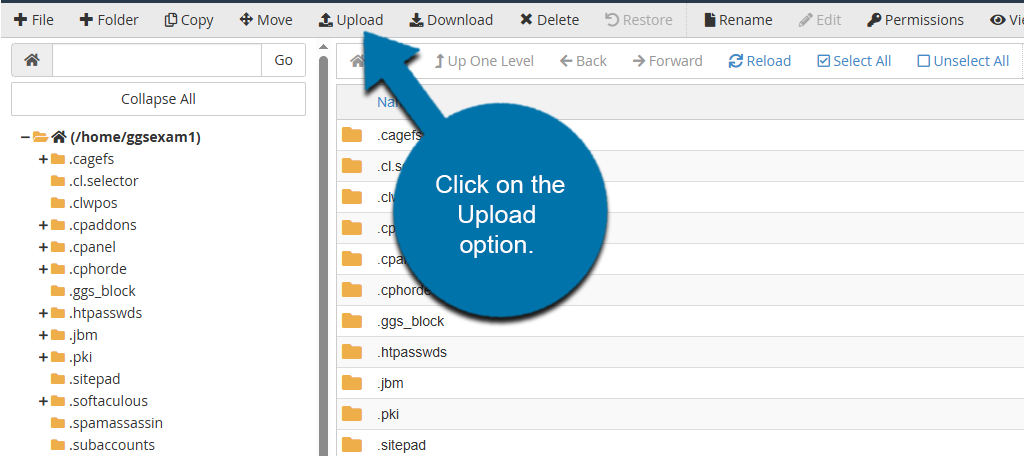
You can then select the mail.zip file and upload it to your new cPanel account. This process may take several minutes, depending on the size of the file you are uploading. Once complete, delete the current Mail file in the file directory, locate the mail.zip file, and right-click it to select the Extract option.
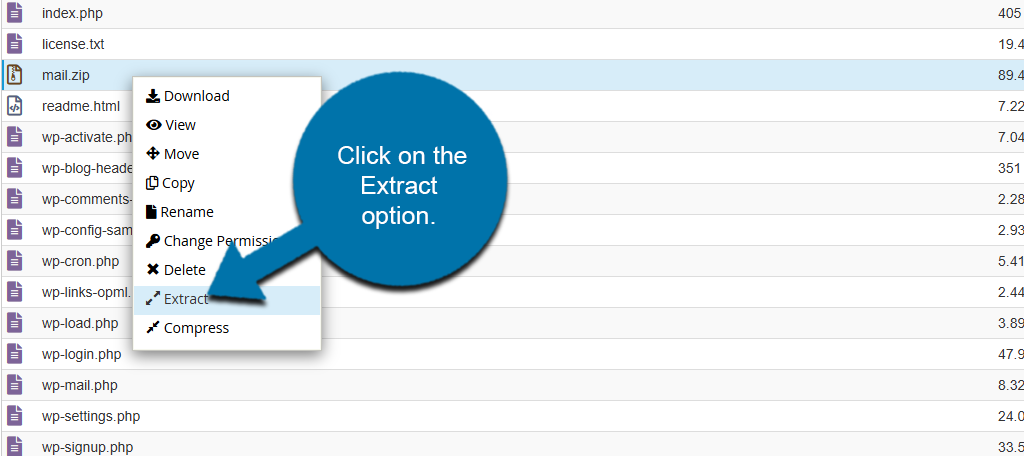
Once the extraction process is complete, all of the mail from your old account will be on the new one. It may take some time for the changes to fully propagate, so give it some time.
Using a Tool
There are several tools that you can use to transfer emails from one domain to another. One of the best tools is Imapsync. It allows for both incremental and recursive IMAP transfers from one mailbox to another.
The tool is free to use if the sync is less than 3 GB. All that you need to do is visit the site, enter the account details, and the tool will sync the mailboxes based on what you have entered.
This is only one tool, and others exist, so feel free to use another one.
Reach Out For Support
If you need any help transferring mail or setting up cPanel email forwarding within your web hosting account, be sure to reach out to one of our support agents.