
You’re making a difference by using an environmentally responsible website hosting platform. Let the world know that you believe being green is vital by displaying a GreenGeeks seal on your website.
Here’s how you can fly the eco-friendly flag.
Choosing a Seal
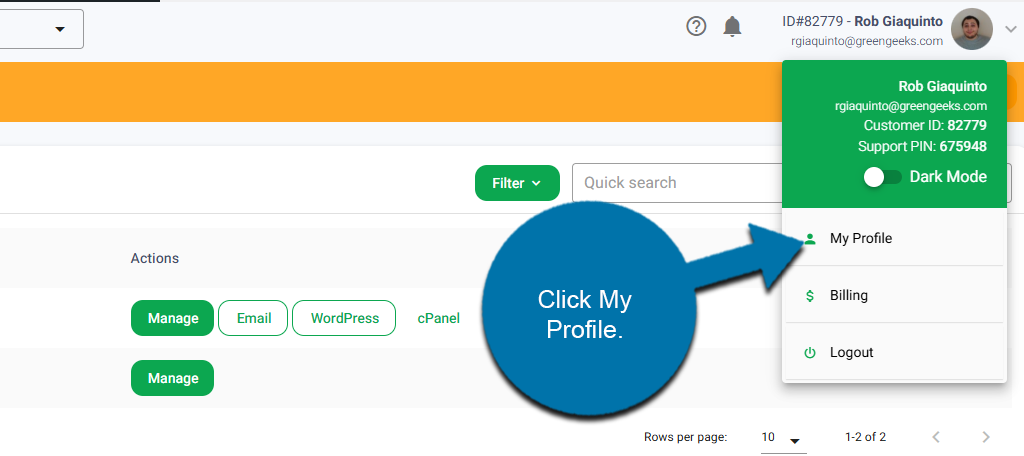
After logging into GreenGeeks, click the arrow from the top right and click My Profile.
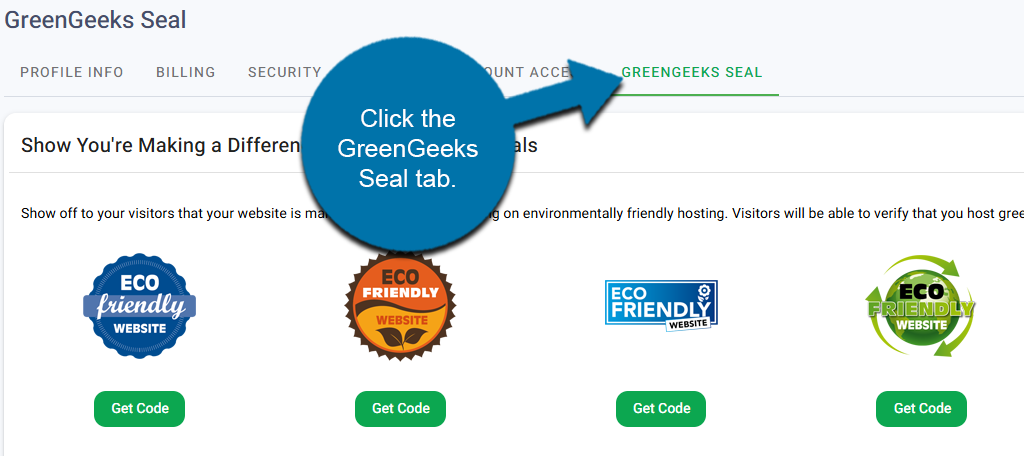
Click the GreenGeeks Seal tab.
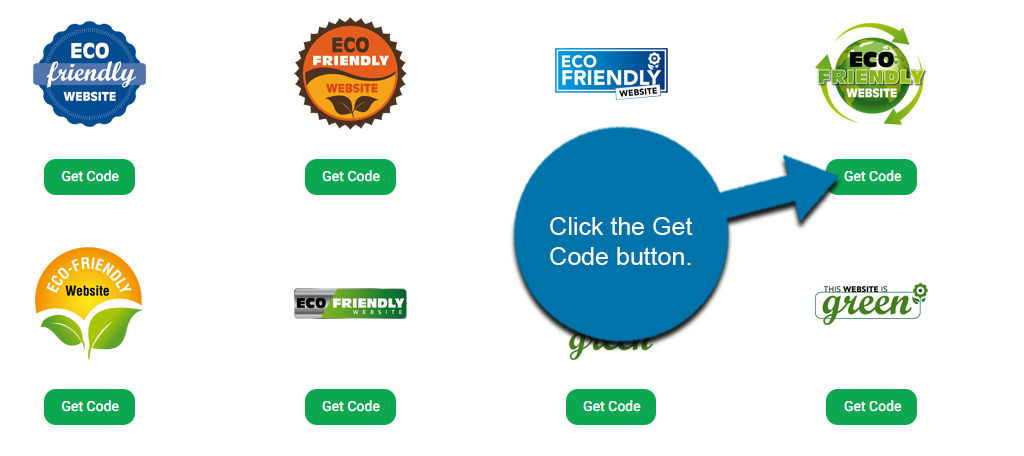
Here you will find an extensive list of badge styles to choose from. Find the one you want to use and click the Get Code button.
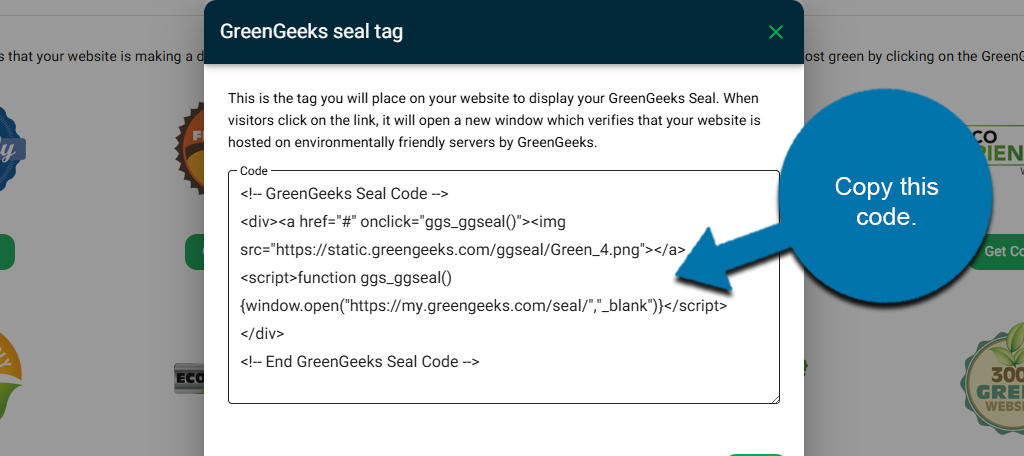
Upon clicking the Get Code button, a new window will appear with the HTML code. Copy this code to add it to your website.
With this, you can now add the seal to your site.
How to Add a GreenGeeks Seal to WordPress
There are a few ways to add a GreenGeeks green website seal to WordPress: you can add it to a page, to a post, or in a sidebar or footer widget. The method is identical for each method. You just need to add an HTML block and enter the seal code in it.
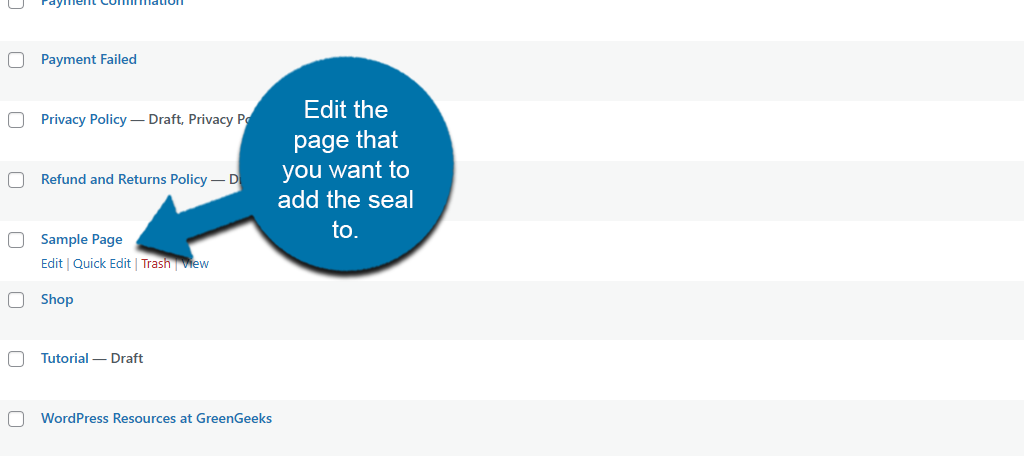
Edit the page, post, or widget area where you’d like the seal to appear.
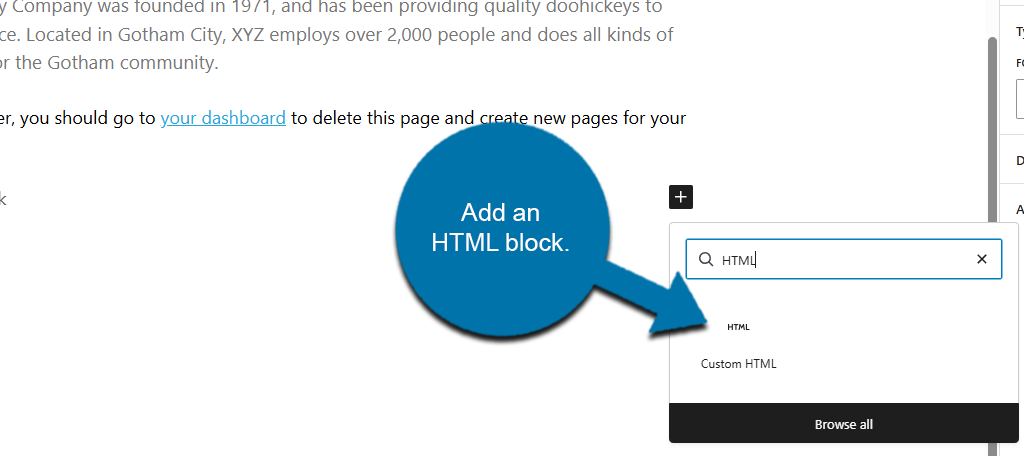
Find the location where you want to add the seal, then add an HTML block.
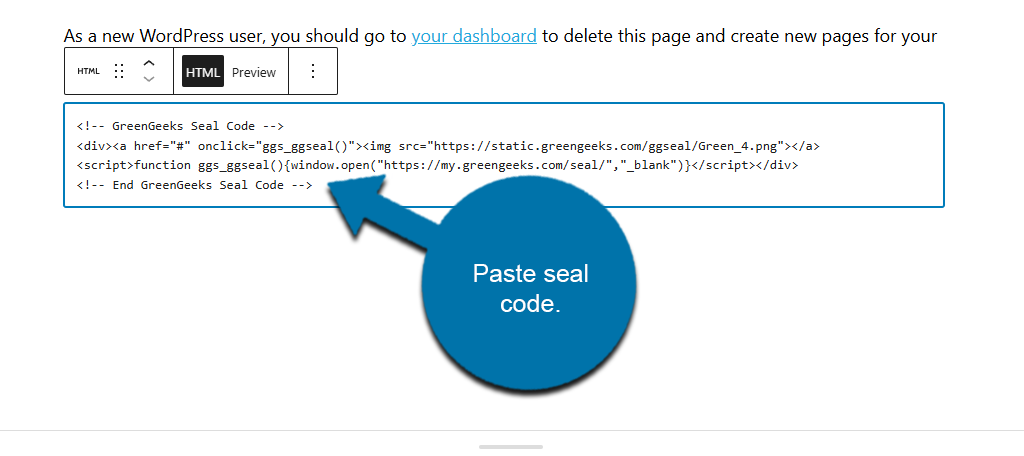
Paste the seal code into the HTML block.
Save the changes and view that content on the live site. You should now see your seal.

If you click on the seal, you will be brought to a verification screen.
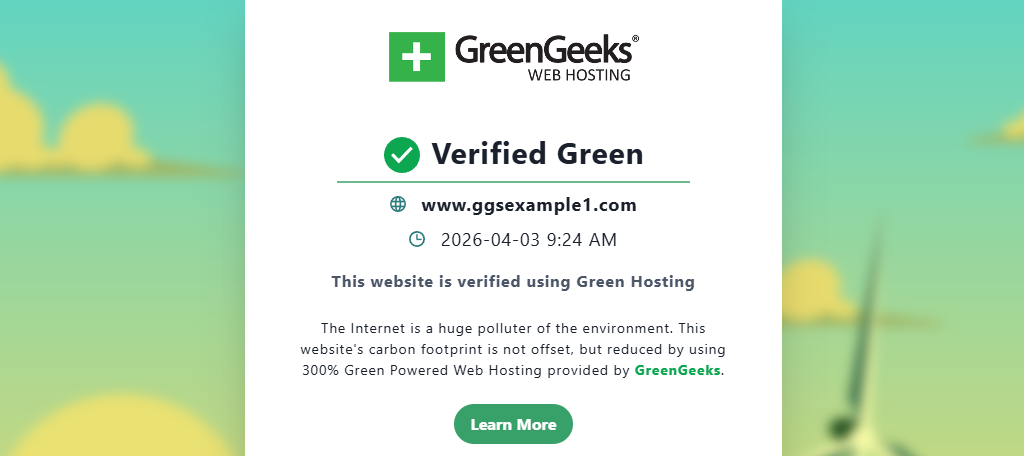
And that’s it. If you ever need to place the seal in a different location, simply repeat this step.
The logo comes out too large on my website.
Can I reduce its size?
I’m using the HTML code.
Hank,
You can add height and width values to the img part of the HTML code. For example (the height and width are in bold):
<div><a href=”#” onclick=”ggs_ggseal()”><img src=”https://static.websitehostserver.net/ggseal/Green_2.png” height=”80″ width=”80″></a><script>function ggs_ggseal(){window.open(“https://my.greengeeks.com/seal/”,”_blank”)}</script></div>
That shrinks the image down to 80×80.
Hello, how can i add a GreenGeeks Seal on a Wiki page ?
Thanks