
An add-on domain allows you to host distinct websites on a single hosting account. This makes it a popular choice for hosting unique content such as blogs, e-shops, forums, and so on. However, if you already have an existing page, you may need to set up a redirection to your add-on domain.
This tutorial will demonstrate how to set up an add-on domain redirection on the GreenGeeks Dashboard and in cPanel.
Method 1: GreenGeeks Dashboard
Enable an Addon Domain Redirect in the GreenGeeks Dashboard
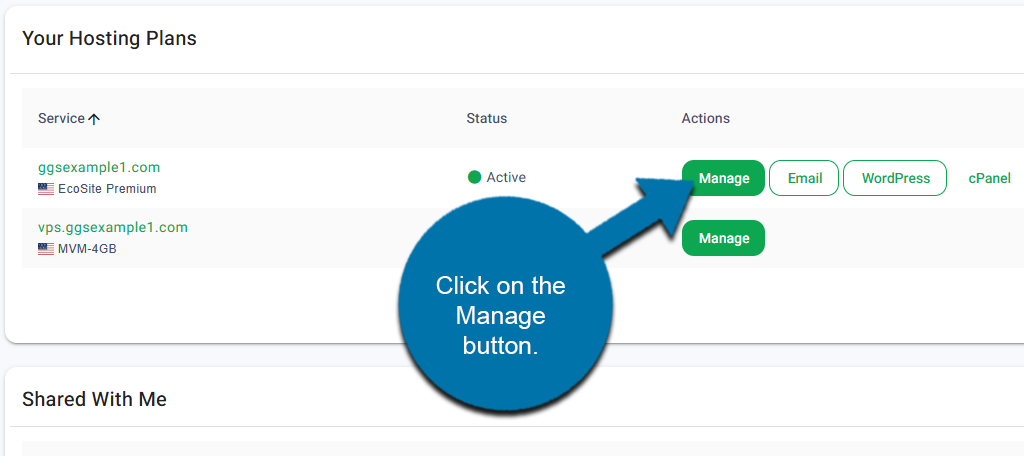
Start by logging into your GreenGeeks account. Locate the domain that you want to set up the redirect on and click on the Manage button next to it.
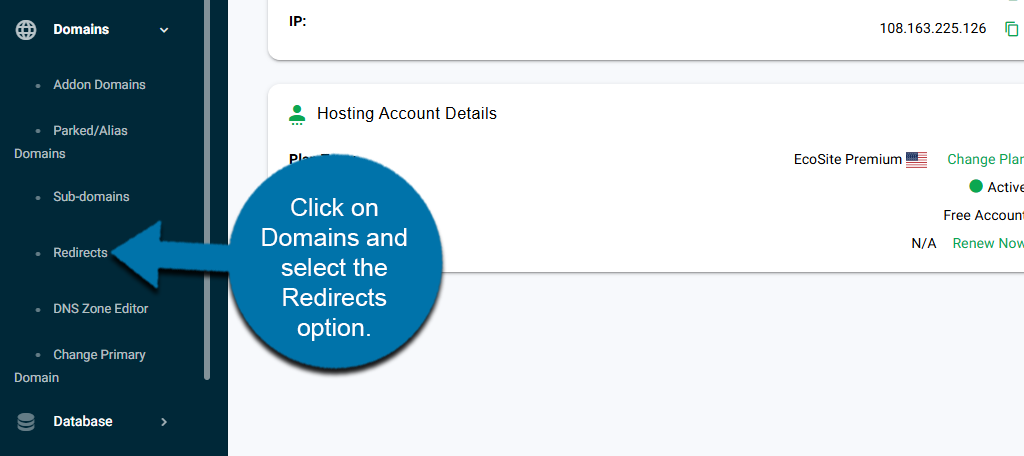
On the left-hand admin panel, click on Domains and select the Redirects option.
You are now in the Redirects section.
The first section lets you configure a redirect. By default, the type of redirection is 301, which is the correct option for add-on redirects.
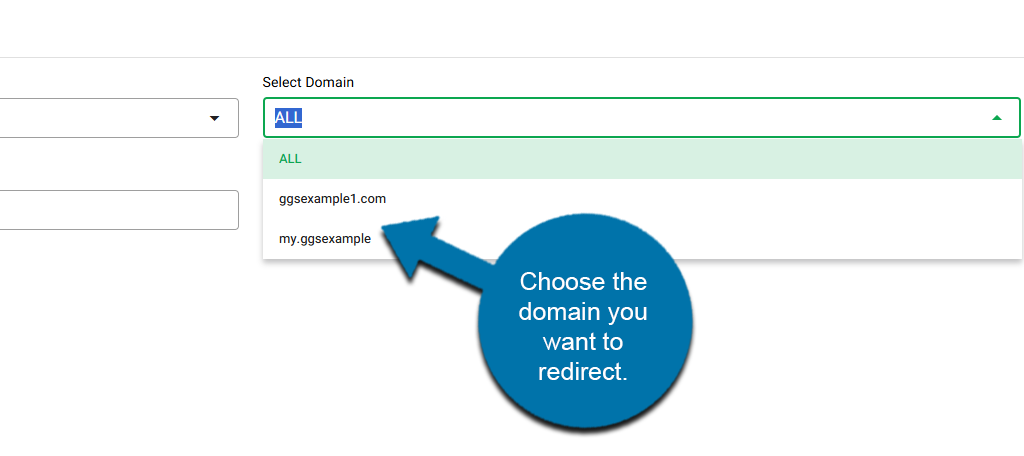
Start by selecting the add-on domain you want to redirect.
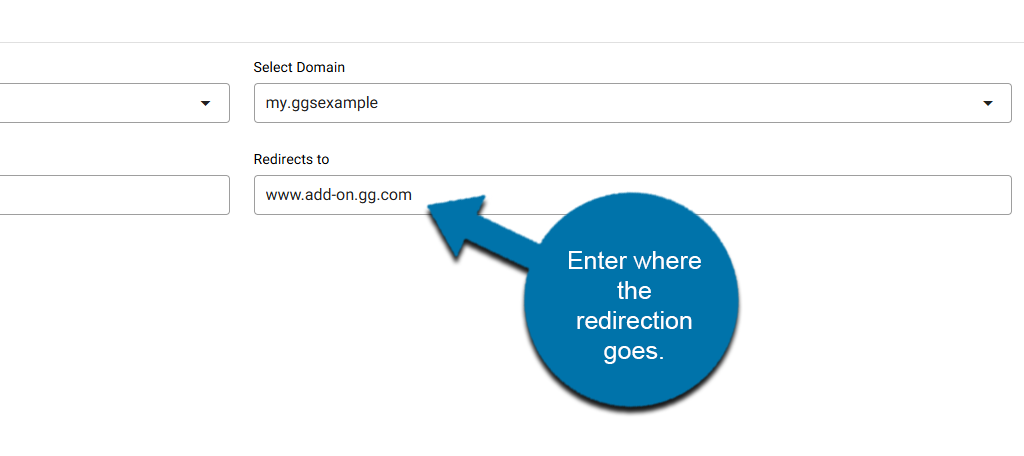
Enter the URL that you want the add-on domain to redirect to.
Click on the Add Redirect button to finish.
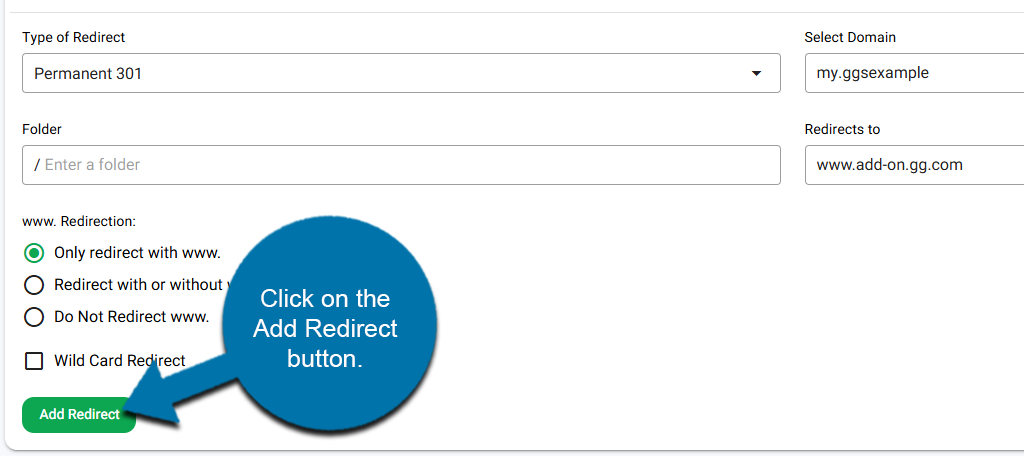
The redirection you created will now be added to the list below this. Make sure to check that it is working.
Disable an Addon Domain Redirect in the GreenGeeks Dashboard
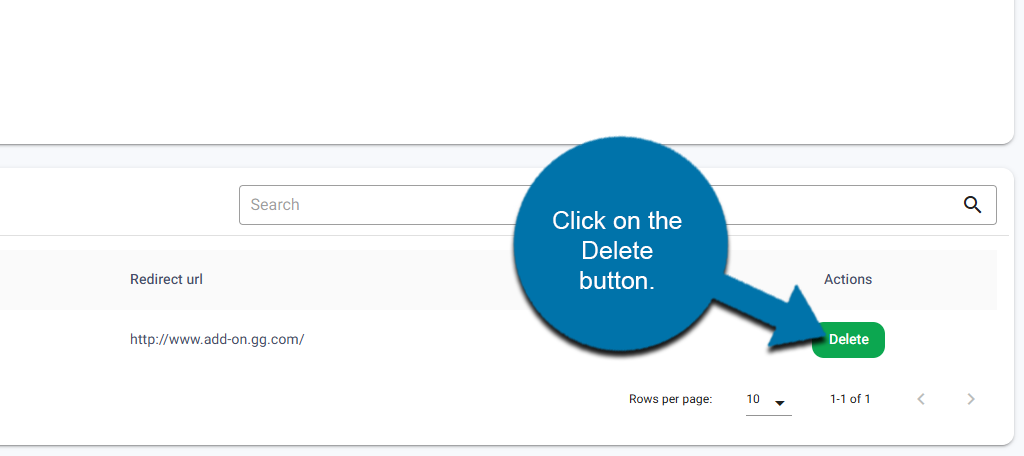
To delete the redirection, locate the redirection in the redirection list and click on the Delete button next to it.
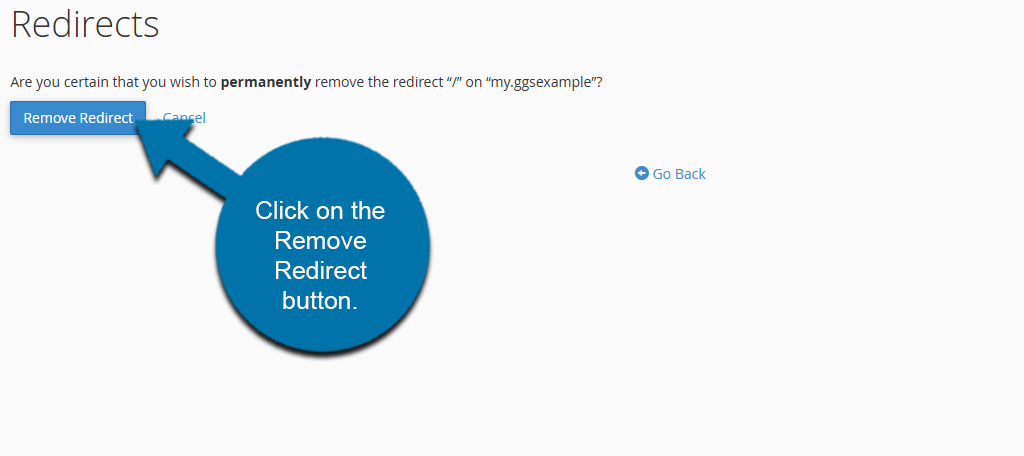
A small window will appear asking if you are sure you want to remove the redirection. Click on the Remove Redirect button to finish.
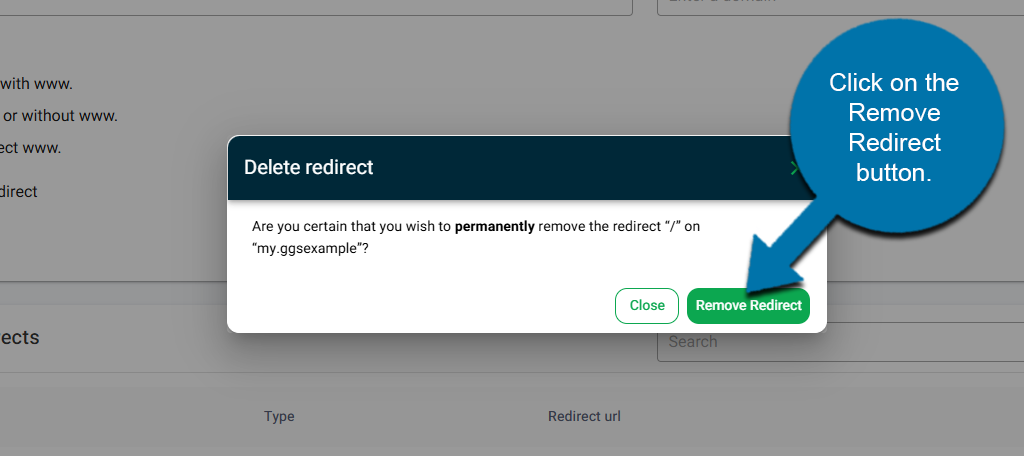
This will permanently delete the redirection.
Method 2: cPanel
Enable an Addon Domain Redirect in cPanel
Start by logging in to GreenGeeks and accessing your cPanel.
Once inside the cPanel, locate the Domains section and click on the Redirects option.
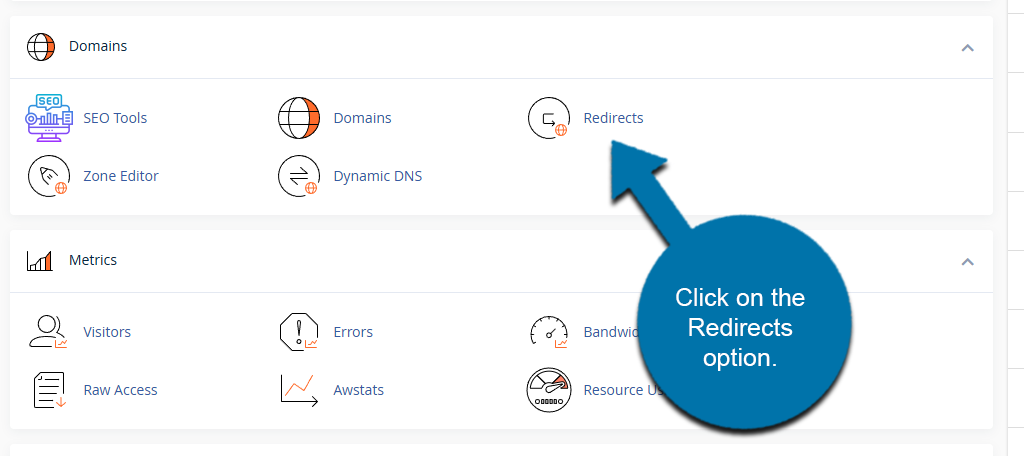
Here, you can create any kind of redirect for your website. The Type of redirect is 301 by default, which is perfect for an add-on redirect, so no change is necessary.
Below this, select the add-on domain you wish to redirect.
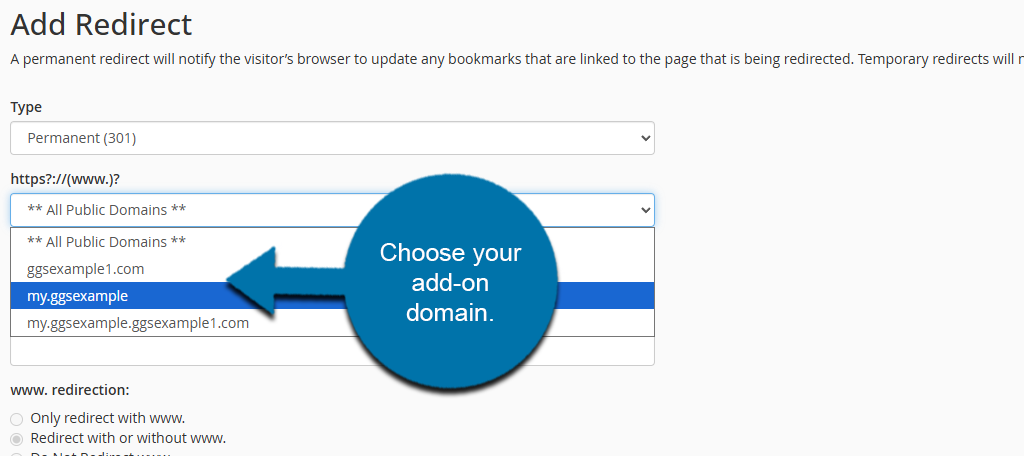
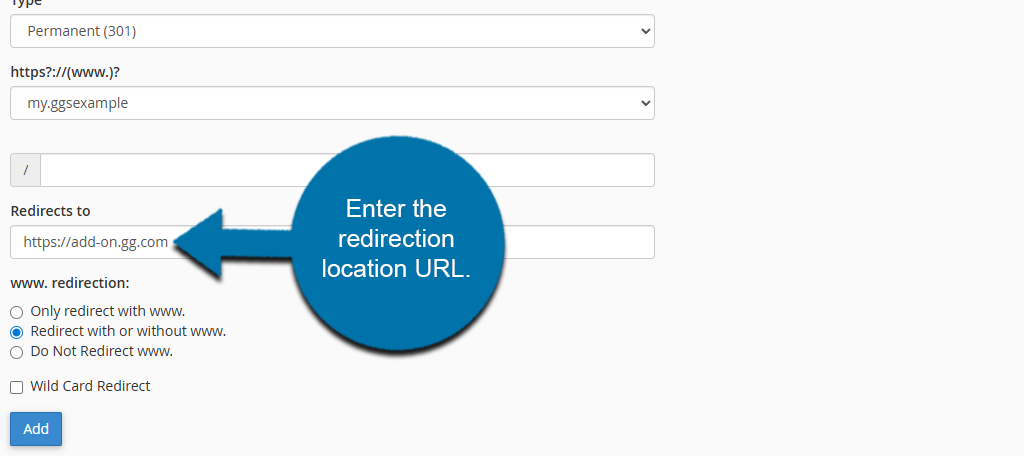
Enter the redirection location in the Redirects to box.
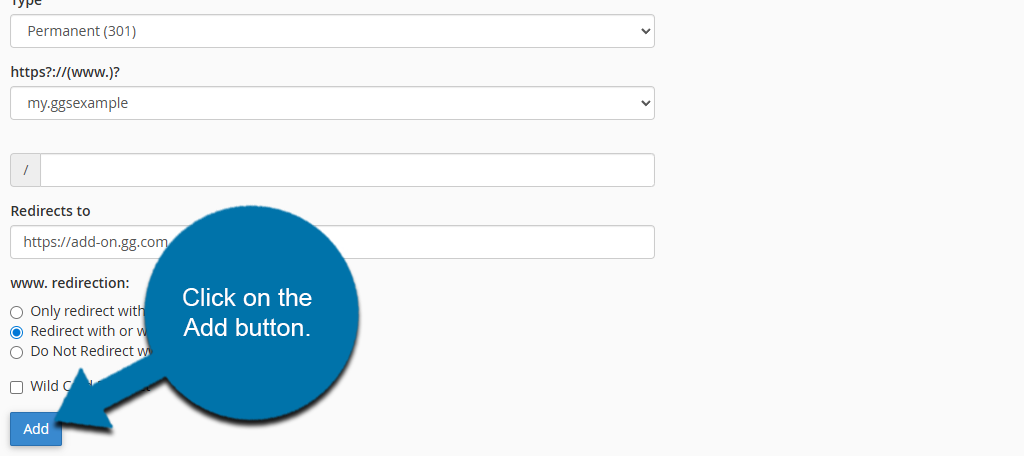
Double-check the information you have entered. Click on the Add button to finish.
The redirection will now be active. Be sure to make sure it is working correctly.
Disable an Addon Domain Redirect
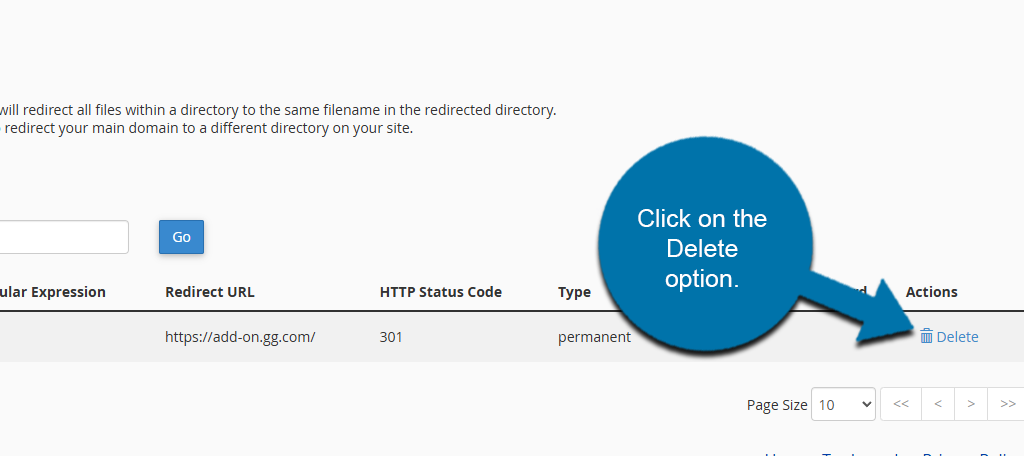
If you want to remove this redirection, simply click on the Delete option next to the redirection.
This will bring you to a confirmation page. Click on the Remove Redirect button to finish.
This will permanently delete the redirection.
Further Troubleshooting
If you receive an error while adding or removing a redirect, or a redirect is not working as expected, please open a new Support Ticket Request from your GreenGeeks Dashboard, and our Technical Support team will be happy to look into the situation for you.