
If you have lost your WordPress password, you can use the GreenGeeks App Installer to access the WordPress backend and reset the password. This is because the GreenGeeks App Installer will automatically log you in, giving you the chance to change the password.
Overall, the process takes around 2 minutes to complete.
AccessWordPress Through the GreenGeeks App Installer
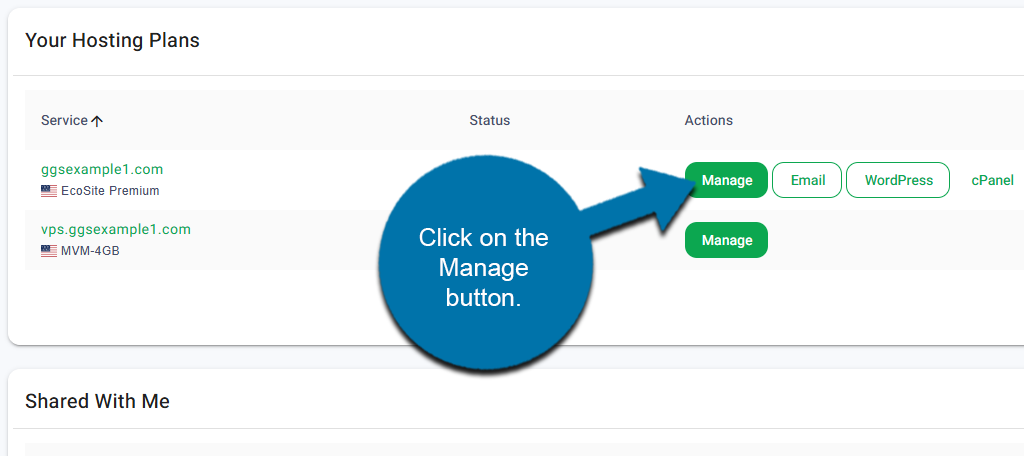
Start by logging into your GreenGeeks account. Once logged in, locate the domain that contains your WordPress install and click on the Manage button next to it.
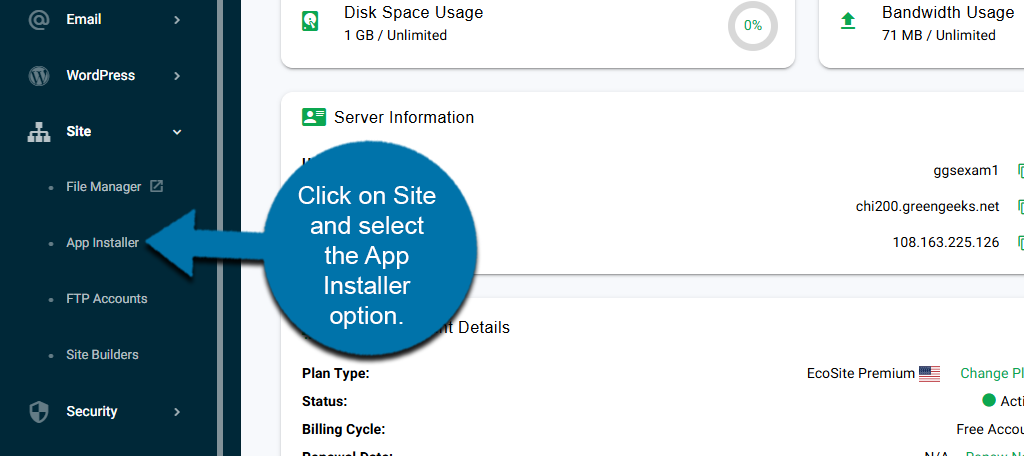
On the left-hand panel, click on Site and select the App Installer option.
Here you will see a full list of applications installed on your server. Locate the WordPress install and click on the Dashboard button.
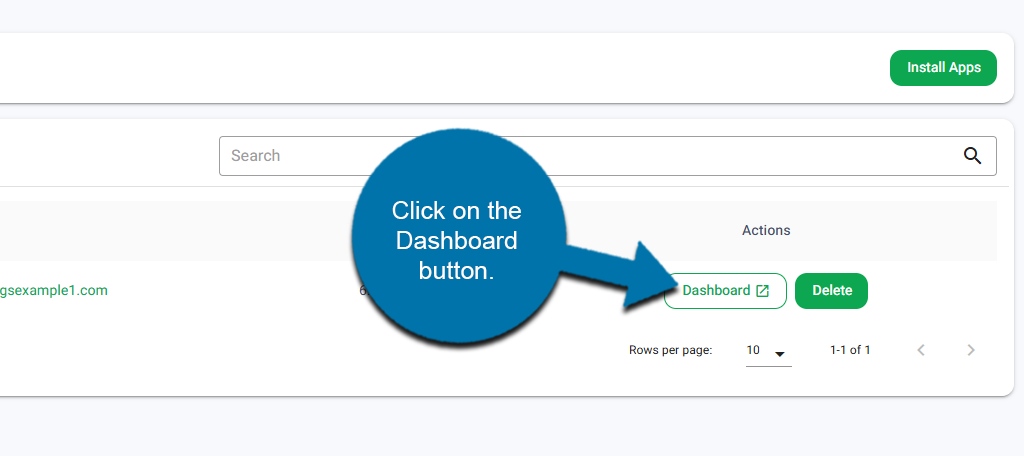
This will log you in and take you to your WordPress dashboard.
Resetting Your Password
To reset your Admin password in WordPress, click on Users on the left-hand panel.
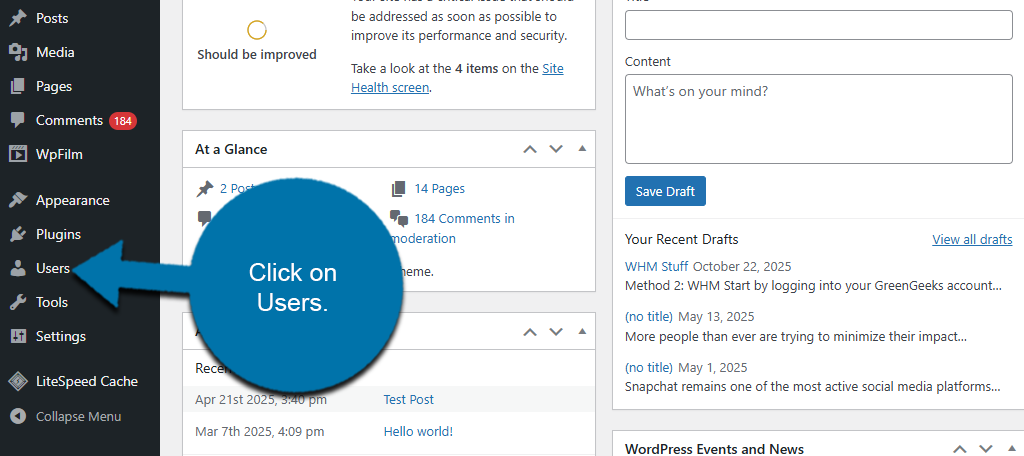
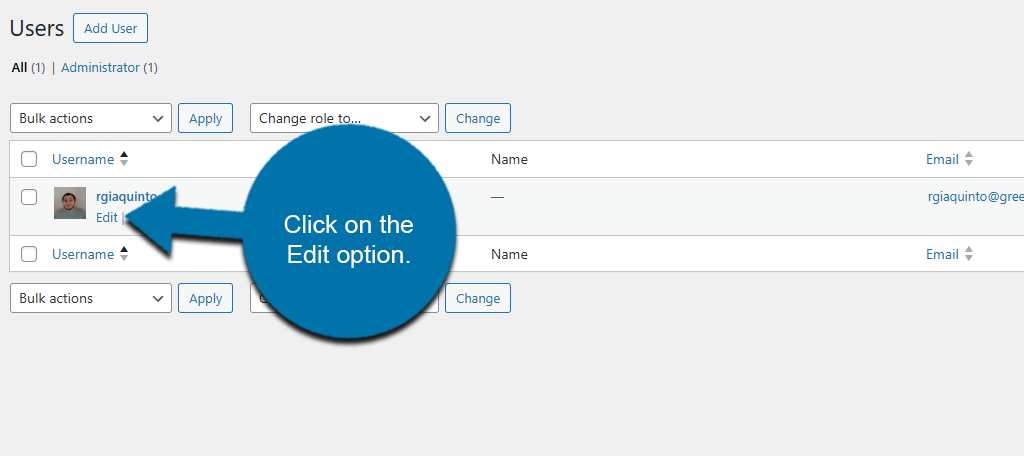
Here you will see a full list of your site’s users. Locate your admin account and click on the Edit option under it.
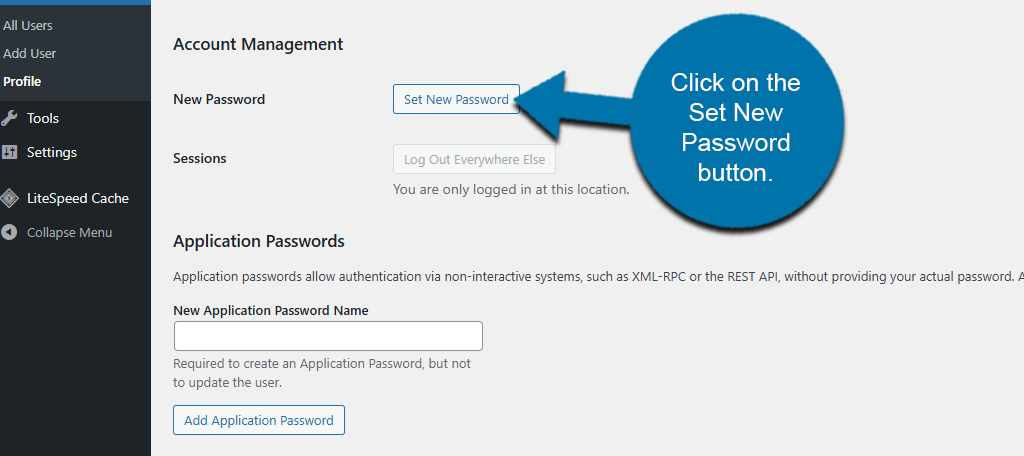
Scroll down to the Account Management section and click on the Set New Password button.
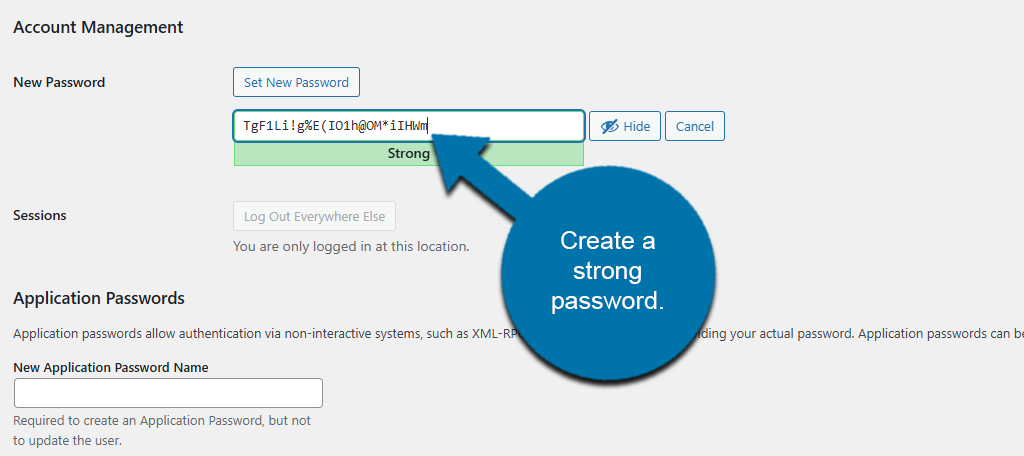
This will reveal a Password field that you can use to enter a new password. Be sure to create a strong password that contains upper and lower-case letters, numbers, and symbols.
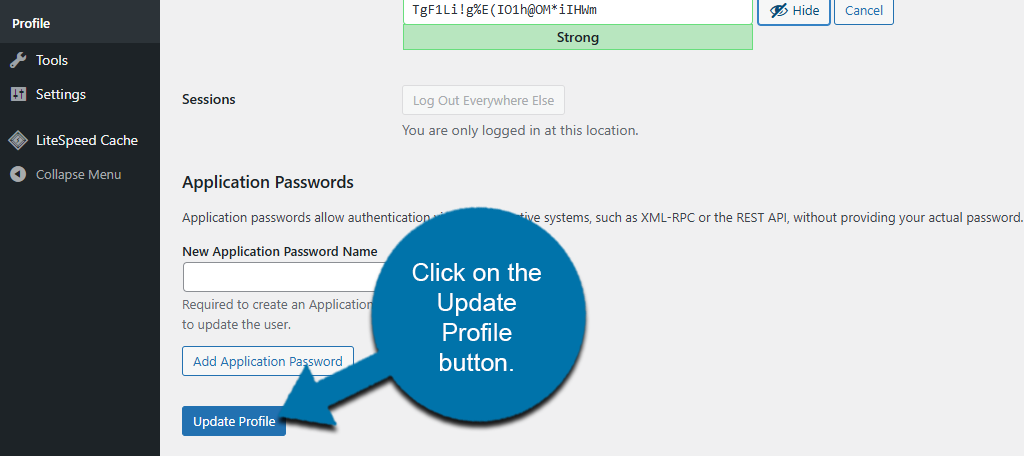
Be sure to write this information down or store it in a password manager. When you are finished, click on the Update Profile button to apply the changes.
And that’s it, you have successfully reset your WordPress admin password by using the GreenGeeks App Installer.