
You may want to block a specific IP address or block a range of IPs to help reduce spam and improve security. You can do this directly from the GreenGeeks dashboard in just a few minutes. Just keep in mind that doing so can impact the amount of traffic your site gets.
Thus, make sure the IP addresses and ranges you enter are correct.
Why Block IP Addresses?
Blocking an IP address prevents anyone using that IP from accessing your site and blocks any emails from being received from it. Thus, it can help prevent spam and keep bad actors off your site. By using an IP range, you can essentially block out entire countries. For example, if you get a lot of spam from India, you can block the entire IP range of India to stop it from happening.
You can also block a domain itself, which achieves the same result, but will persist even if the IP address is changed.
Locate the IP Blocker
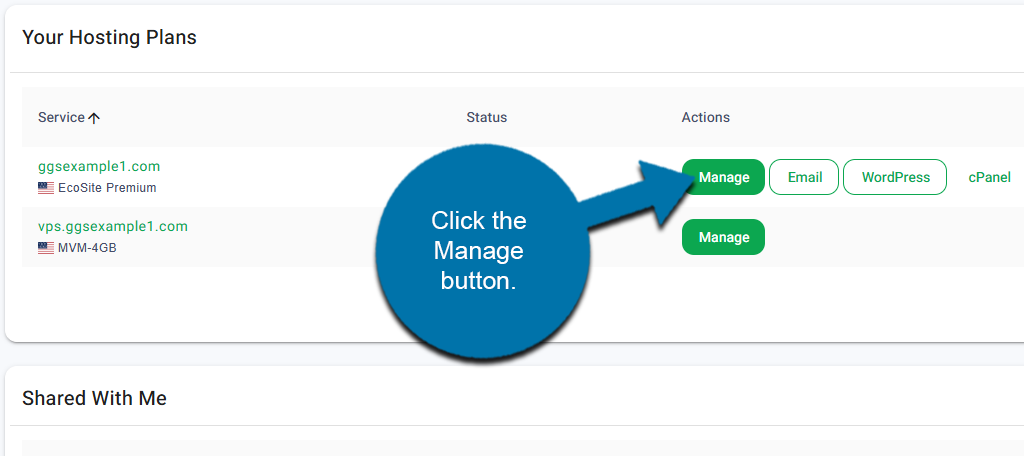
Start by logging into your GreenGeeks account. Locate the domain that you want to clock IPs on and click the Manage button next to it.
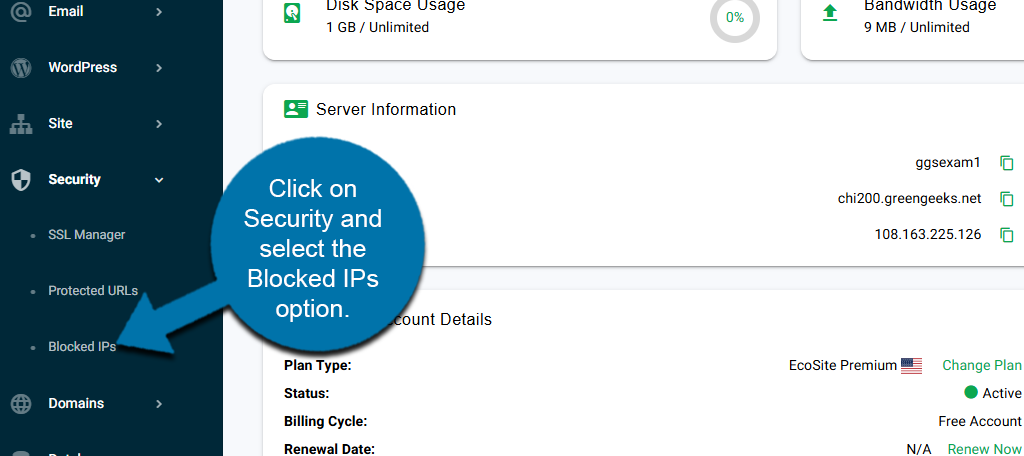
On the left-hand panel, click on Security and select the Blocked IPs option.
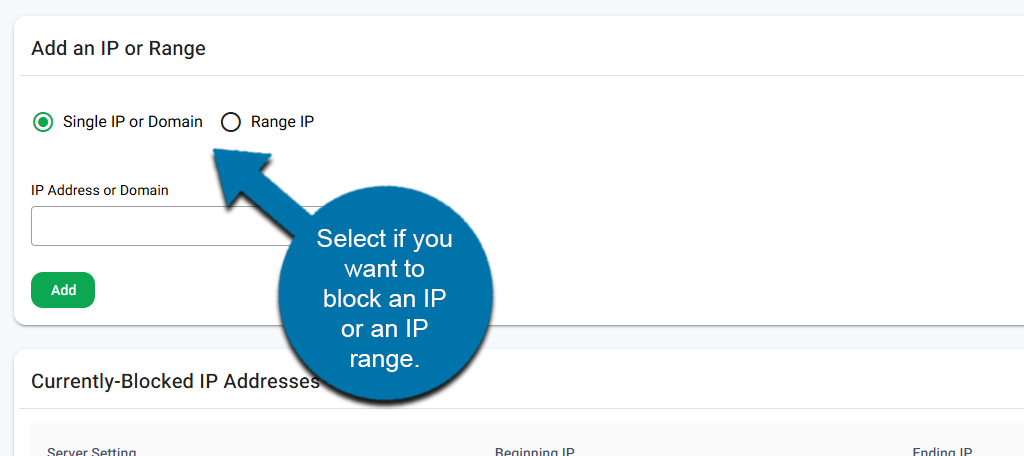
This will bring you to the area where you can block a single IP or an IP range.
How to Block IP Addresses
At the top, you will see the Add an IP or Range section. Use the radio button to choose if you want to add a Single IP or Domain, or if you want to add a Range IP.
Blocking an IP or Domain
If you choose to block a single IP or Domain, simply enter the IP address or domain name into the appropriate text box.
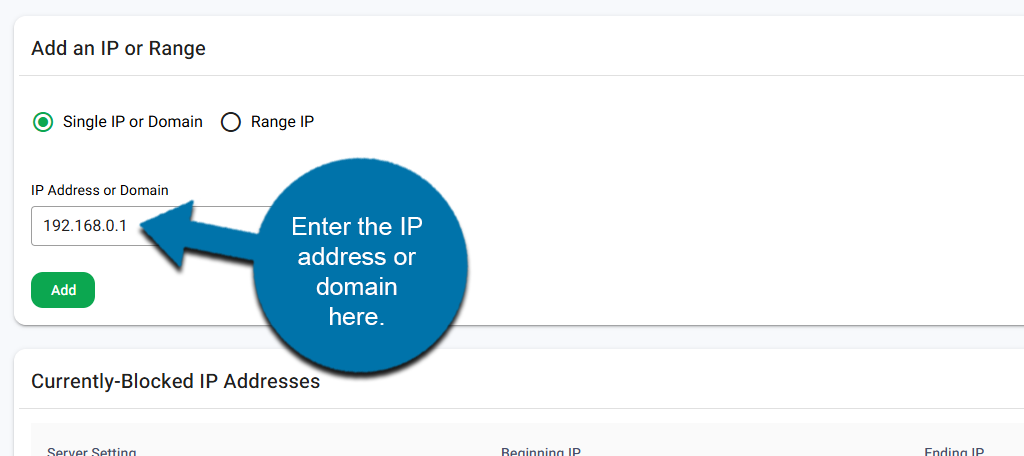
Click on the Add button.
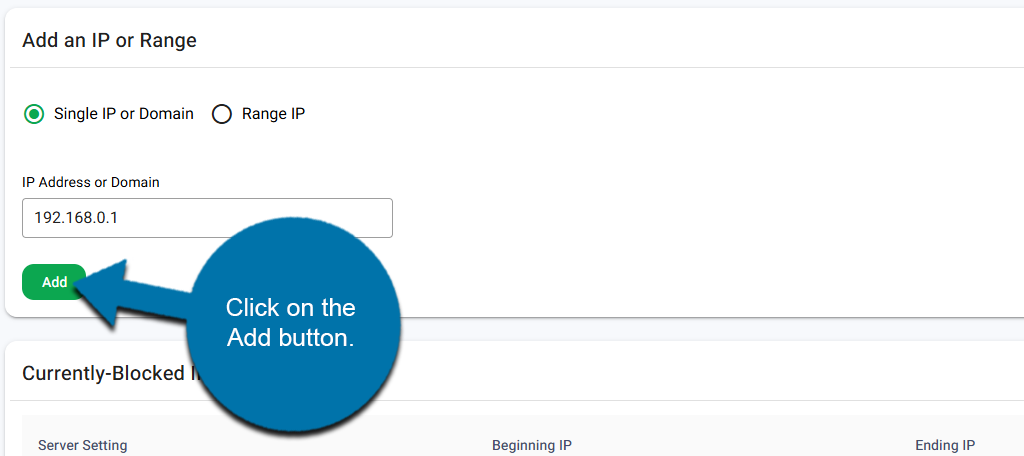
The IP address will be entered into the Currently Blocked IP Addresses list below. You can repeat this step to block additional IP addresses.
Blocking An IP Range
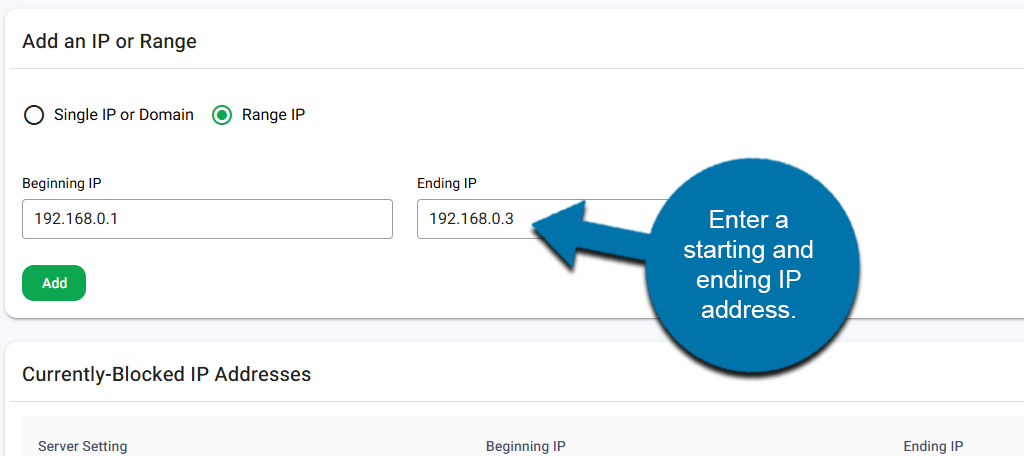
If you choose to block an IP range, enter the starting IP address and then the ending IP address in the appropriate boxes. All IP addresses between these will be blocked.
For example, if I enter 192.168.0.1 as the start and 192.168.0.3 as the end, it will block:
- 192.168.0.1
- 192.168.0.2
- 192.168.0.3
Be sure to double-check the values you have entered, as you can mistakenly block more than intended.
Click on the Add button.
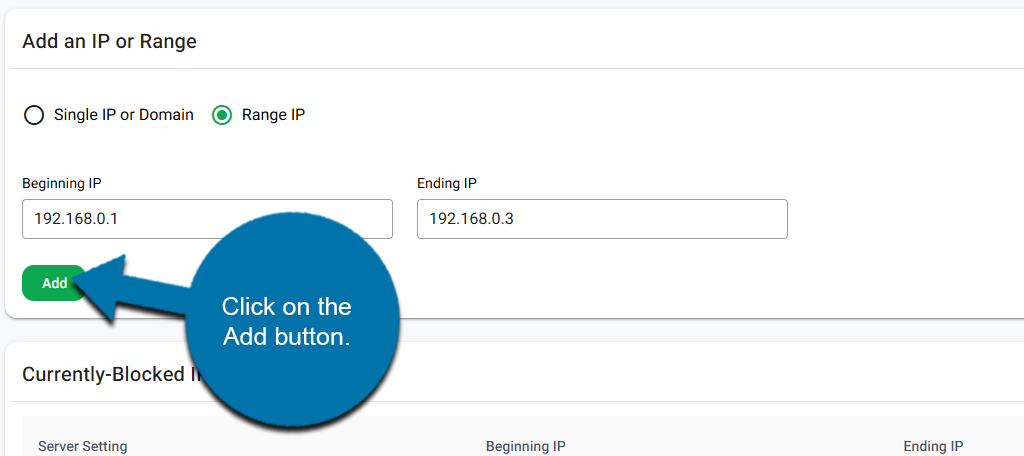
The rand will be added to the Currently Blocked IP Addresses list below.