
This article explains how to add, change, and remove firewall rules for your Self-Managed VPS in the GreenGeeks dashboard. Use it to control which traffic can reach your server, or to fix a rule that blocks your own access.
Table of Contents
- How the Dashboard Firewall Works
- How to Add a Firewall Rule
- Firewall Rule Settings
- How to Edit, Turn Off, or Delete a Rule
- How to Change the Default Policy
- Example: Allow Only SSH and Web Traffic
- If You Lock Yourself Out
How the Dashboard Firewall Works
- It runs outside your server. Rules apply before traffic reaches your server, so they work no matter what is installed on it.
- Rules are deleted when you rebuild the server. Add them again after a rebuild.
- It is always on. You cannot turn it off. A new server allows all traffic until you add rules or change the default policy.
- It is separate from firewall software inside your server. Tools such as ufw or iptables run in addition to the dashboard firewall. Traffic must be allowed by both.
- Mail blocking rules always apply. Outbound email on ports 25, 465, and 587 is blocked regardless of your settings.
- Rules are processed in order, as listed top to the bottom.
- Blocking rules affect new connections. Connections already open stay open unless you select Also reset the VM’s existing connections when you add the rule.
How to Add a Firewall Rule
- Log in to your GreenGeeks dashboard.
- Select Servers in the left menu.
- Click Manage next to your Self-Managed VPS.
- Select Settings in the left menu.
- Select Firewall.
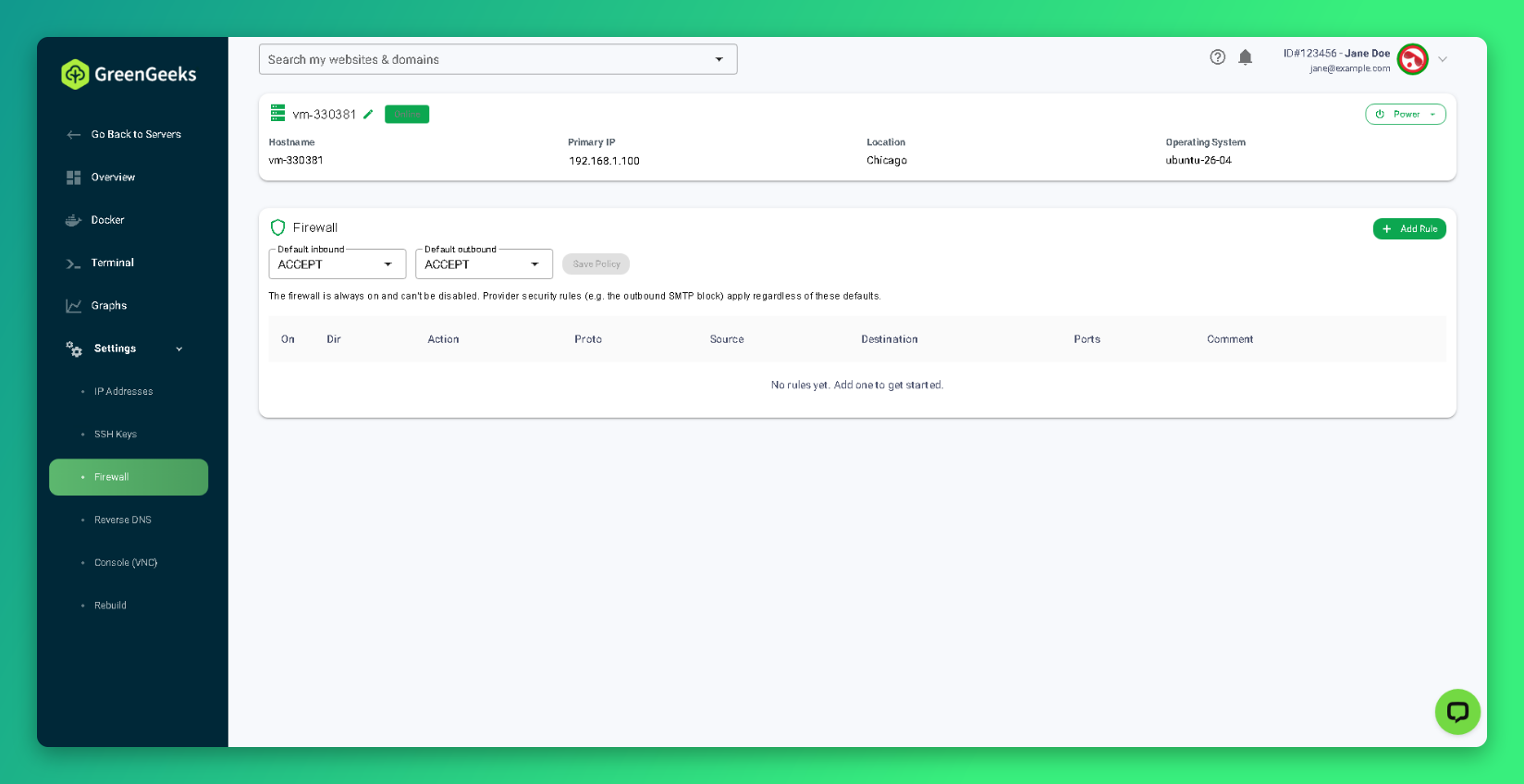
- Click Add Rule.
- Choose the Direction, Action, and Protocol.
- Enter the Destination port, such as
22for SSH or443for HTTPS. - Enter a Comment that describes the rule.
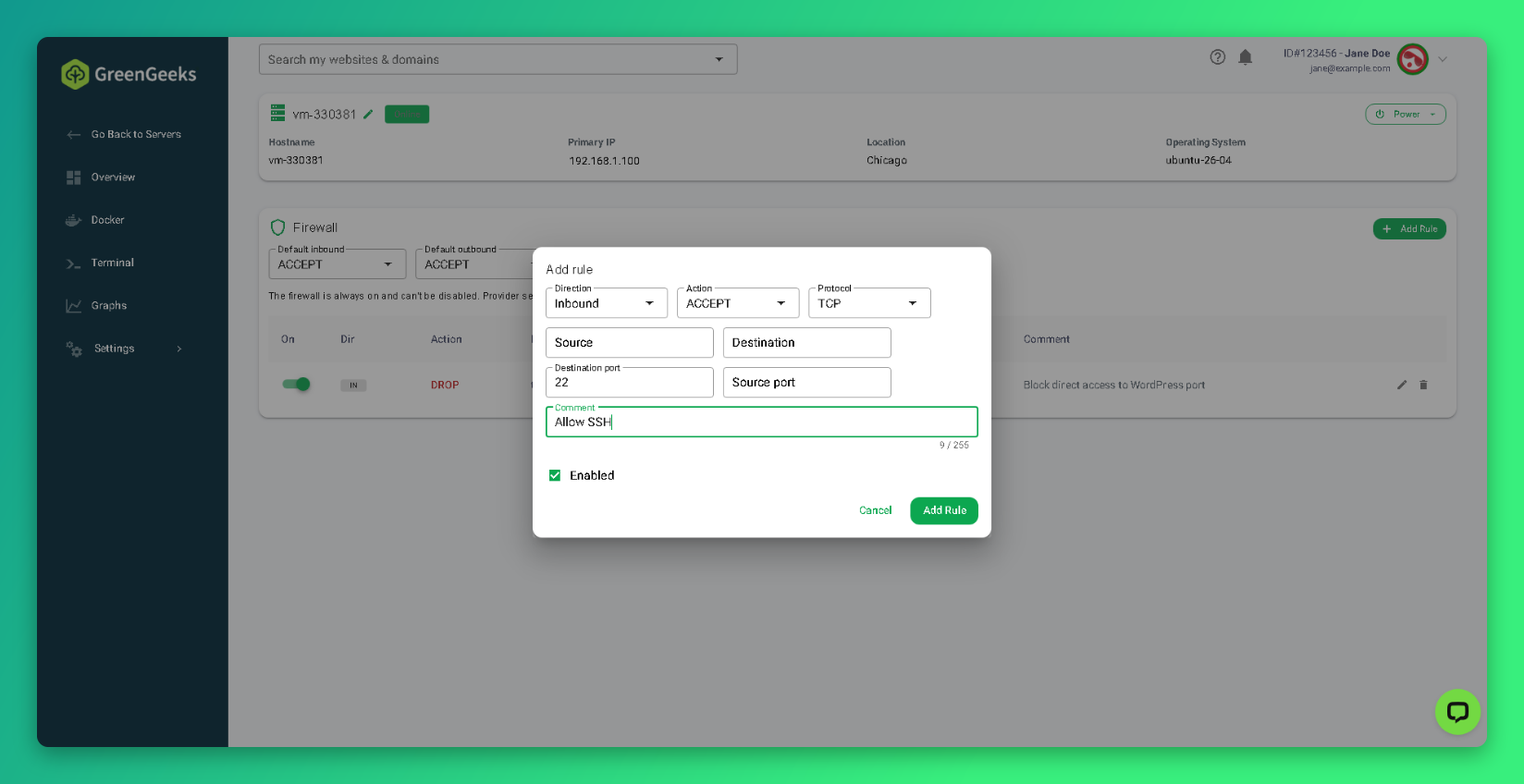
- Click Add Rule.
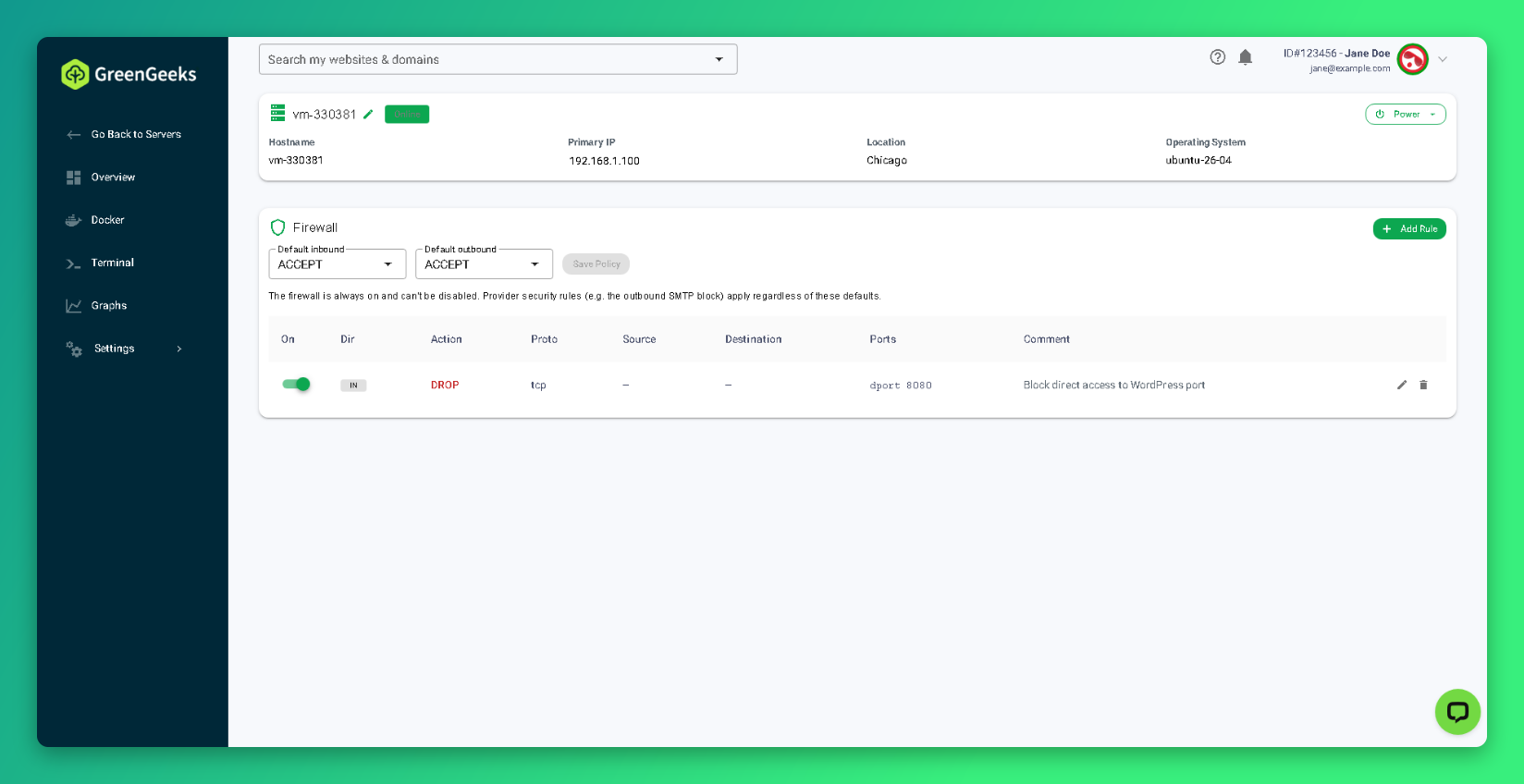
The rule takes effect right away.
Firewall Rule Settings
| Setting | Options | What it does |
|---|---|---|
| Direction | Inbound, Outbound | Inbound filters traffic coming to your server. Outbound filters traffic your server sends. |
| Action | ACCEPT, DROP, REJECT | ACCEPT allows the traffic. DROP blocks it silently. REJECT blocks it and tells the sender. |
| Protocol | Any, TCP, UDP, ICMP | The type of traffic. Most web and SSH traffic is TCP. Ping uses ICMP. |
| Source | IP address or range | Where the traffic comes from. Leave blank for any source. |
| Destination | IP address or range | Where the traffic is going. Leave blank for any destination. |
| Destination port | Port number | The port on the receiving side, such as 22, 80, or 443. TCP and UDP only. |
| Source port | Port number | The port on the sending side. Usually left blank. |
| Comment | Up to 255 characters | A note to remind you what the rule is for. |
| Enabled | On or off | Whether the rule is active. |
| Also reset the VM’s existing connections | On or off | Shown for DROP and REJECT rules. Also closes connections that are already open. |
How to Edit, Turn Off, or Delete a Rule
- Edit: click the pencil icon on the rule’s row.
- Turn off: switch the toggle in the On column off. The rule stays in the list but no longer applies.
- Delete: click the trash icon on the rule’s row.
How to Change the Default Policy
The default policy decides what happens to traffic that no rule matches. Both Default inbound and Default outbound start as ACCEPT.
Before you set Default inbound to DROP, add an inbound ACCEPT rule for TCP port 22. Without it, SSH stops working.
- Open the Firewall page.
- Choose a new value for Default inbound or Default outbound.
- Click Save Policy.
Example: Allow Only SSH and Web Traffic
This setup blocks all inbound traffic except SSH and websites.
- Add an inbound ACCEPT rule for TCP port
22. - Add an inbound ACCEPT rule for TCP port
80. - Add an inbound ACCEPT rule for TCP port
443. - Set Default inbound to DROP.
- Click Save Policy.
To allow SSH only from your own location, enter your IP address in the Source field of the port 22 rule.
If you deployed apps on a Docker Host server, you can also block the direct app ports (for example, 8080) so visitors can only reach the app through its HTTPS domain.
If You Lock Yourself Out
The dashboard firewall does not affect the Terminal, Console (VNC), or the Firewall page itself.
- Open the Firewall page.
- Turn off or delete the rule that blocks your access.
- Set Default inbound back to ACCEPT if you changed it.
- Click Save Policy.
If a firewall inside your server, such as ufw, is blocking you, log in through the Terminal to fix it. See How to Use the Terminal and Console (VNC) on Your Self-Managed VPS .