This article explains how to access your Self-Managed VPS through the Terminal and Console (VNC) in the GreenGeeks dashboard. Use these tools when SSH is not working, such as after a firewall or network change, or to watch your server start up.
Table of Contents
- Terminal vs. Console
- How to Use the Terminal
- How to Use the Console (VNC)
- Recover From Common Lockouts
- Troubleshooting the Terminal and Console
Terminal vs. Console
Both tools connect to your server directly from the dashboard, without using your server’s network connection or SSH.
| Terminal | Console (VNC) | |
|---|---|---|
| What it shows | A text command line | Your server’s screen |
| Best for | Running commands and editing files | Watching the server start up, and when the Terminal does not respond |
| Pasting text | Yes (right-click -> Paste as Plain Text) | Paste button |
| Special keys | Standard keyboard | Ctrl+Alt+Del button |
| Works without SSH or network access | Yes | Yes |
Start with the Terminal. Switch to the Console (VNC) if the Terminal is blank, the server is not starting, or you need to see startup messages.
How to Use the Terminal
- Log in to your GreenGeeks dashboard.
- Select Servers in the left menu.
- Click Manage next to your Self-Managed VPS.
- Select Terminal in the left menu.
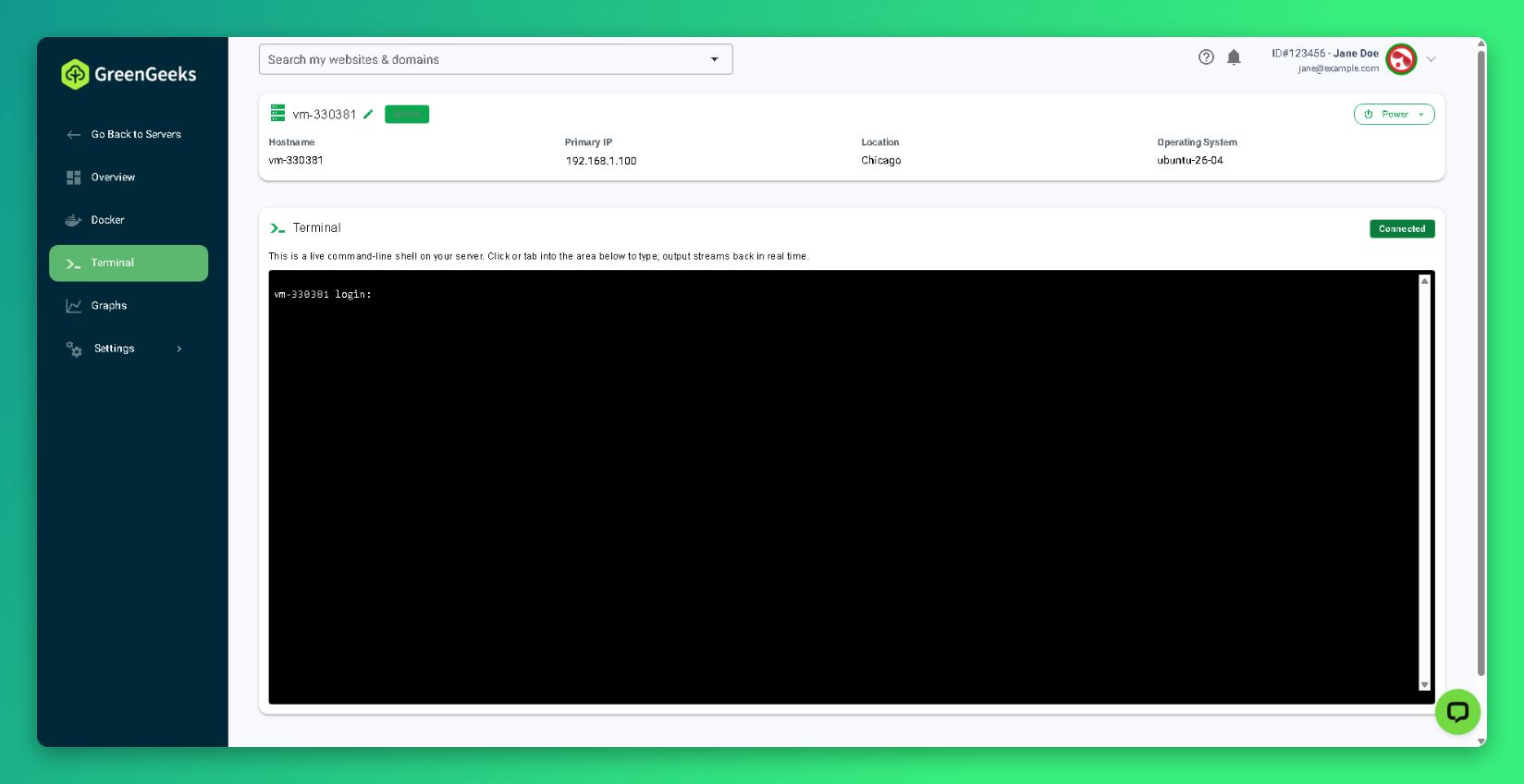
- Click inside the black terminal area.
- Type
rootat thelogin:prompt. - Press Enter.
- Enter your root password.
- Press Enter.
You are now logged in and can run commands as you would over SSH. Your root password is on the Overview page under VPS Details.
Note: The password does not appear on screen as you type. This is normal.
How to Use the Console (VNC)
- Go to your server in the dashboard.
- Select Settings in the left menu.
- Select Console (VNC).
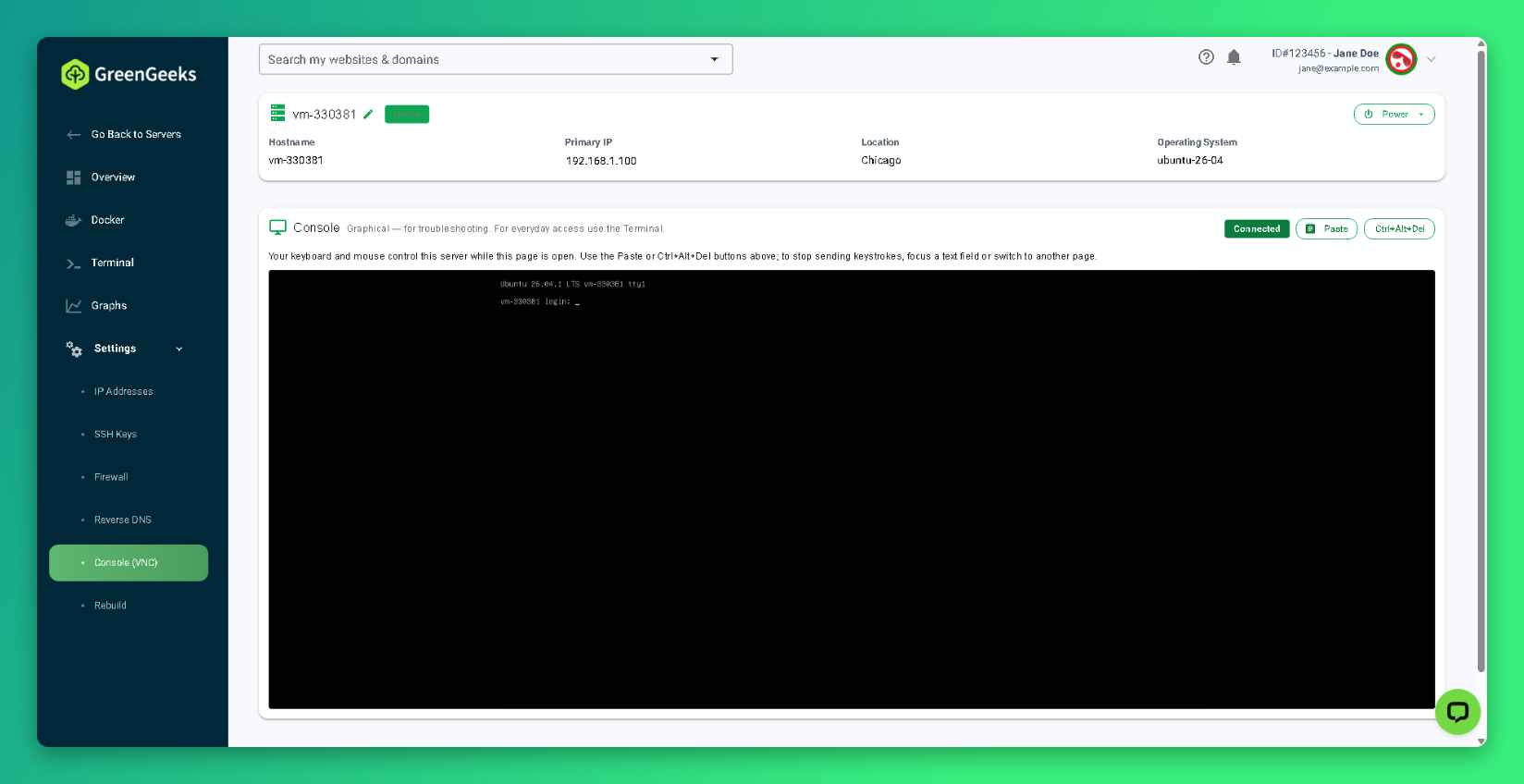
- Click inside the console screen.
- Type
rootat thelogin:prompt. - Press Enter.
- Enter your root password.
- Press Enter.
While the Console page is open, your keyboard and mouse control the server. To stop sending keystrokes, click a text field outside the console or go to another page.
Paste Text Into the Console
- Copy the text on your computer.
- Click Paste at the top of the Console page.
- Add your text into the clipboard pop-up box and click Paste.
Send Ctrl+Alt+Del
Click Ctrl+Alt+Del at the top of the Console page. This restarts most Linux servers.
Watch the Server Start Up
The Console stays open during a reboot. It shows Connection lost — reconnecting while the server restarts, then reconnects by itself and shows startup messages.
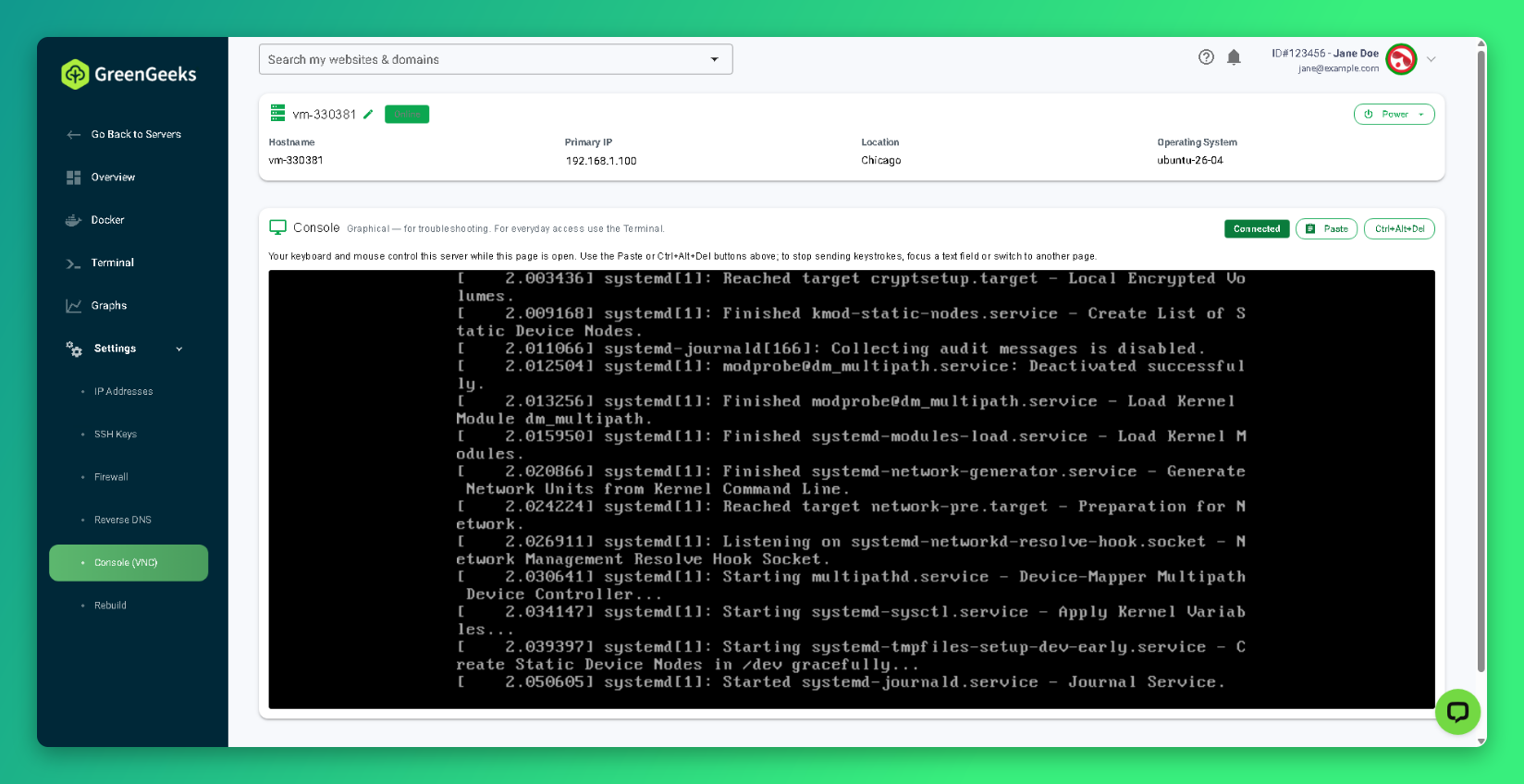
Use this to see where the server stops if it does not finish starting.
Recover From Common Lockouts
| Problem | How to recover |
|---|---|
| Forgot the root password | Set a new one on the Overview page. See How to Connect to Your Self-Managed VPS |
| SSH blocked by a dashboard firewall rule | Fix the rule on the Firewall page. See How to Manage the Self-Managed VPS Firewall . |
| SSH blocked by a firewall inside the server (ufw or iptables) | Log in through the Terminal and turn off the rule, for example with ufw allow 22/tcp or ufw disable. |
| SSH service stopped or misconfigured | Log in through the Terminal and restart it with systemctl restart ssh. |
| Network configuration broken | Log in through the Terminal and restore your netplan file in /etc/netplan/, then run netplan apply. |
| Server does not finish starting | Open the Console (VNC) to read the startup messages. If you cannot fix the problem, rebuild the server. |
| Nothing else works | Rebuild the server. This erases all data. See How to Rebuild Your Self-Managed VPS . |
GreenGeeks support does not troubleshoot problems caused by changes inside the server. See Self-Managed VPS Scope of Support
Tip: Make a copy of your network configuration before you change it:
cp /etc/netplan/50-cloud-init.yaml /root/50-cloud-init.yaml.bakTroubleshooting the Terminal and Console
| Message or symptom | Meaning and fix |
|---|---|
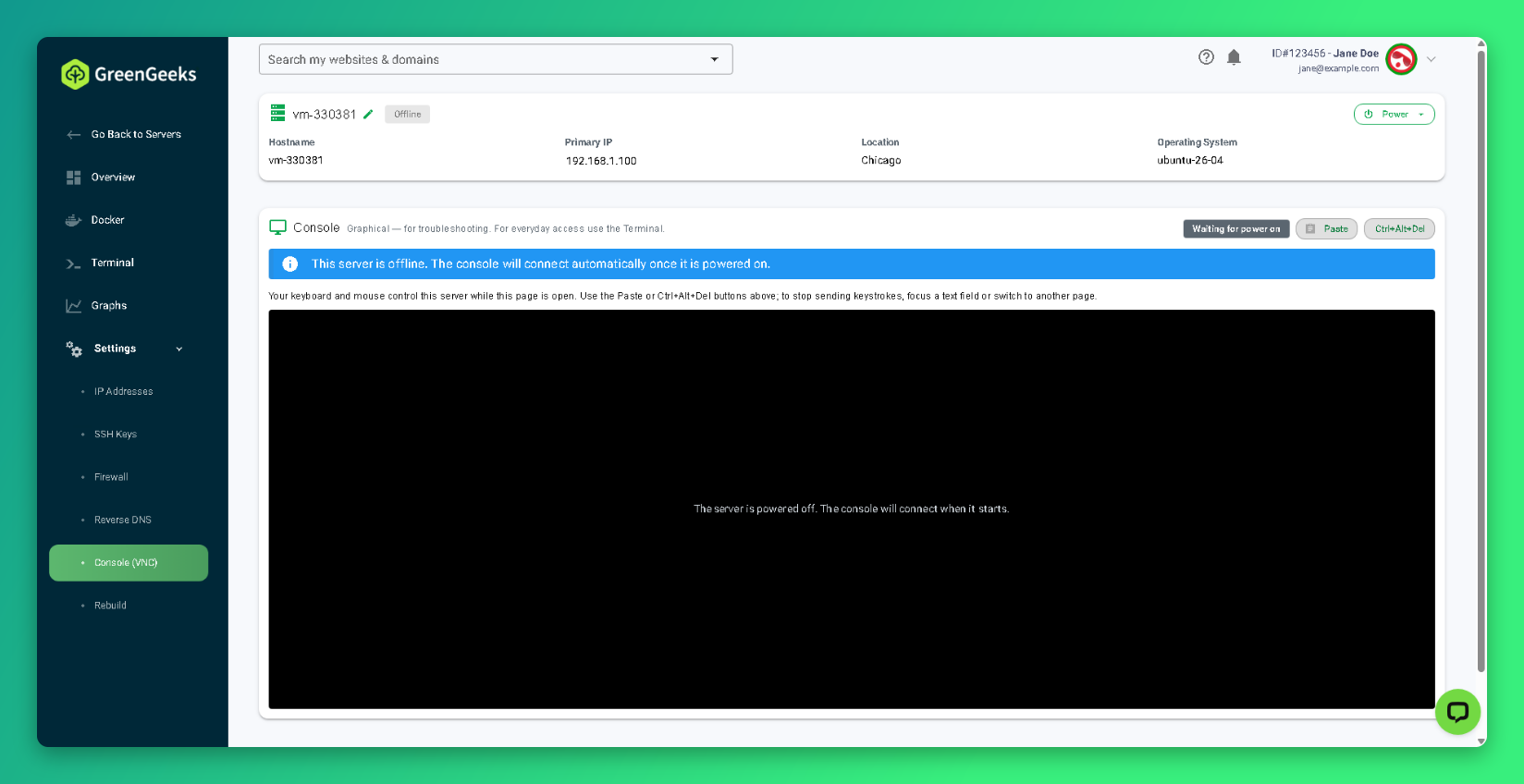
| This server is offline. The console will connect automatically once it is powered on. | The server is powered off. Select Power and then Power on. |
| Connection lost — reconnecting | The server is restarting. Wait for the Console to reconnect. |
| Terminal shows a blank screen | Press Enter to show the login prompt. If nothing appears, use the Console (VNC). |
| Login fails with the correct password | Set a new root password from the Overview page and try again. |
| Keystrokes go to the wrong place | Click inside the console screen before typing. |