
This article explains how to rebuild your Self-Managed VPS from the GreenGeeks dashboard. Use a rebuild to start over with a fresh operating system, switch to a different OS or app such as Docker Host, or recover a server you can no longer repair.
Table of Contents
- Before You Rebuild
- What a Rebuild Keeps and Erases
- How to Reinstall the Current Operating System
- How to Install a Different Operating System or App
- After the Rebuild
Before You Rebuild
A rebuild permanently erases everything on your server’s disk and cannot be undone. GreenGeeks does not keep backups of Self-Managed VPS data and cannot restore it.
- Copy any files, databases, and configuration you want to keep to a location outside the server.
- Try the Terminal or Console (VNC) first if you are rebuilding only because you cannot log in. Most lockouts can be fixed without erasing the server.
What a Rebuild Keeps and Erases
| Kept | Erased |
|---|---|
| IP address | All files, databases, and installed software |
| Server region | Users and settings inside the server |
| Hostname | Docker containers, images, and volumes |
| SSH keys saved to your GreenGeeks account | Firewall rules in the dashboard |
| The server’s SSH host keys |
Firewall rules are deleted by a rebuild. Write down your rules before you rebuild so you can add them again.
How to Reinstall the Current Operating System
- Log in to your GreenGeeks dashboard.
- Select Servers in the left menu.
- Click Manage next to your Self-Managed VPS.
- Select Settings in the left menu.
- Select Rebuild.
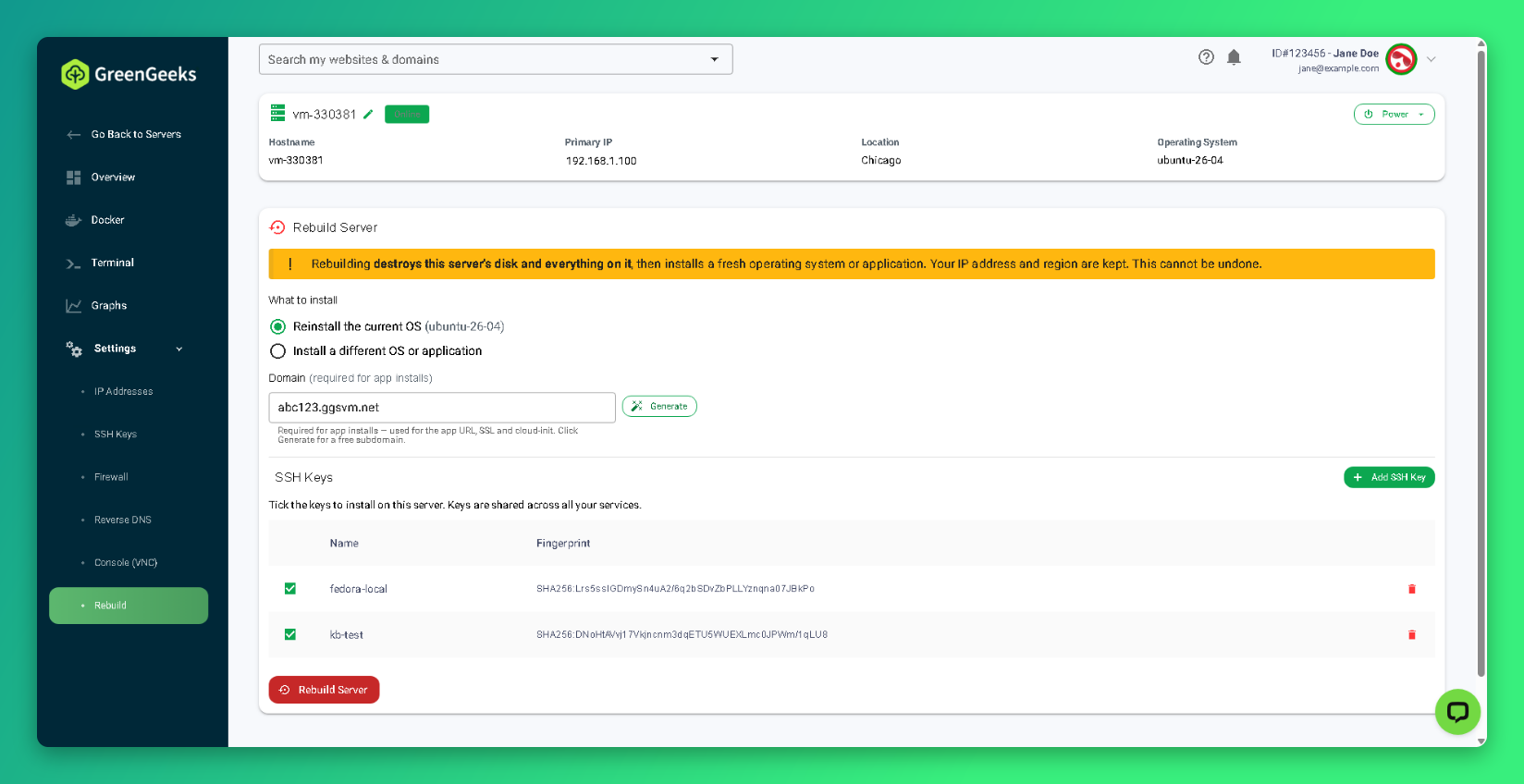
- Confirm Reinstall the current OS is selected.
- Select the SSH keys to install on the rebuilt server under SSH Keys.
- Click Rebuild Server.
- Type
REBUILDin the confirmation field.
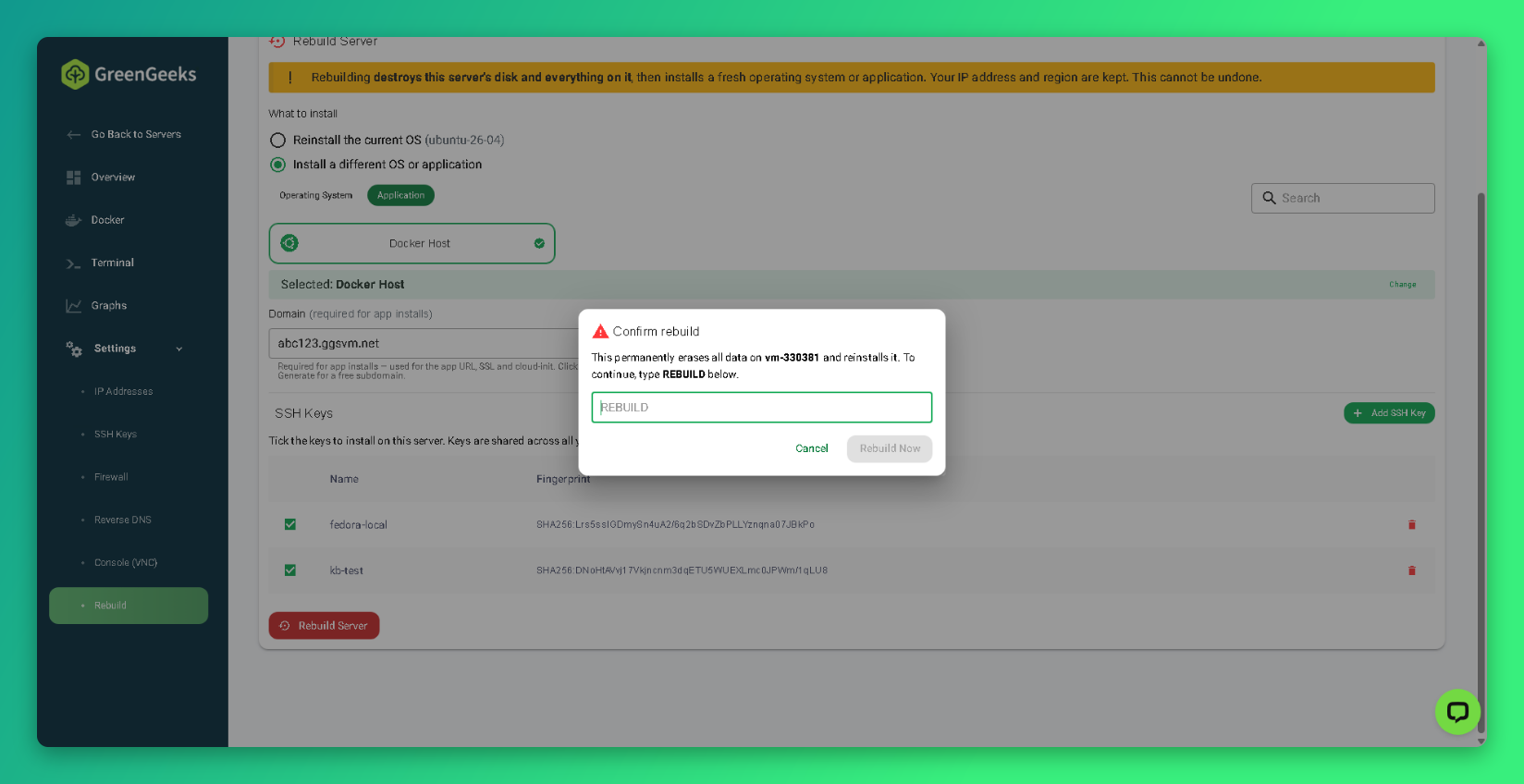
- Click Rebuild Now.
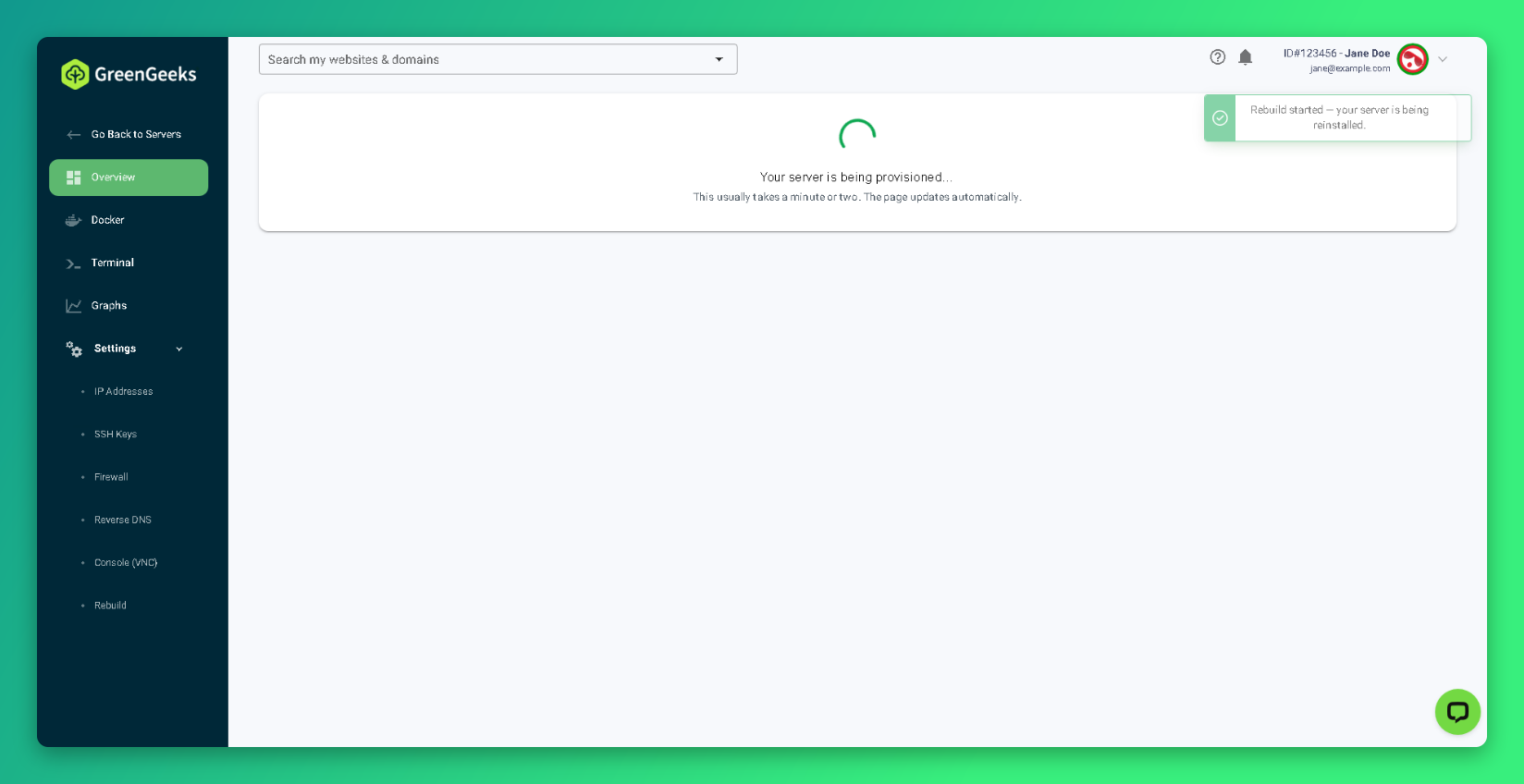
The rebuild usually takes a minute or two. The page updates automatically when the server is ready.
How to Install a Different Operating System or App
- Open the Rebuild page by following steps 1 to 5 in How to Reinstall the Current Operating System.
- Select Install a different OS or application.
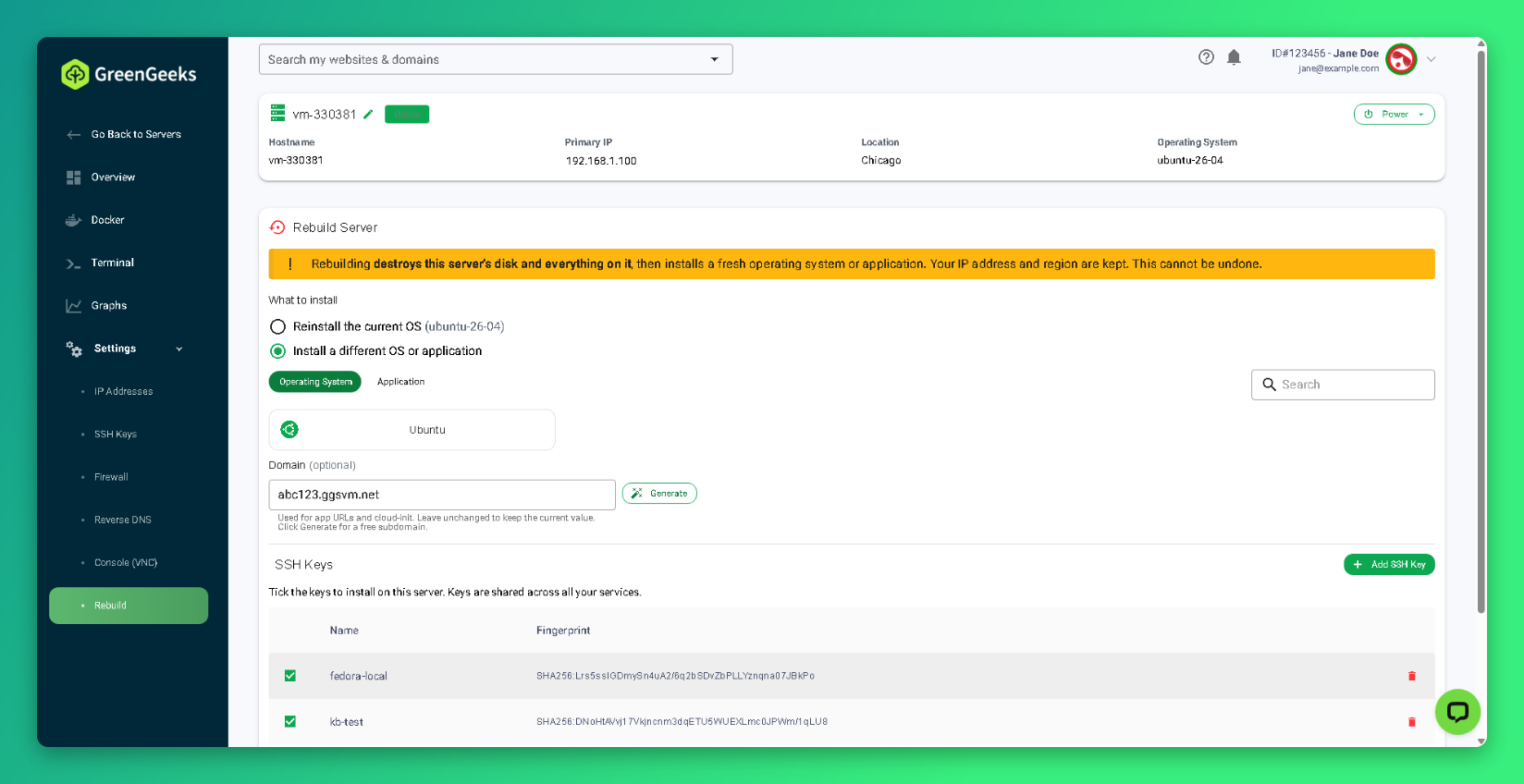
- Select the Operating System tab or the Application tab.
- Click the OS or app you want to install, such as Docker Host.
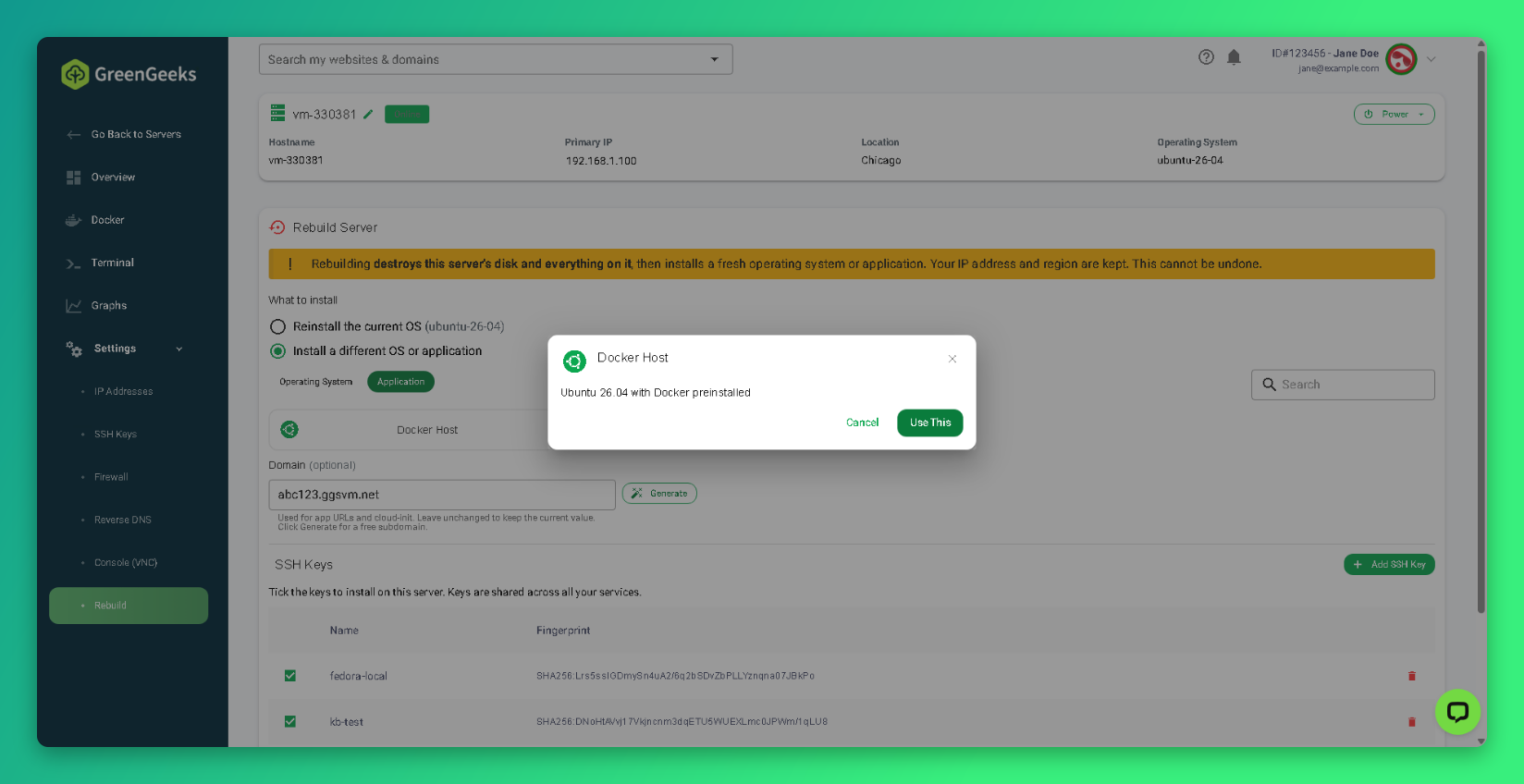
- Click Use This.
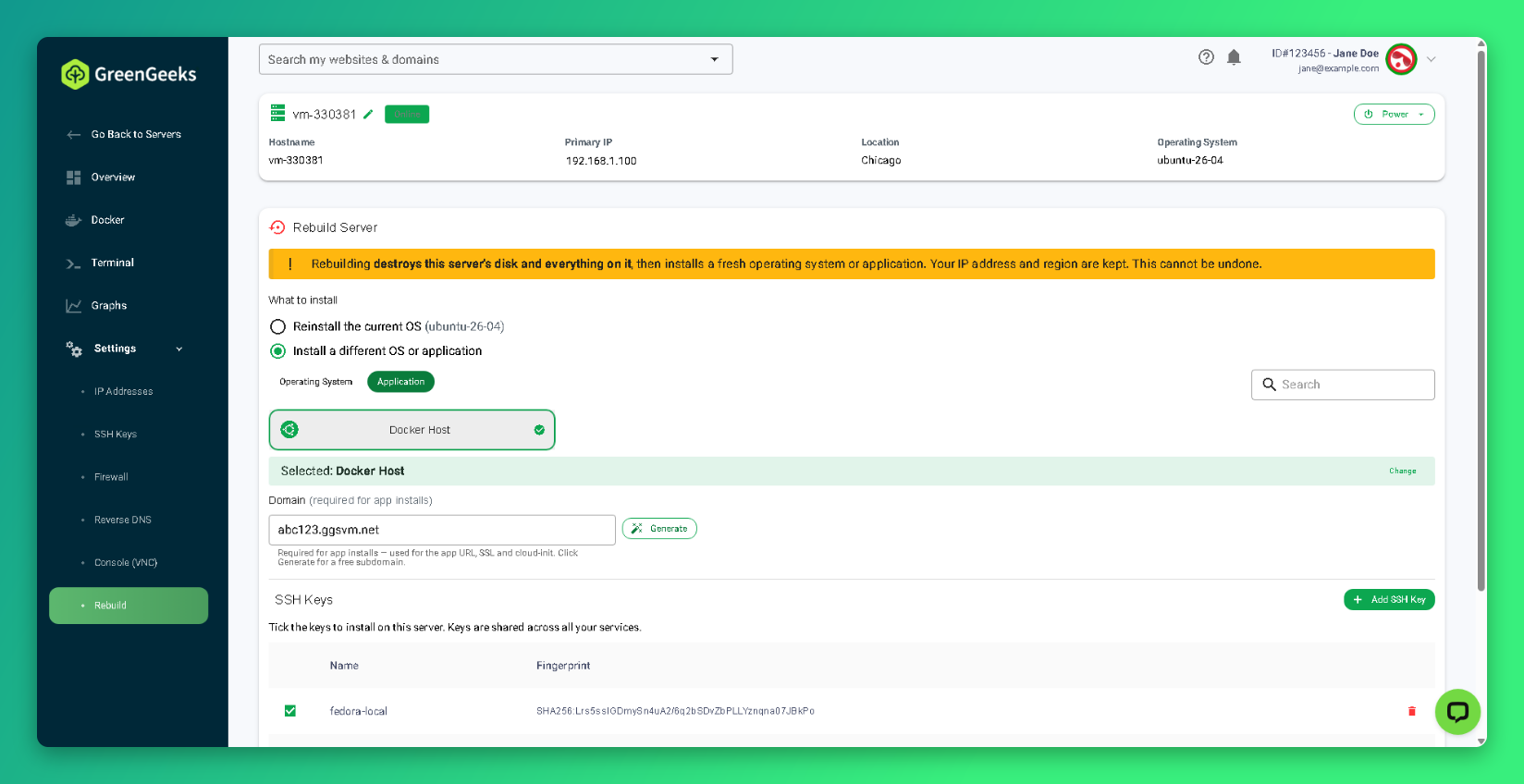
- Check the Domain field. Apps require a domain, which is used for the app’s address and HTTPS certificate. Keep the existing free domain, enter your own, or click Generate to create a new free subdomain.
- Select the SSH keys to install on the rebuilt server under SSH Keys.
- Click Rebuild Server.
- Type
REBUILDin the confirmation field. - Click Rebuild Now.
The available templates are:
| Template | Type | Includes |
|---|---|---|
| Ubuntu | Operating System | Ubuntu Server 24.04 LTS |
| Docker Host | Application | Ubuntu 26.04 LTS with Docker Engine and Docker Compose, plus the Docker app catalog in your dashboard |
To deploy apps such as WordPress on a Docker Host server, see How to Deploy Apps on a Docker Host Self-Managed VPS
After the Rebuild
- Log in again: use the root password on the Overview page or one of the SSH keys you selected.
- Clear the SSH warning: your computer shows a REMOTE HOST IDENTIFICATION HAS CHANGED warning the first time you connect. See How to Connect to Your Self-Managed VPS
- Restore your data: copy your backups back to the server.
- Add your firewall rules again: the rebuild deletes them. See How to Manage the Self-Managed VPS Firewall
- Secure the server: install updates.
If the rebuild does not finish or the server does not come online afterward, open a support ticket. Failed rebuilds are covered by GreenGeeks support.