
This article explains how to install one-click apps, such as WordPress, on a Self-Managed VPS running the Docker Host template. It also covers managing installed apps and connecting your own domain.
Table of Contents
- Before You Begin
- Available One-Click Apps
- How to Deploy a One-Click App
- What to Do After Deployment
- How to Manage an Installed App
- How to Add a Domain to an App
- How to Deploy a Custom App
- Support for Docker Apps
Before You Begin
- Your server must use the Docker Host template. The Docker page only appears in the dashboard for Docker Host servers. To switch, see How to Rebuild Your Self-Managed VPS. Rebuilding erases all data on the server.
- Each Docker Host server includes a free domain, such as
abc123.ggsvm.net. You can publish apps at this domain, at a subdomain of it, or at your own domain. - Some apps need more memory. OpenClaw and Buzz need at least 4 GB of RAM.
Available One-Click Apps
| Category | App | Description |
|---|---|---|
| AI | Hermes Agent | Self-hosted AI agent with a web dashboard. Requires your own model API key. |
| AI | OpenClaw | Personal AI agent gateway with a web control panel. Requires your own model API key and 4 GB+ RAM. |
| AI | Paperclip | Runs a team of AI agents with goals, budgets, and a dashboard. Requires your own model API key. |
| Communication | Buzz | Team workspace for people and AI agents, used with the Buzz desktop app. Requires 4 GB+ RAM. |
| Developer tools | Gitea | Self-hosted Git service with pull requests, issues, and a web interface. |
| Monitoring | Uptime Kuma | Monitors websites and services and sends alerts when they go down. |
| Monitoring | Grafana | Dashboards for metrics, logs, and databases. |
| Web | WordPress | Website and blogging platform, with its own MariaDB database. |
| Web | Static website (Nginx) | Serves a static HTML, CSS, and image site. |
| Custom | Custom app | Deploys your own docker-compose file. |
How to Deploy a One-Click App
These steps use WordPress as an example. Other apps follow the same process, with app-specific fields in step 7.
- Log in to your GreenGeeks dashboard.
- Select Servers in the left menu.
- Click Manage next to your Docker Host server.
- Select Docker in the left menu.
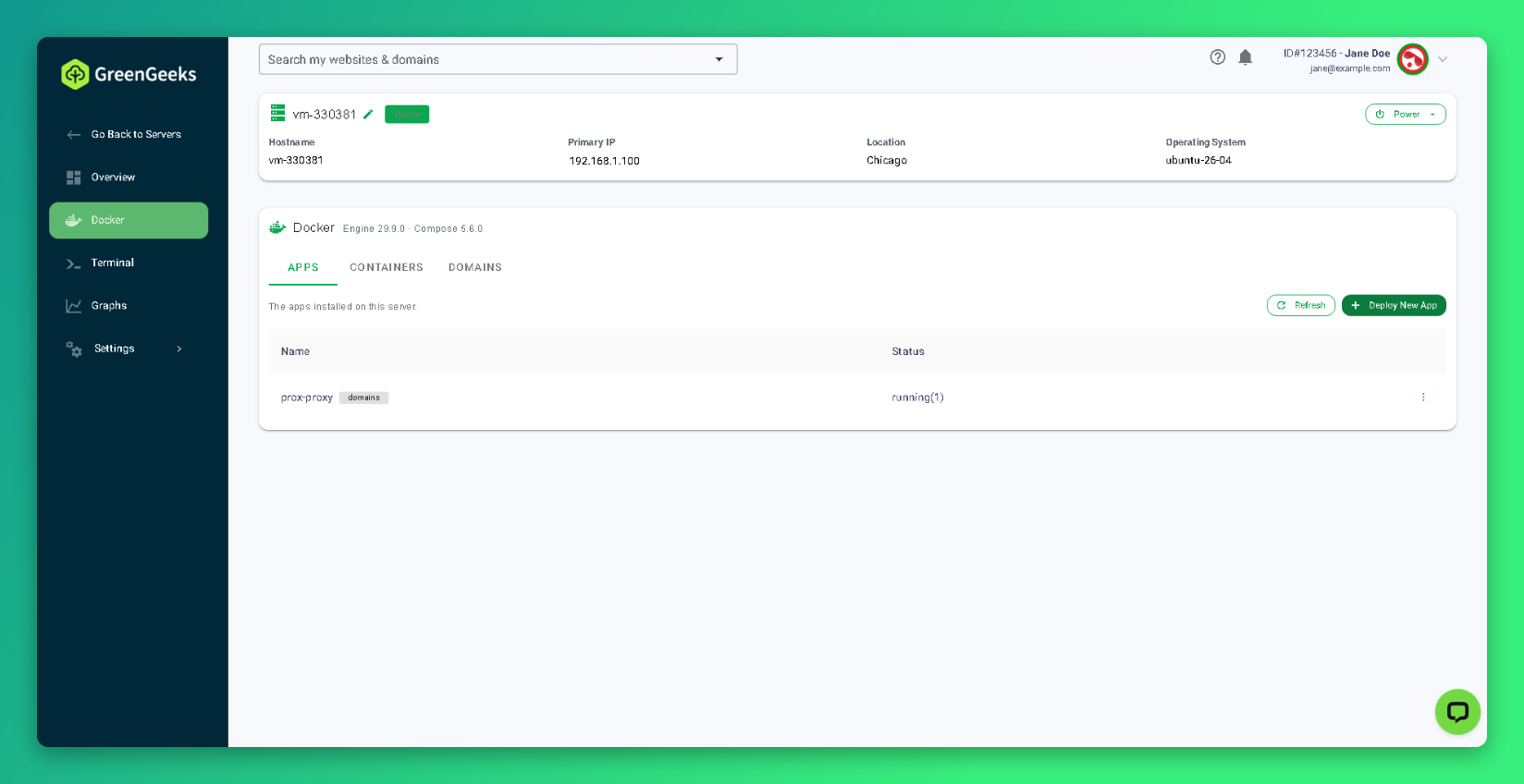
- Click Deploy New App.
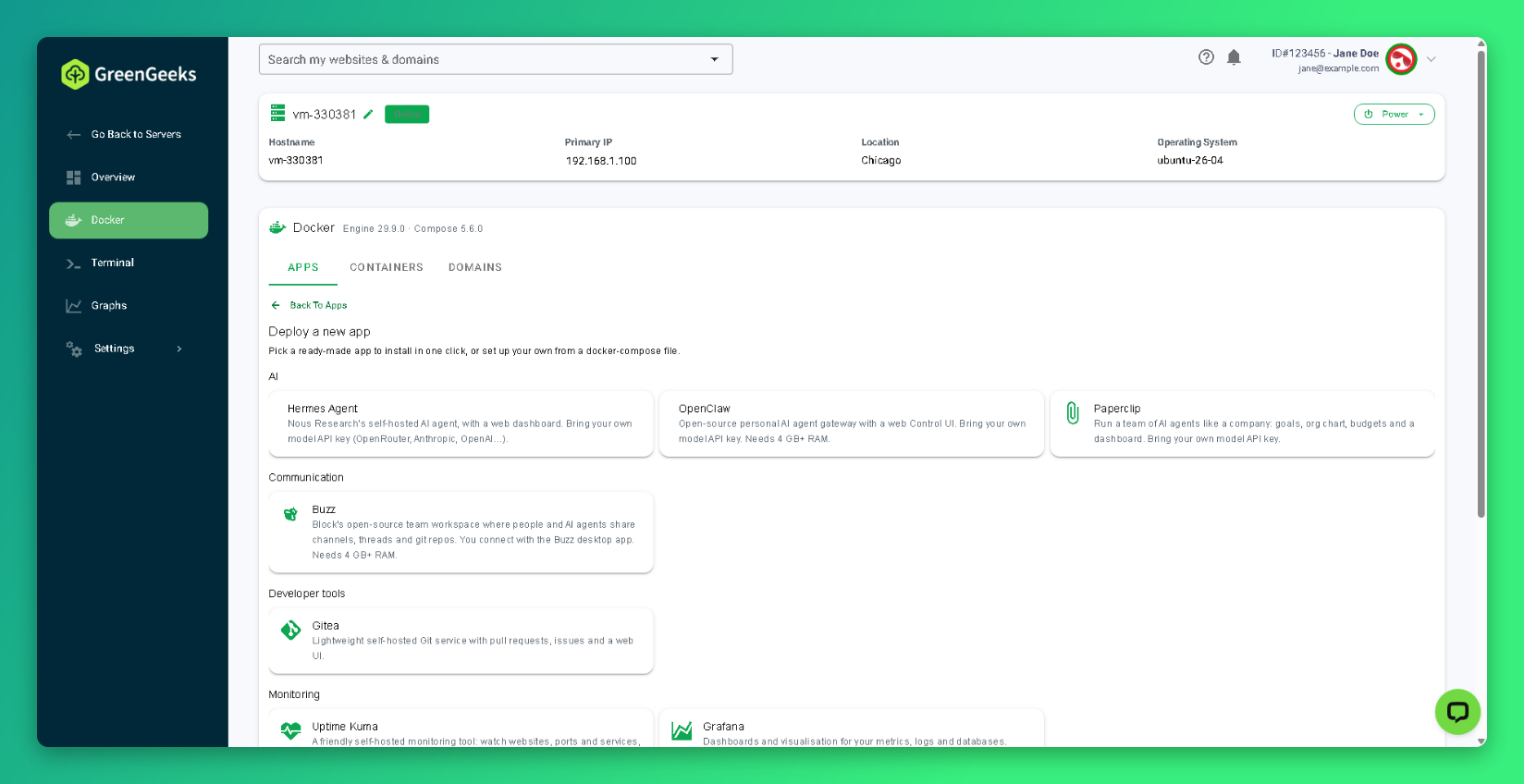
- Click the app you want to install, such as WordPress.
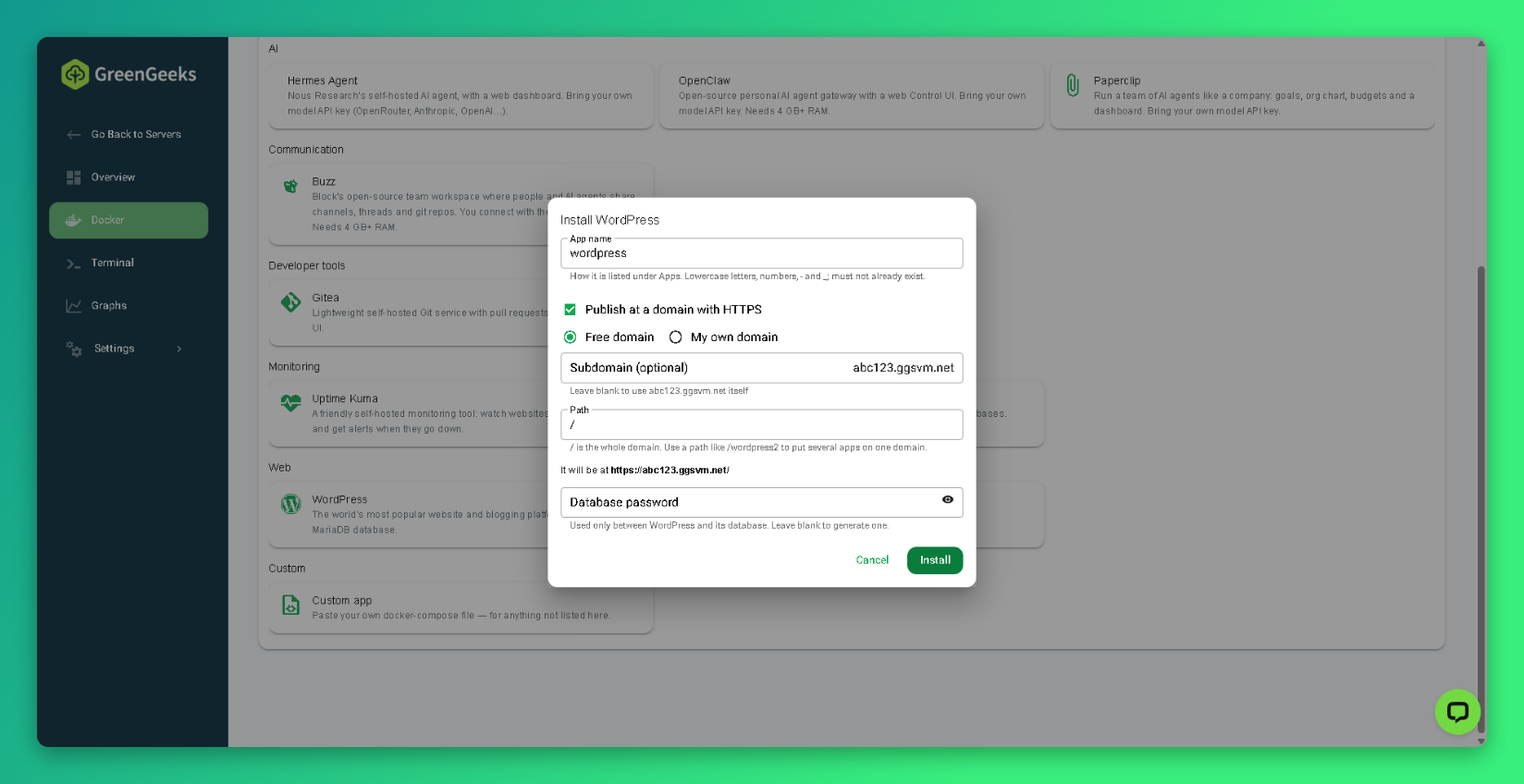
- Review the settings:
- App name: how the app is listed under Apps. Use lowercase letters, numbers, hyphens, and underscores.
- Publish at a domain with HTTPS: keep this selected to get a secure web address.
- Free domain or My own domain: where the app is published. To use your own domain, see How to Add a Domain to an App.
- Subdomain: optional. Leave blank to use the free domain itself.
- Path:
/publishes the app at the whole domain. - Database password: leave blank to generate one.
- Click Install.
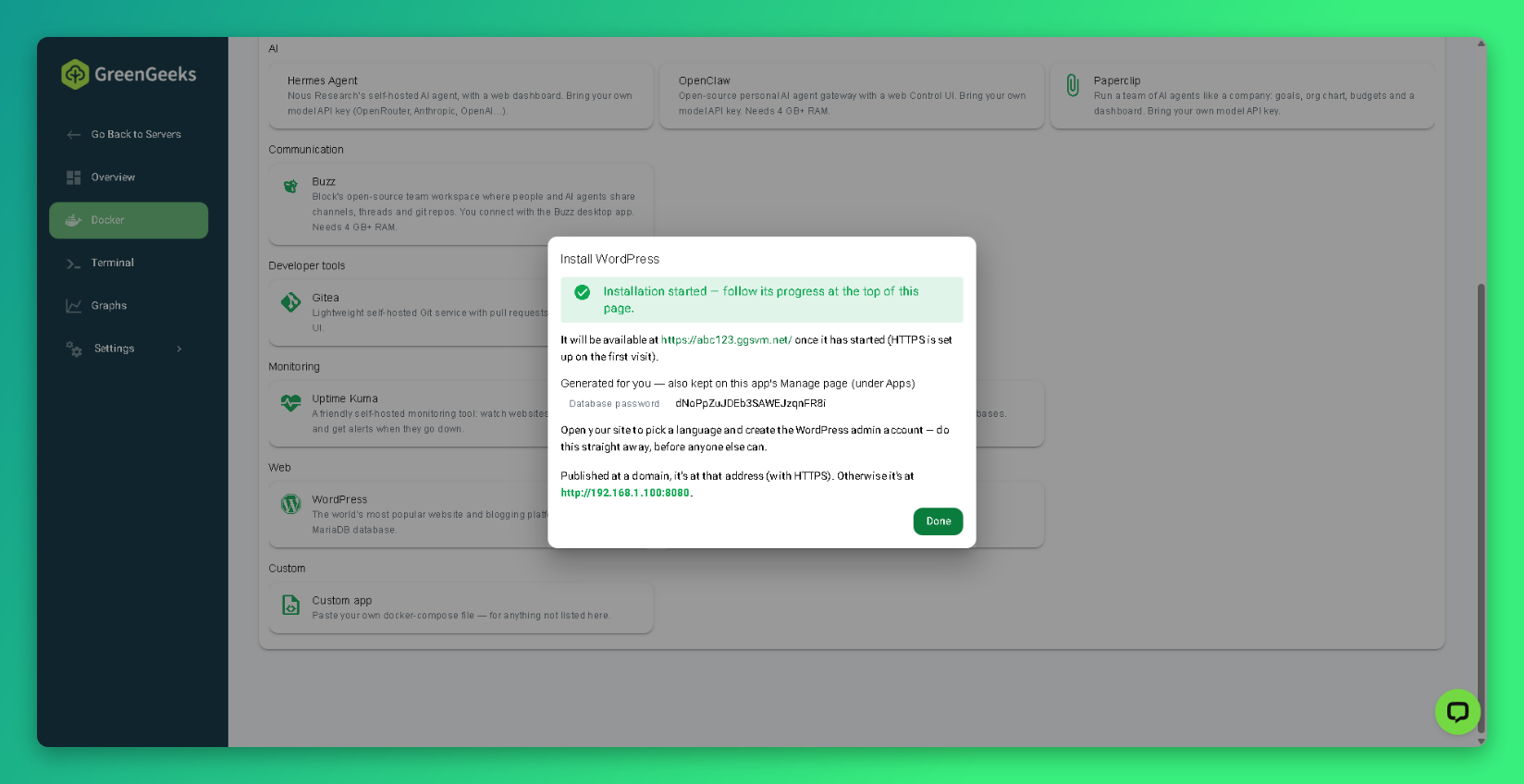
- Click Done.
The app is ready in about a minute. Its progress appears at the top of the Docker page.
What to Do After Deployment
Open the app’s address right away to finish setup. For WordPress, this is the WordPress setup screen, where you choose a language and create your admin account.
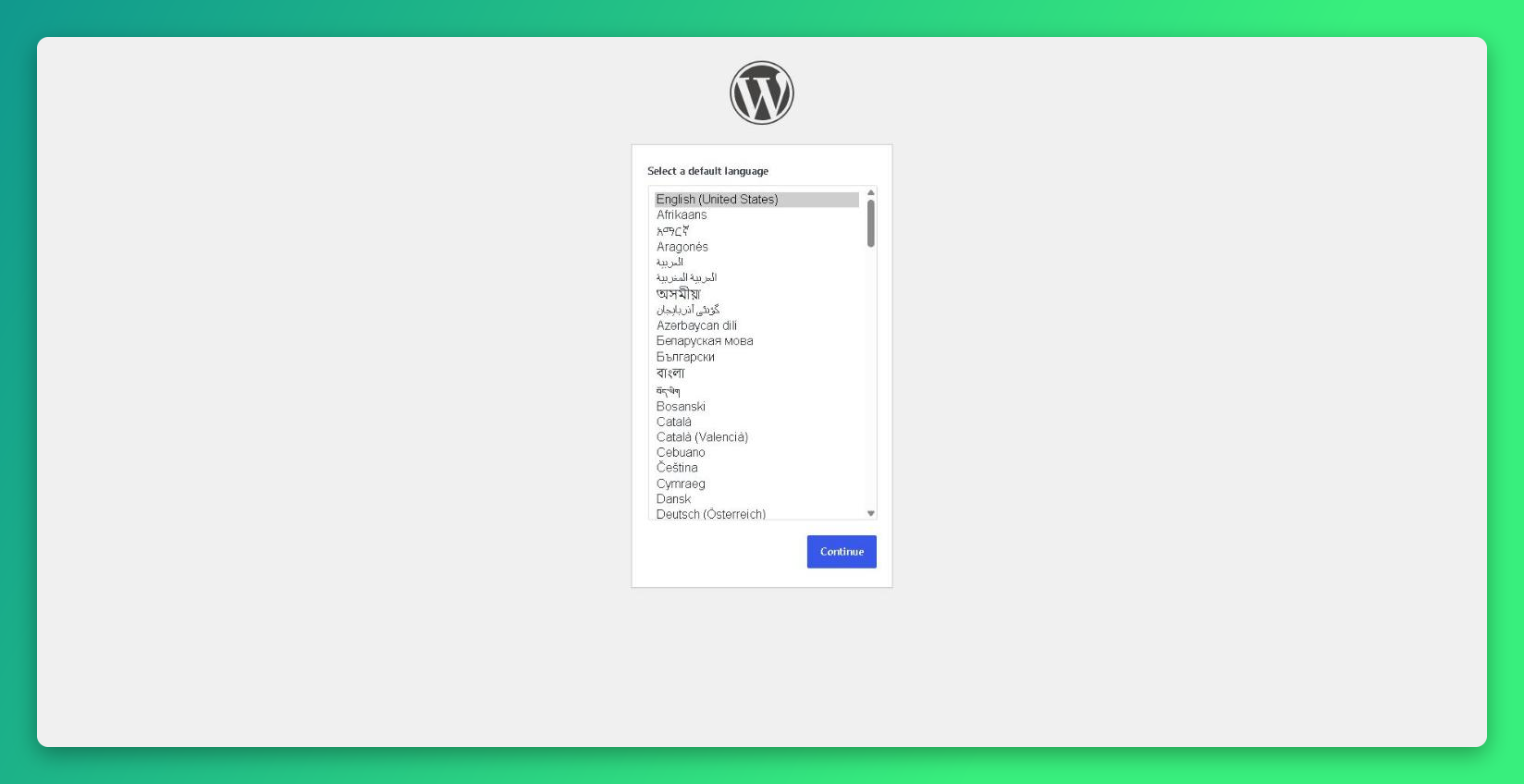
Complete setup immediately. Until you create the admin account, anyone who visits the address can do it first.
Seeing this setup screen means the deployment was successful. Setting up and running the app from this point is your responsibility.
How to Manage an Installed App
- Go to the Docker page.
- Click Manage next to the app.
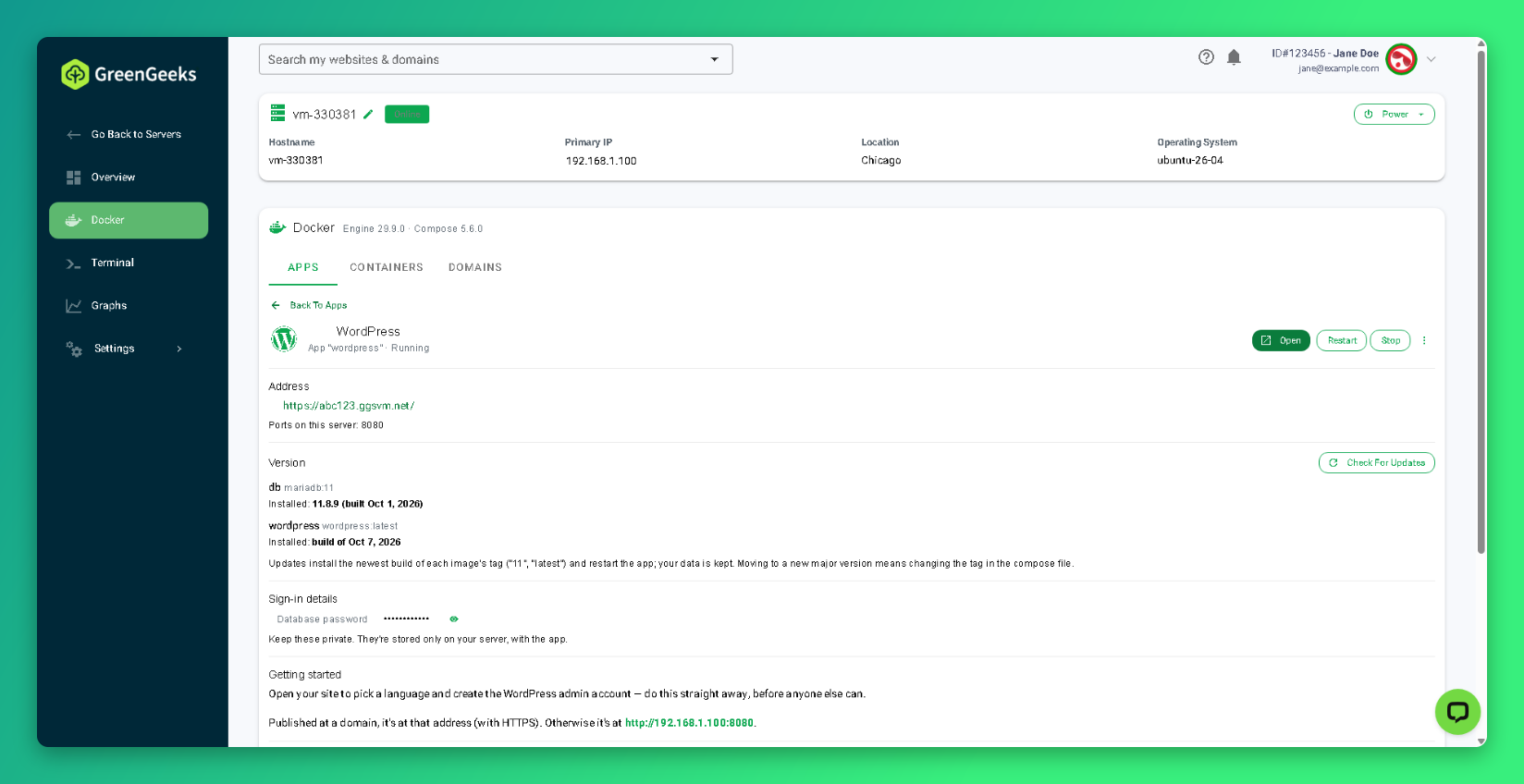
The Manage page shows the app’s address, installed versions, generated passwords, and setup instructions. The buttons at the top open, restart, or stop the app.
More actions are available from the menu icon (?) next to the app on the Apps tab:
| Action | What it does |
|---|---|
| Edit compose file | Opens the app’s docker-compose configuration. |
| Redeploy | Applies the compose file again. |
| Update to the newest build | Downloads the newest image for each version tag and restarts the app. Your data is kept. |
| Restart | Restarts the app’s containers. |
| Stop | Stops the app. |
| Start | Starts a stopped app. |
| Take down (remove containers) | Removes the app’s containers. |
| Delete app… | Removes the app from the server. |
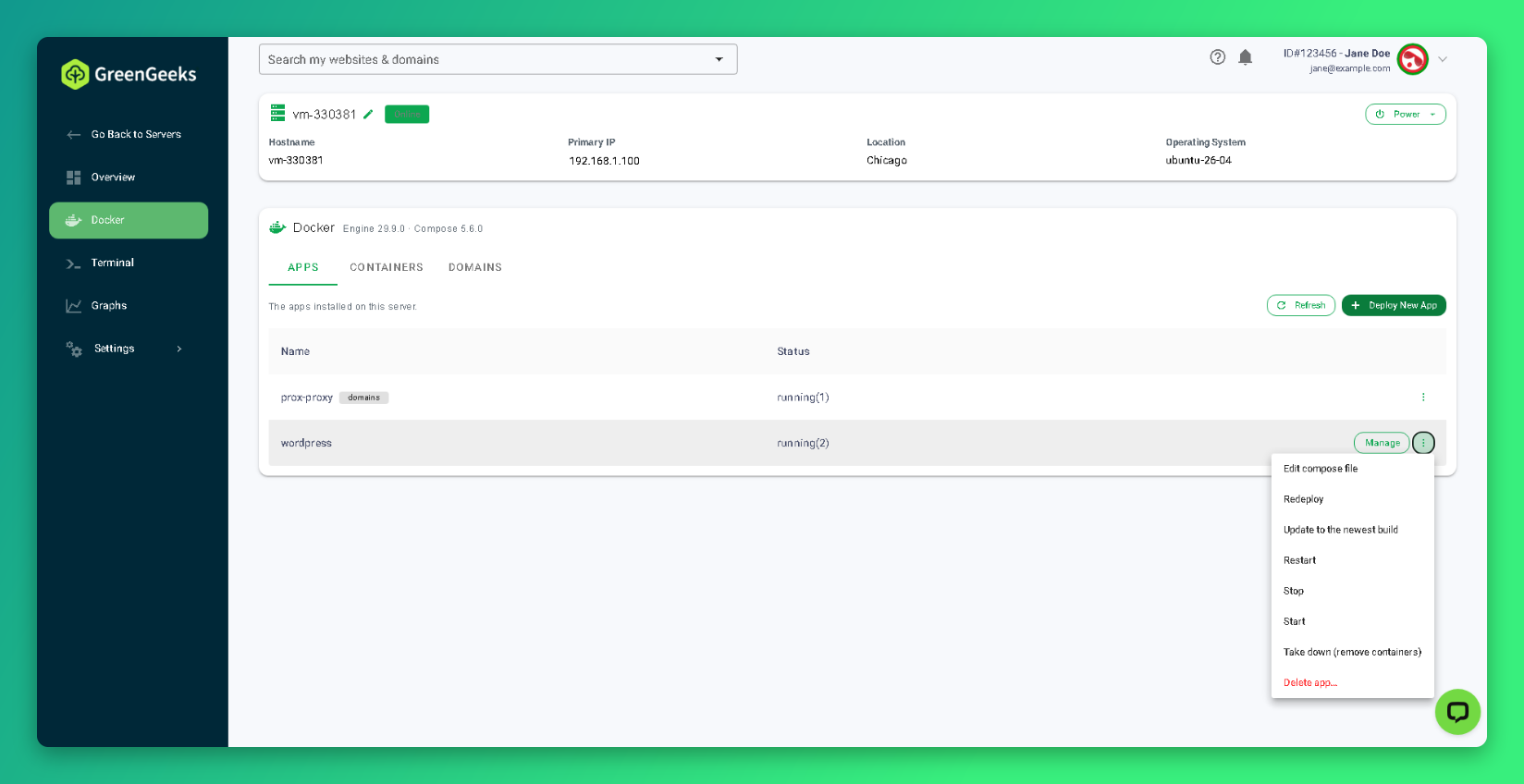
Note: Update to the newest build stays within the same version tag. Moving to a new major version requires changing the tag in the compose file.
How to Add a Domain to an App
- Point your domain’s DNS A record to your server’s Primary IP. You can find the IP on the Overview page.
- Go to the Docker page.
- Select the Domains tab.
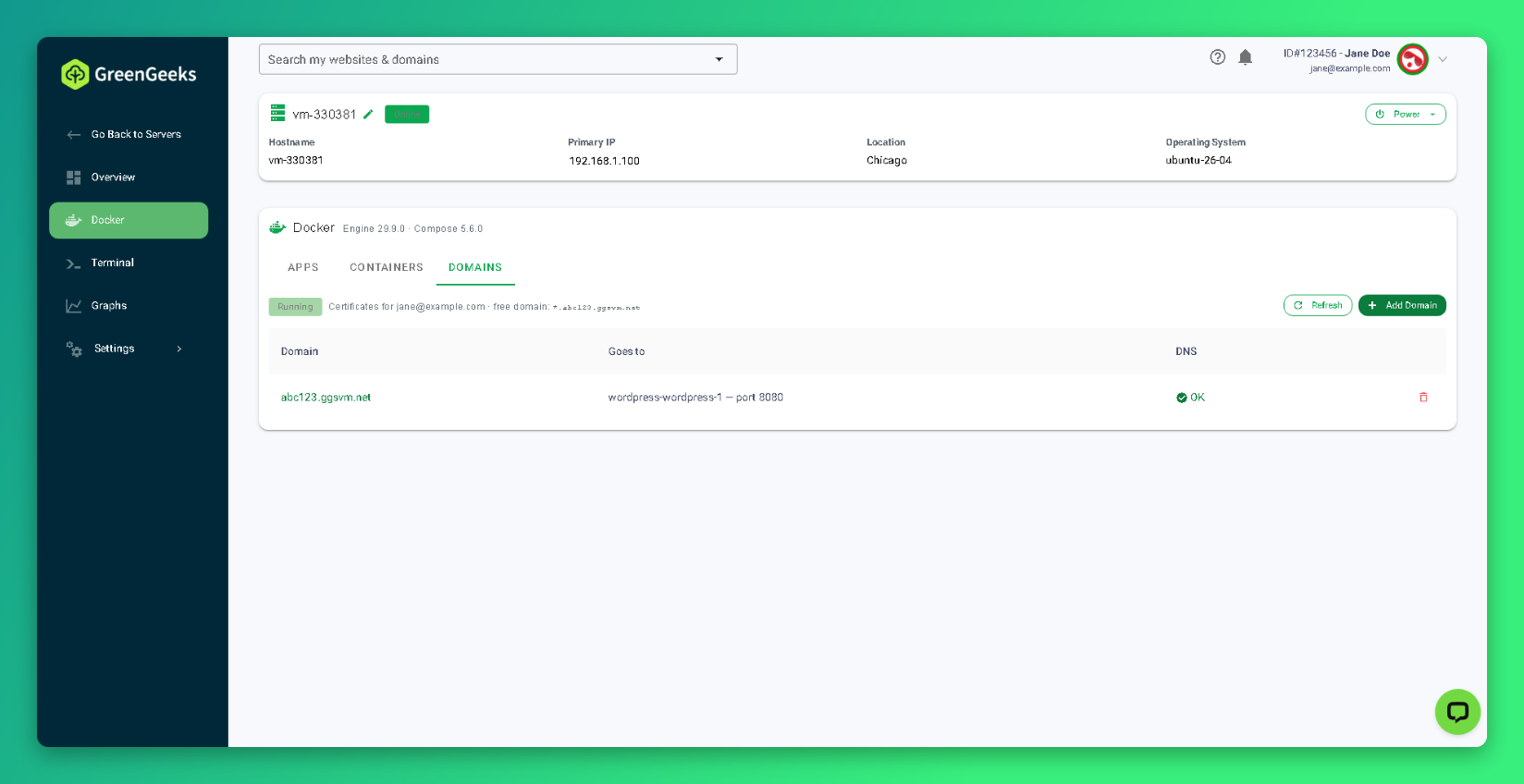
- Click Add Domain.
- Select My own domain.
- Enter your domain in the Domain field.
- Enter
/in the Path field to use the whole domain. - Select the app from the App list.
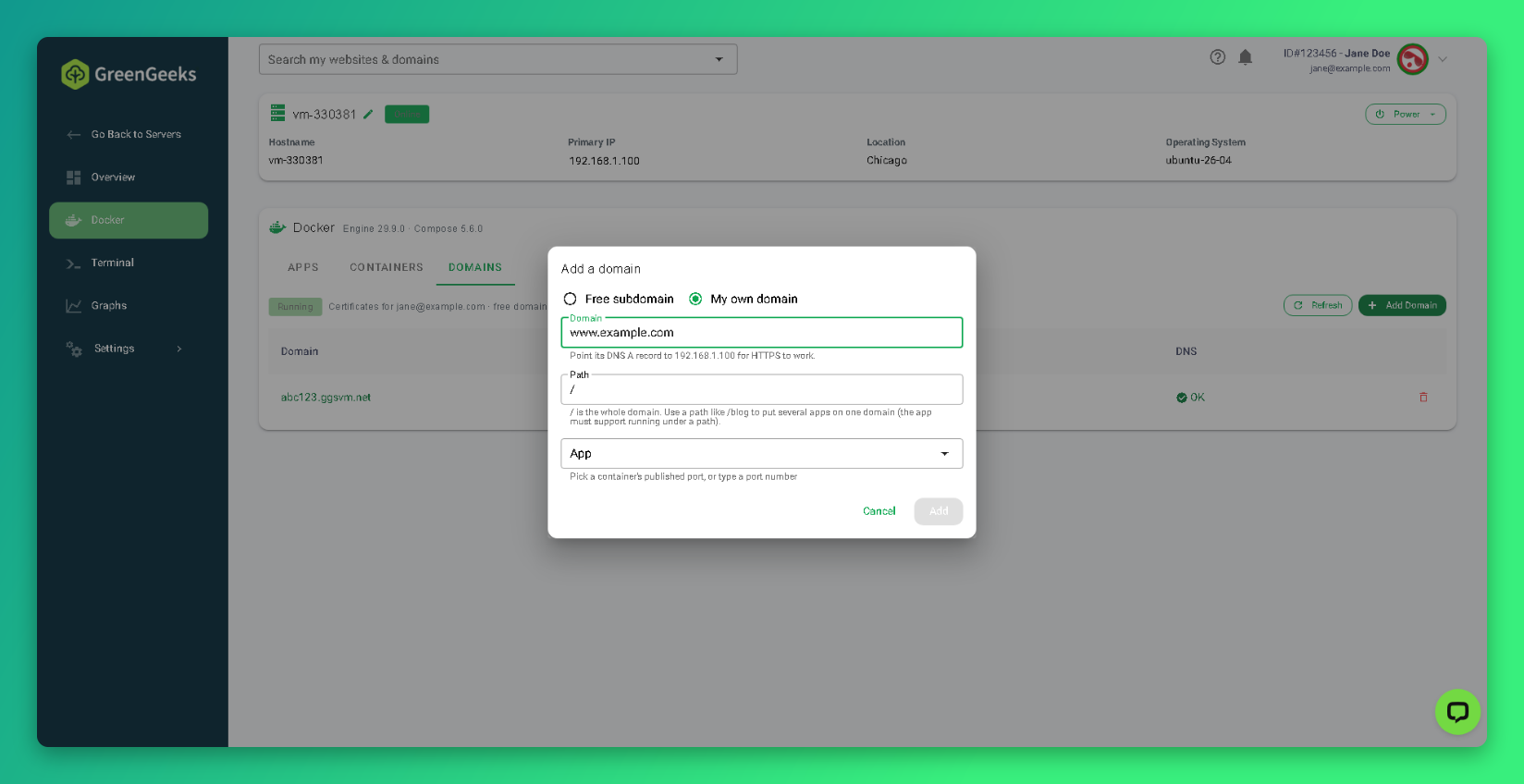
- Click Add.
The DNS column shows OK when your domain points to the server. HTTPS is set up automatically the first time someone visits the domain.
To publish several apps on one domain, give each one a different path, such as /blog. The app must support running under a path.
How to Deploy a Custom App
Use Custom app to deploy software that is not in the catalog.
- Go to the Docker page.
- Click Deploy New App.
- Click Custom app.
- Paste your docker-compose file.
- Follow the prompts to finish deployment.
Custom apps and containers you start with Run Container are not covered by GreenGeeks support.
Support for Docker Apps
| Situation | Covered by GreenGeeks Support |
|---|---|
| App deployment fails or does not finish | Yes |
| App does not reach its default setup screen after deployment | Yes |
| Free domain or HTTPS certificate is not issued for a new app | Yes |
| App configuration, content, plugins, or themes | No |
| App stops working after you change or update it | No |
| Custom apps and containers you run yourself | No |
For the full support policy, see Self-Managed VPS Scope of Support