
This article explains how to find your Self-Managed VPS login details and connect to it over SSH. It also covers adding SSH keys, changing the root password, and changing the hostname from the GreenGeeks dashboard.
Table of Contents
- Find Your Server Details
- Connect With SSH
- Add an SSH Key
- Change the Root Password
- Change the Hostname
- Fix the Remote Host Identification Has Changed Warning
- Next Steps
Find Your Server Details
- Log in to your GreenGeeks dashboard.
- Select Servers in the left menu.
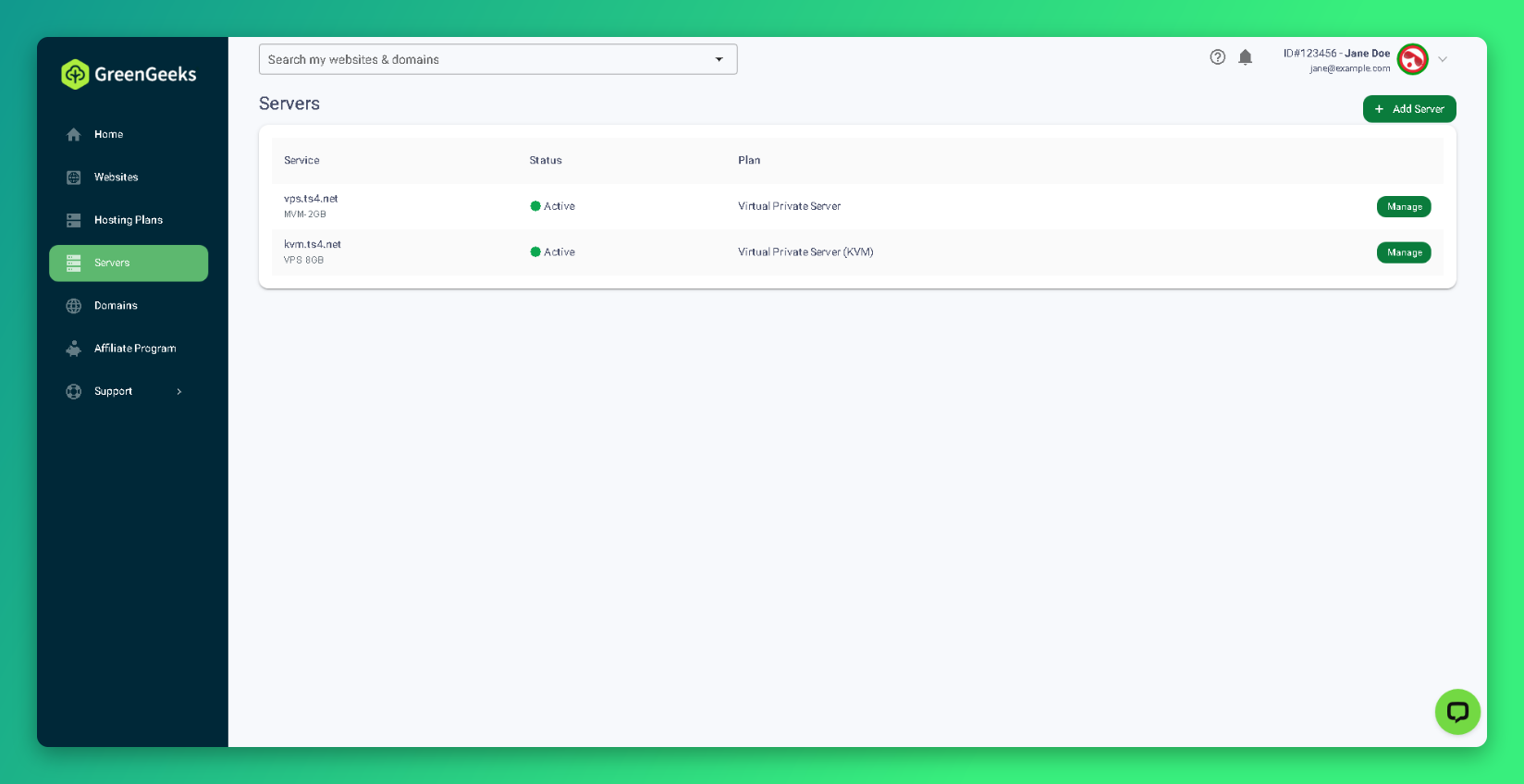
- Click Manage next to your Self-Managed VPS: [Virtual Private Server (KVM)]
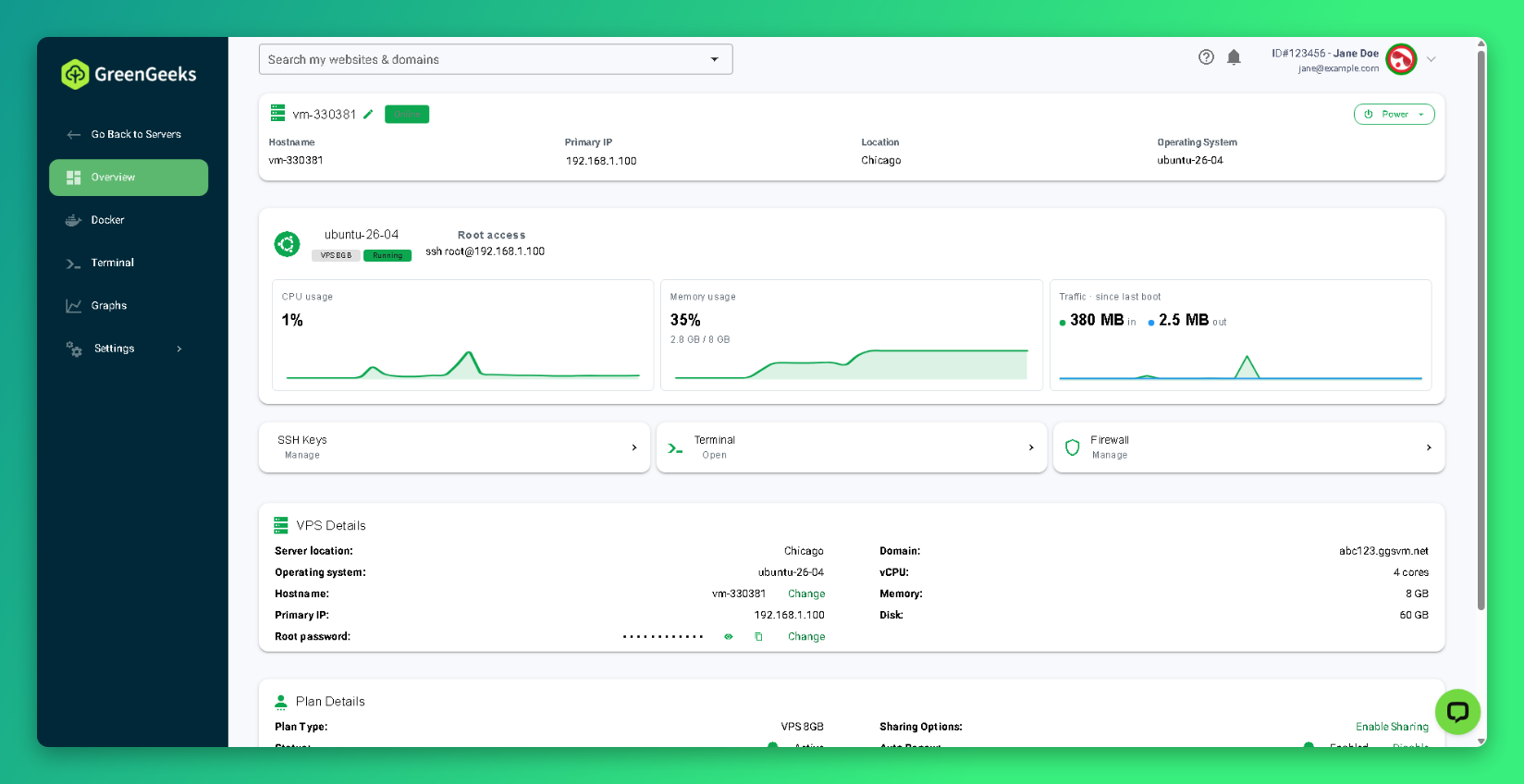
The Overview page shows the details you need to connect:
| Detail | Where to find it |
|---|---|
| Primary IP | Top of the page and in VPS Details |
| SSH command | Root access, for example ssh [email protected] |
| Root password | VPS Details. Click the eye icon to show it or the copy icon to copy it. |
| Free domain | Domain in VPS Details, for example abc123.ggsvm.net |
Connect With SSH
Use the terminal app on your computer: Terminal on macOS and Linux, or Windows Terminal or PowerShell on Windows.
- Open the terminal app on your computer.
- Enter the SSH command from Root access:
ssh [email protected]- Type
yesand press Enter if you are asked to confirm the server’s fingerprint. - Enter the root password when prompted. If you added an SSH key, you are logged in without a password.
If SSH does not connect, use the Terminal or Console (VNC) in the dashboard instead. See How to Use the Terminal and Console on Your Self-Managed VPS
Add an SSH Key
SSH keys are more secure than passwords. Keys you add are saved to your GreenGeeks account and can be used on any of your servers.
- Select Settings in the left menu.
- Select SSH Keys.
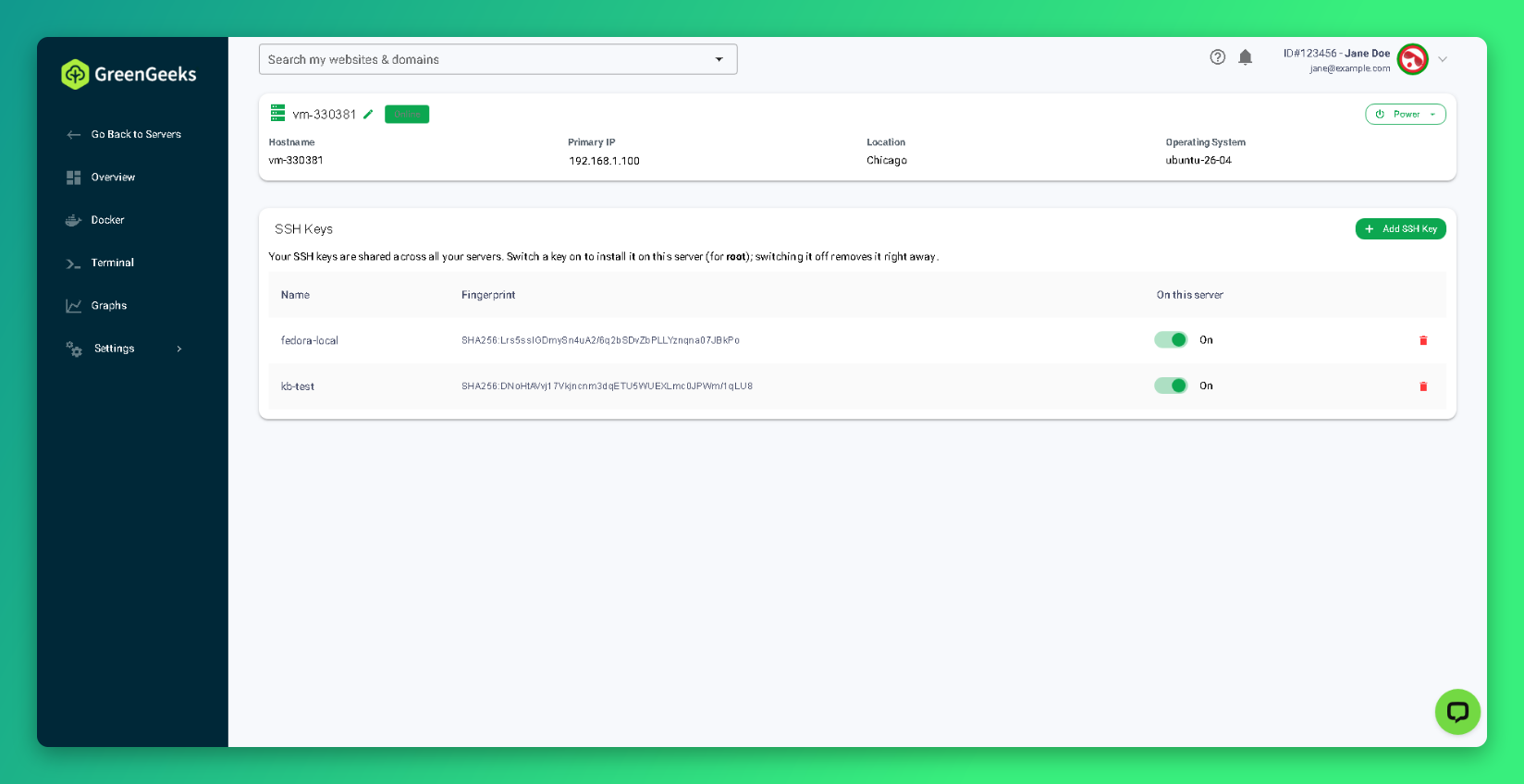
- Click Add SSH Key.
- Enter a name for the key in the Name field.
- Paste your public key into the Public key field. A public key file usually ends in
.pub, such asid_ed25519.pub.
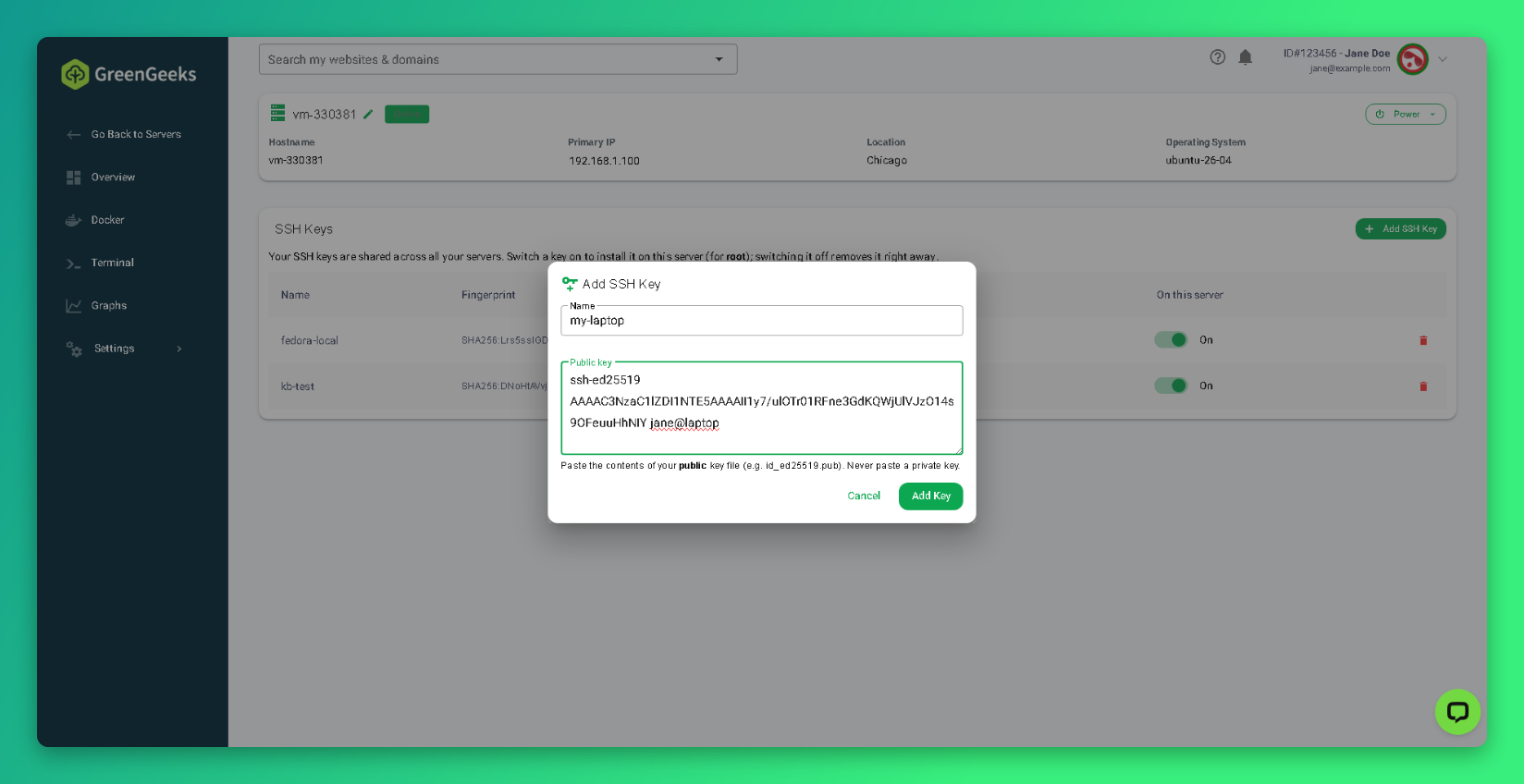
- Click Add Key.
The new key is switched On for this server and installed for the root user right away. To remove a key from this server, switch its toggle off. To delete a key from your account, click the trash icon.
Note: Never paste a private key. A private key file has no .pub extension.
Change the Root Password
Use this to set a new root password, including when you have forgotten the current one.
- Go to the Overview page.
- Click Change next to Root password in VPS Details.
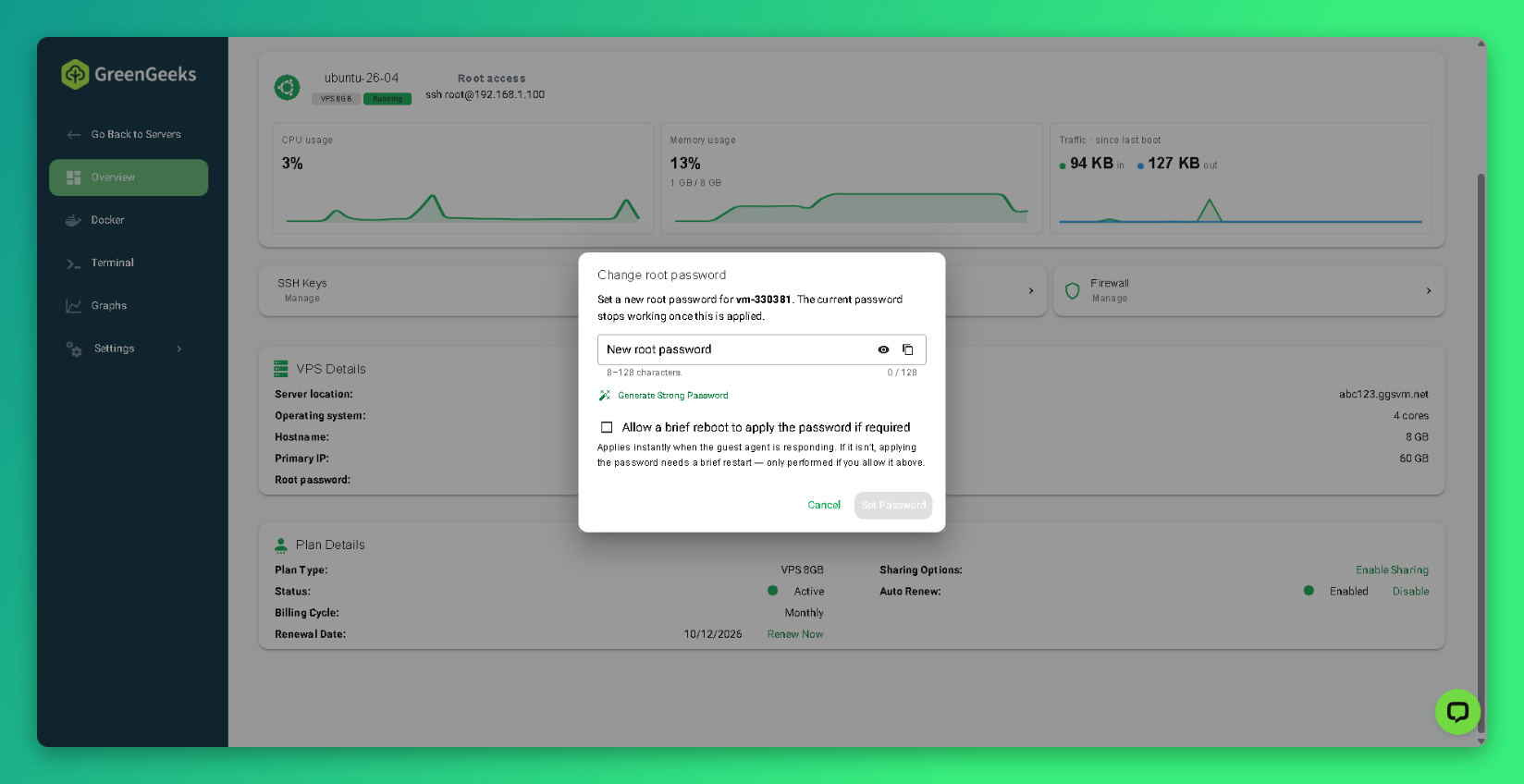
- Enter a new password of 8 to 128 characters, or click Generate Strong Password.
- Select Allow a brief reboot to apply the password if required if the server may need a restart.
- Click Set Password.
The new password applies right away if the server is responding. If the server is not responding, the password applies after a brief restart, but only if you selected the reboot option.
Change the Hostname
- Go to the Overview page.
- Click Change next to Hostname in VPS Details.
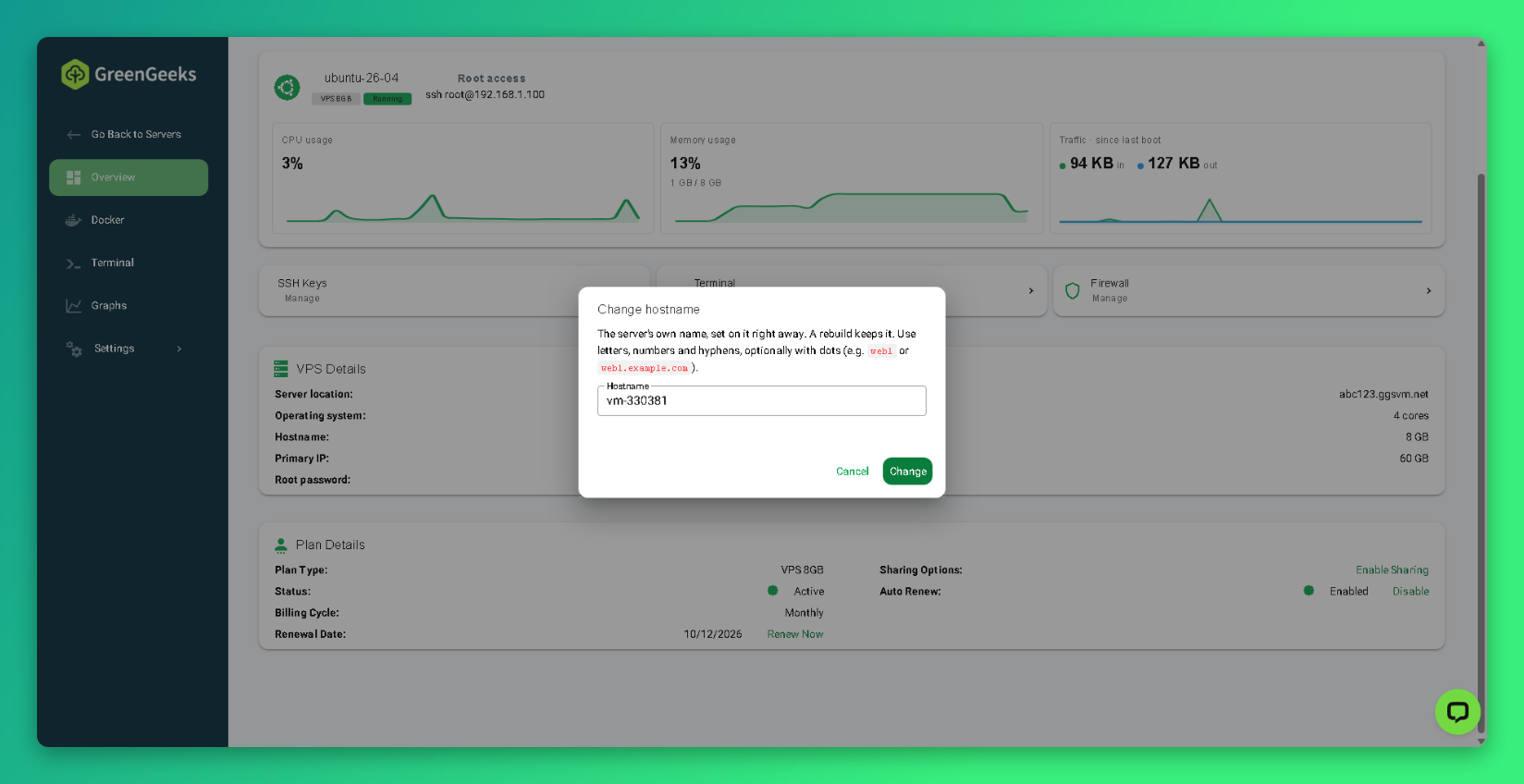
- Enter the new hostname, such as
web1orweb1.example.com. - Click Change.
The hostname updates on the server right away and stays the same if you rebuild the server.
Fix the Remote Host Identification Has Changed Warning
After you rebuild your server, your computer shows a REMOTE HOST IDENTIFICATION HAS CHANGED warning the next time you connect. This happens because the rebuild gives the server a new SSH identity.
- Open the terminal app on your computer.
- Remove the old entry for your server’s IP address:
ssh-keygen -R 203.0.113.10- Connect again with your normal SSH command.
Only remove the old entry if you rebuilt the server. If you see this warning without a rebuild, contact support.
Next Steps
A new Self-Managed VPS is not hardened for production use. Before you host anything important:
- Install updates with
apt update && apt upgrade. - Set up SSH key login and consider disabling password login.
- Add firewall rules. See How to Manage the Self-Managed VPS Firewall.
- Set up off-server backups. GreenGeeks does not back up Self-Managed VPS data.
For more on securing Ubuntu, see the Ubuntu Server security documentation.