
Exercise caution when accessing your account via the command line. Incorrect or incorrectly used commands can permanently change or delete permissions and files. If you do not have command line experience or are uncertain about a command, we suggest exploring alternatives to using this function.
If you’ve never used shell access before, it may have to be turned on for your account. Please open a support ticket in GreenGeeks and let us know that you would like shell access to be activated.
SSH, also referred to as “shell” or “command line,” is a secure method for connecting to and managing a server remotely. It provides a text-based interface that allows users to interact directly with the server’s operating system rather than using a graphical user interface (GUI).
Common use cases include:
- File Management: Efficiently move, copy, rename, or delete files and directories directly on the server.
- Developer Tools: Run commands like WP-CLI to manage WordPress installations or Composer to handle PHP dependencies.
- Version Control: Use Git to manage code repositories and keep your applications synchronized.
- Application Management (for VPS Hosting): Execute custom scripts, monitor system resources, install software packages, or troubleshoot application issues.
Important Note: Always exercise caution when using the command line. Incorrect commands can permanently alter or delete files and permissions. If you are inexperienced with command-line operations, please explore alternative management methods.
Why GreenGeeks Uses SSH Keys
GreenGeeks has transitioned to mandatory SSH key authentication. Please note that traditional password authentication is no longer supported for SSH connections. By requiring a cryptographic key pair for all SSH access, we provide a significantly more secure environment with several critical security benefits:
- Protection Against Brute-Force Attacks: Since SSH keys are not susceptible to the same password-guessing methods used by automated bots, they are virtually immune to brute-force attacks.
- Stronger Authentication: SSH keys use long, complex digital signatures that are virtually impossible to replicate or decrypt.
- Elimination of Password-Based Logins: Removing password-based access eliminates the risk of weak or compromised passwords being used to gain unauthorized entry.
- Industry Best Practice: Relying on SSH keys is considered the standard for secure, professional server administration.
Before You Begin
Before you can connect, ensure you have the following:
- SSH Access Enabled
- Server Hostname or IP Address
- SSH Key Pair
- A SSH client:
Windows Command Prompt / PowerShell / Terminal
macOS Terminal
Putty
Tabby
If you have not yet created an SSH key pair, please follow our guide: Using SSH Keys for Shell Access to Your Account.
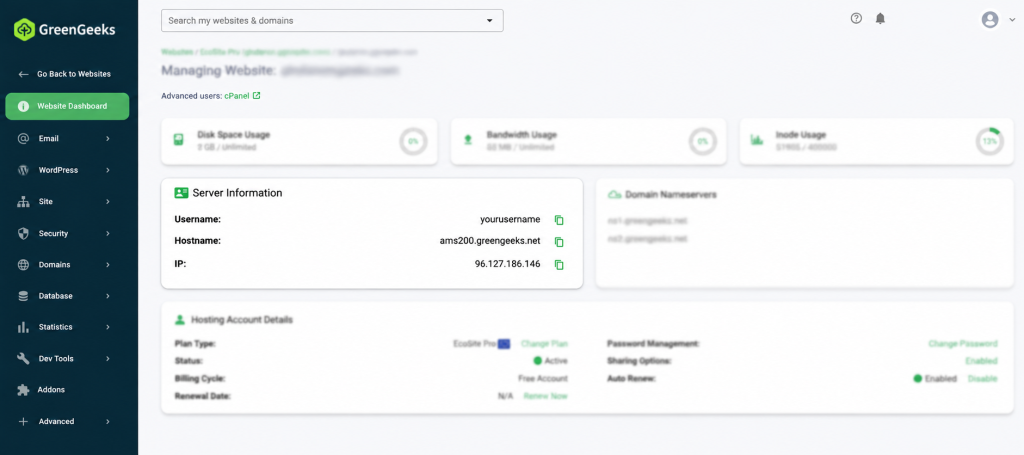
Locating your GreenGeeks Server Host Name
Log in to GreenGeeks, go to Hosting Plans and manage your hosting service.
The Manage section on your GreenGeeks Hosting service will provide you the Server Information that consists of your Server Hostname and Server IP address.
Connect using cPanel Terminal
WARNING: Exercise caution when accessing your account via the command line. Incorrect or incorrectly used commands can permanently change or delete permissions and files. If you do not have command-line experience or are uncertain about a command, we suggest exploring alternatives to using the command line.
GreenGeeks provides SSH access to your website server, but if you can’t run a terminal program on your computer or need quick shell access for any reason, you can open a terminal window in cPanel.
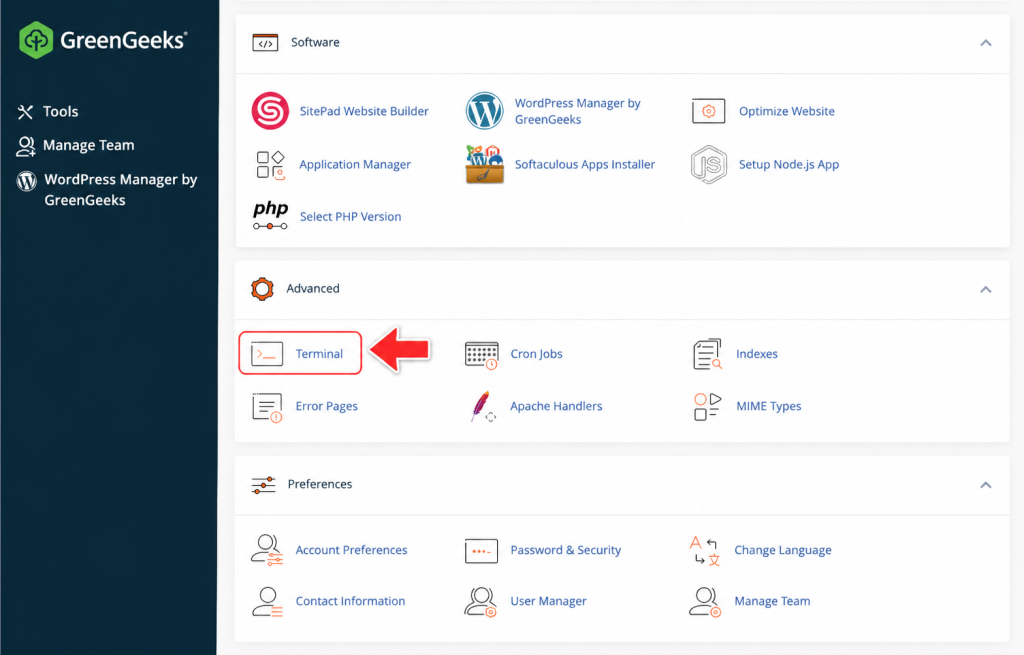
Note that this method does not require SSH keys as it is authenticated through your cPanel session.
Connect using an SSH Client
Once you have generated and authorized your SSH key, choose the SSH client you would like to use:
- Connect Using PuTTY (Windows): Follow our guide to Create/Import SSH Keys for PuTTY.
- Connect Using Tabby (Windows, macOS, and Linux): Use the Tabby terminal client to connect by configuring it with your server details and private SSH key. You may follow our guide here to connect using Tabby terminal.
- Connect Using Command Prompt (Windows) or Mac (Terminal): Follow our guide to connect to SSH using Command Prompt or Mac Terminal.