
WARNING: Exercise caution when accessing your account via the command line. Incorrect or incorrectly used commands can permanently change or delete permissions and files. If you do not have command-line experience or are uncertain about a command, we suggest exploring alternatives to using the command line.
Before connecting, make sure you have:
- Your SSH username and server hostname/IP
- Generated an SSH key pair
- Added or generated your SSH key in GreenGeeks >> Hosting Plans >> Manage the service >> Dev Tools >> SSH Manager
Step 1: Generate an SSH Key Pair
You can generate SSH keys using either:
- GreenGeeks SSH Manager (recommended)
- Your local computer (Windows Command Prompt, macOS Terminal, or Linux Terminal)
Option 1: Generate SSH Keys Using GreenGeeks SSH Manager
- Log in to your GreenGeeks account.
- Navigate to: Hosting Plans >> Manage the service >> Dev Tools >> SSH Manager
- Select: Generate Public/Private Keys
- Download or save the generated private key. This key will be used by your SSH client when connecting to the server.
You may follow our support article on How to Create SSH Keys for Shell Access.
Important: Never share your private key. Only the public key should be added to your server.
Option 2: Generate SSH Keys Using Your Computer
If you prefer to generate your SSH key pair locally, you may do so using your computer’s built-in SSH tools or a compatible SSH client.
For step-by-step instructions, please refer to our support article: Generate SSH Keys Using Your Computer.
Important: Never share your private key. Only the public key should be added to your server.
Step 2: Connect Using SSH
Open Command Prompt or Terminal and run the command.
For Windows:ssh username@hostname
For Mac:ssh username@hostname
Example:ssh [email protected]
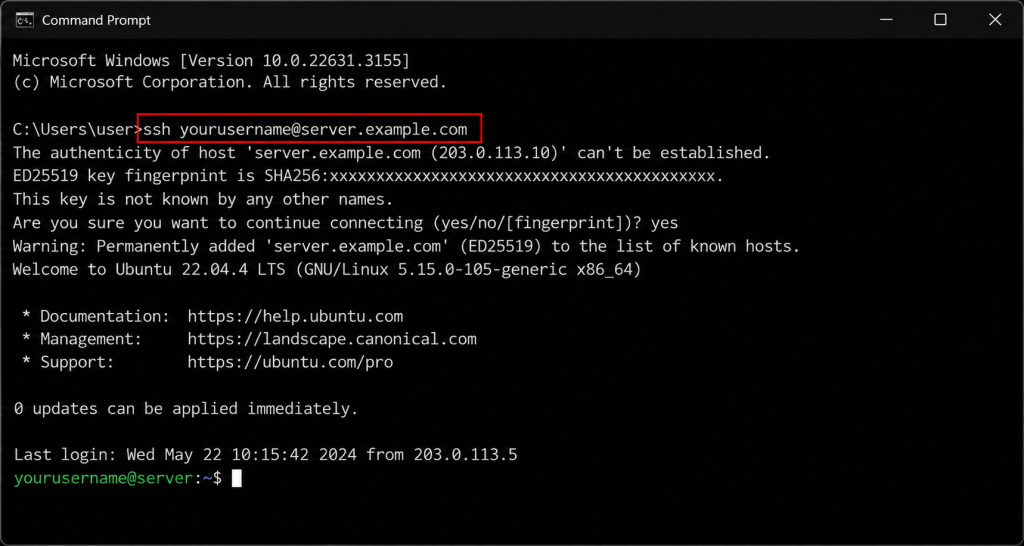
If the SSH key is configured correctly, you will connect successfully without entering your account password.
Troubleshooting
If you receive:
Permission denied (publickey)
Verify that:
- The correct username is being used.
- The public key was added correctly in SSH Manager.
- The private key exists on your computer.
- The correct hostname/server address is being used.
If you need further assistance connecting to your server, please open a support ticket in GreenGeeks. Our Support Team will be happy to help troubleshoot any SSH connection issues.