
The GreenGeeks App Installer supports over a dozen applications, with Joomla among the most popular. The App Installer is available for all GreenGeeks accounts and makes installing any application a breeze.
In just a few moments, you can install any supported application and have an admin account created. This works for domains and sub-domains. As one of the most popular CMS, Joomla is a popular option to install.
This tutorial will demonstrate how to install Joomla using the GreenGeeks App Installer.
What Is Joomla?
Joomla is an open-source content management system (CMS) available for free. This platform can be used to create any website, from a blog to an eCommerce site. This is all thanks to a deep library of extensions.
These extensions add additional functionality to Joomla. Many are available for free, but premium options exist as well. Simply install the extension to match your needs, and start building the site of your dreams.
Installing Joomla is a cinch when using the GreenGeeks App Installer, so give it a try today.
How to Install Joomla with the GreenGeeks App Installer
The GreenGeeks App Installer makes it easy to install any supported application. This tool is available to all GreenGeek customers at no extra cost. The process is simple and will take less than five minutes to complete.
Step 1: Access the GreenGeeks App Installer
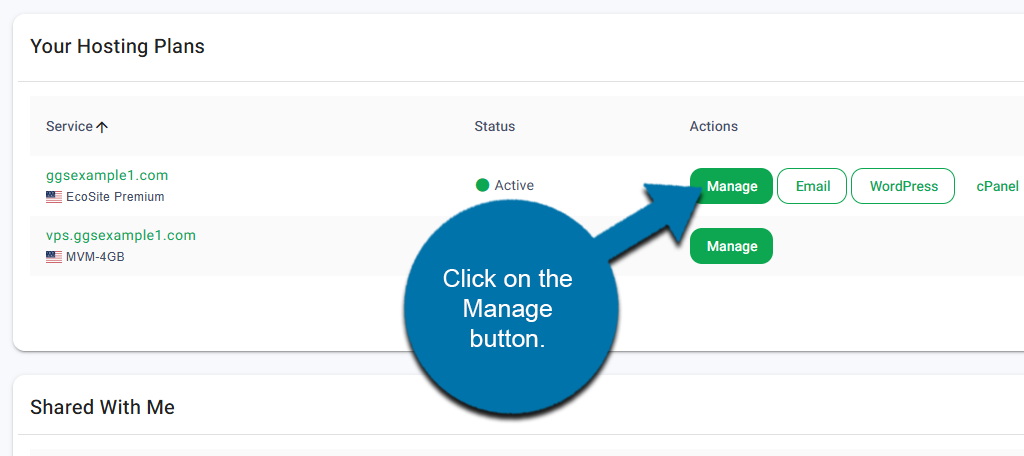
Start by logging in to your GreenGeeks account. Once logged in, locate the domain you wish to install Joomla in and click on the Manage button next to it.
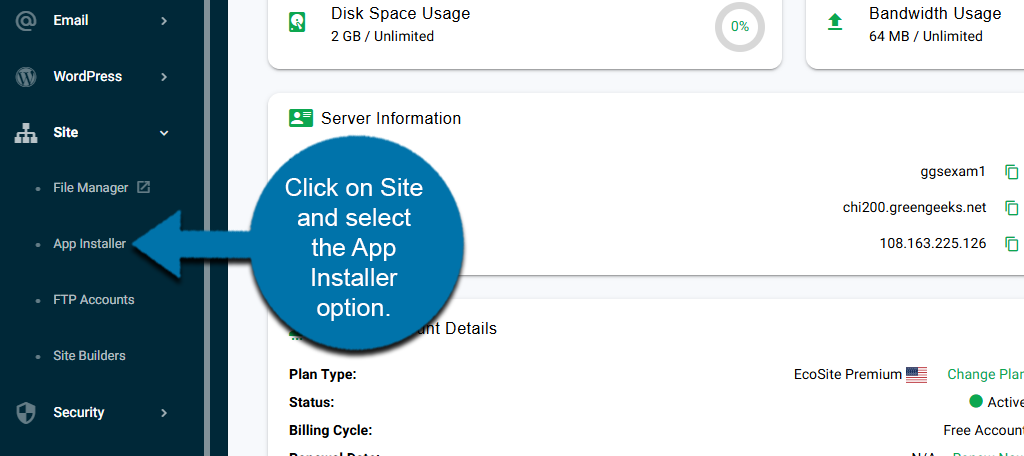
On the left-hand panel, click on Site and select the App Installer option.
This will bring you to the GreenGeeks App Installer.
Step 2: Install Joomla
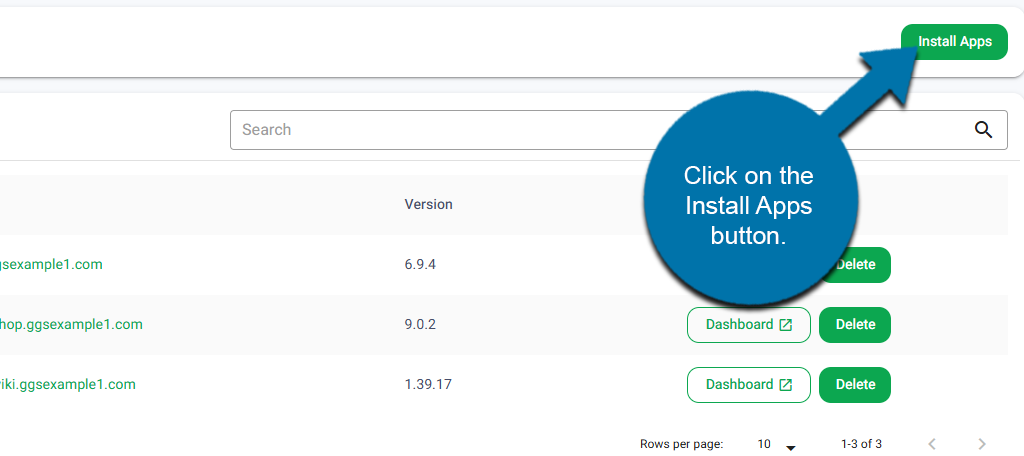
If you have any installed apps on your domain, you will see them in the Installed Application list. At the top, click on the Install Apps button.
In the Application drop-down menu, select Joomla.
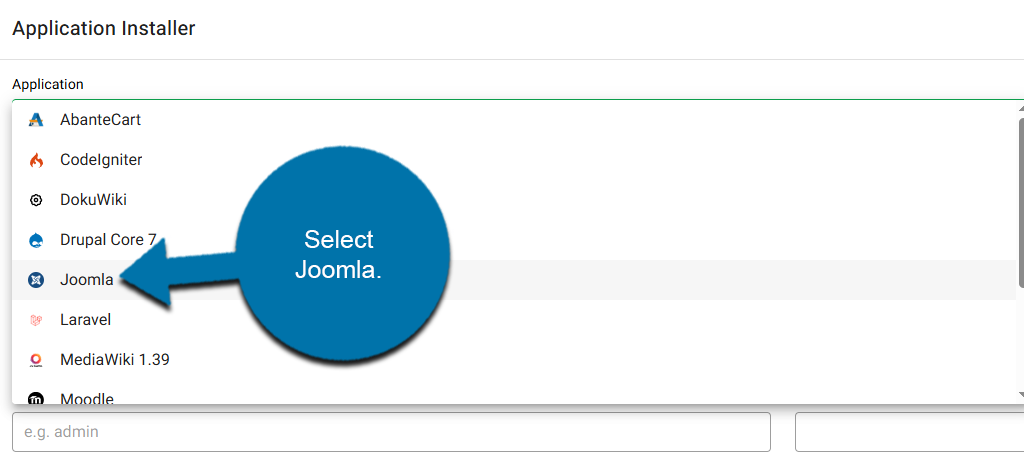
You will need to fill out the rest of the fields. This includes selecting the protocol, domain, and installation path. As well as creating an Admin username, password, and email. Be sure to write down the password.
When you are finished, click on the Install Application button.
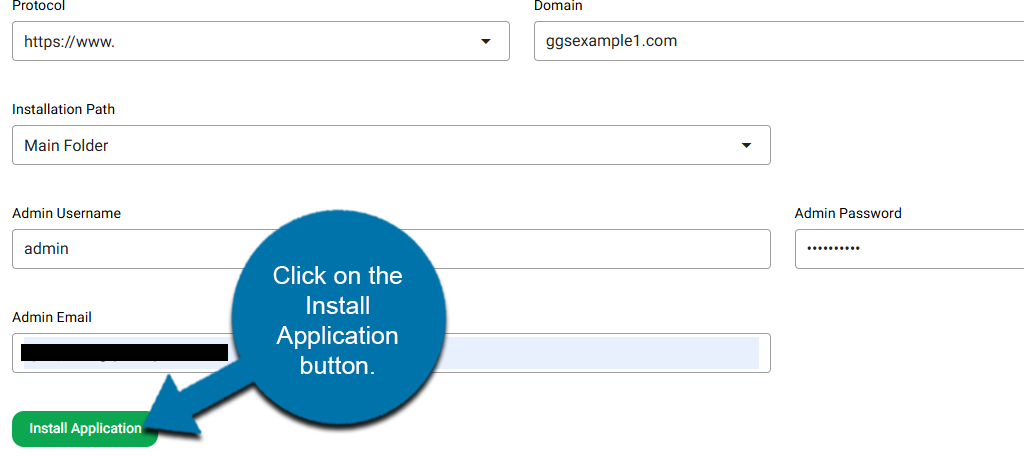
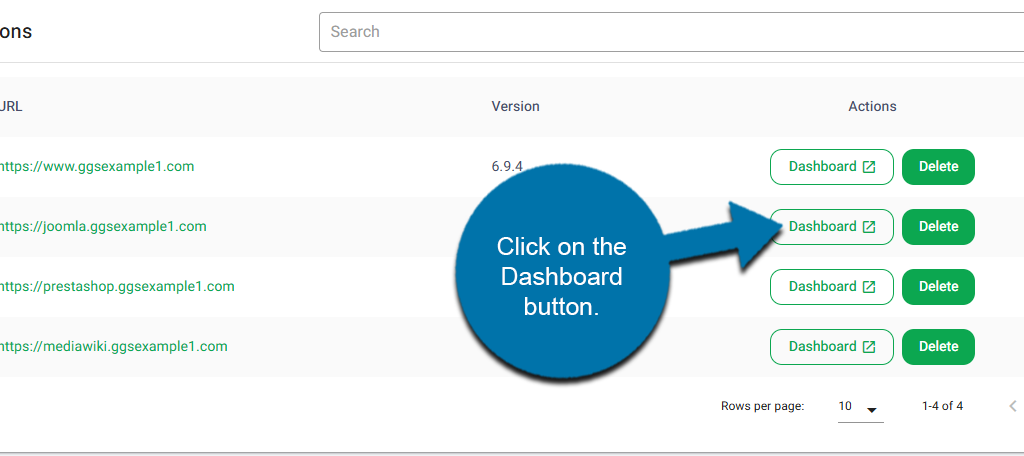
This will begin the installation process. In a few moments, it will be completed. When it is, you can find it in the Installed Application list and click on the Dashboard button next to it.
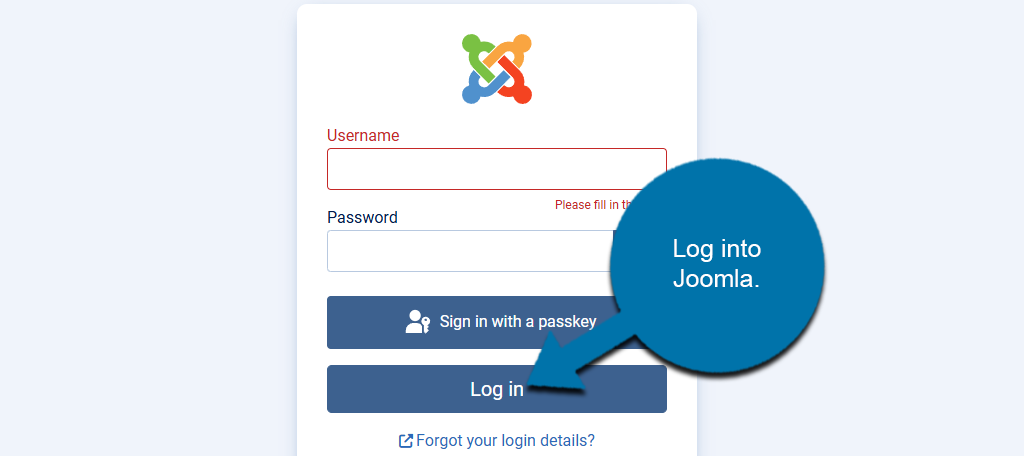
This will bring you to the login area for Joomla. Enter the login information you created earlier.
When you log into Joomla for the first time, you will be greeted by a welcome message that includes a tour of the platform. Feel free to go through the tour to learn more about Joomla.
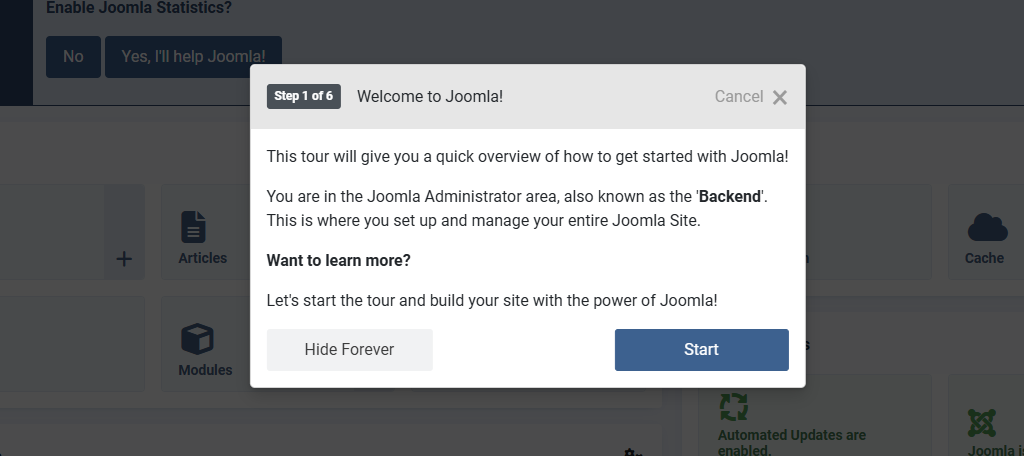
And that’s it. Joomla is installed and ready to go. If you need any help getting started with Joomla, be sure to check out our other Joomla tutorials for step-by-step directions.
Start Building With Joomla Today
As you can see, installing Joomla with the GreenGeeks App Installer is quick and easy; however, it is only the first step. You’ll now want to start designing your site and picking out extensions to help achieve your goals.
Once the website is built, you’ll need to spend time optimizing content for SEO and advertising it to the world. It may take some time and effort, but once your site catches on, the rewards will be worth it.