
DNS_PROBE_FINISHED_NXDOMAIN means the resolver your browser asked could not find the domain you typed and returned a Name Error response. In most cases the fix is one of three things: flush the DNS cache on your computer, switch from your ISP resolver to a public one such as 1.1.1.1 or 8.8.8.8, or correct a typo in the URL. The rest of this guide walks the full fix sequence from least invasive to most, with the exact commands for Windows, macOS, and Linux, and the diagnostic checks that confirm if the problem sits on your device or on the domain itself.
What DNS_PROBE_FINISHED_NXDOMAIN Means
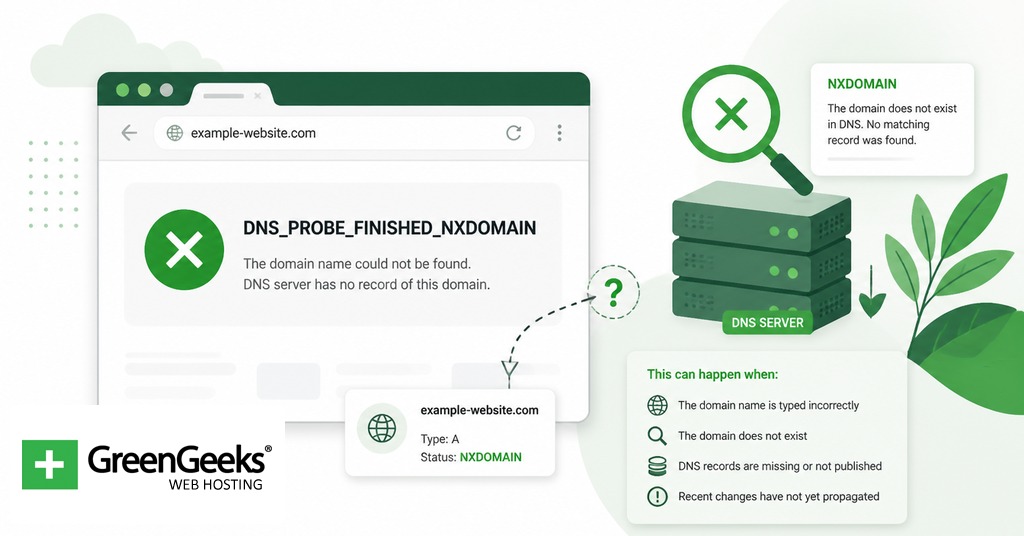
NXDOMAIN is response code 3 in the DNS protocol, defined in RFC 8020 as Name Error. The resolver checked the DNS hierarchy and confirmed the domain does not exist there. Chromium-based browsers wrap that response in the more specific label DNS_PROBE_FINISHED_NXDOMAIN, which signals that the probe ran to completion before failing. You will see the same code in Google Chrome, Microsoft Edge, Brave, Opera, and Vivaldi. Firefox uses a different message for the underlying failure, so seeing the exact NXDOMAIN string already tells you the browser is Chromium-based.
The reason this matters for troubleshooting is that the error narrows the scope. The browser reached a resolver. The resolver answered. The answer was that the domain is not in DNS. From there, the cause is either local (a stale cache or hosts file pointing somewhere wrong), upstream (an ISP resolver returning bad data or filtering the domain), or authoritative (the domain has no records, has expired, or has DNS misconfiguration on the owner’s side).

Common Causes Before You Touch Anything
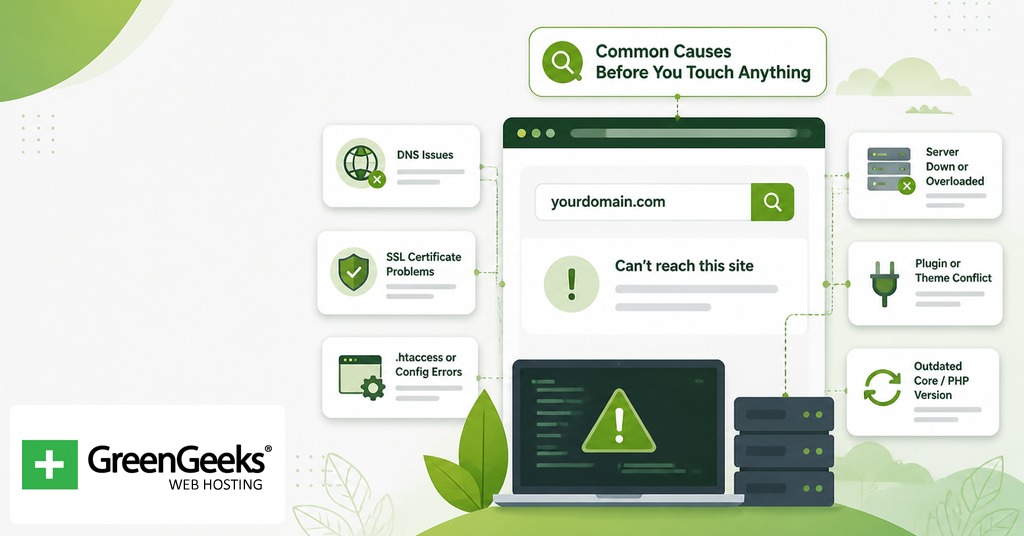
The fix you need depends on where the broken link in the chain lives. The table below pairs each likely cause with the method that targets it, so you can skip ahead if the symptoms point somewhere obvious.
| Cause | Where it lives | Fix that targets it |
| Typo or extra character in the URL | The address bar | Re-check the spelling |
| Stale OS DNS cache | The operating system | Flush DNS |
| Stale browser DNS cache | Chrome, Edge, Brave, etc. | Flush the cache at chrome://net-internals/#dns |
| ISP resolver returning bad data | The network upstream | Switch to a public resolver |
| Hosts file mapping pointing nowhere | The OS file system | Edit the hosts file |
| VPN or antivirus DNS interference | Third-party software | Disable temporarily |
| Router holding stale DNS state | The router | Power-cycle the router |
| Domain expired or misconfigured | The domain owner | Verify with dig or WHOIS |
If you have no idea which row applies, work top to bottom in the methods that follow. Each one is non-destructive and takes under a minute.
Method 1: Verify the URL and Test a Second Browser
Type the address fresh rather than reusing a stored autocomplete entry. A single transposed letter or stray character is a common source of NXDOMAIN responses, and the browser will keep autocompleting the same wrong string from history until you overwrite it. Watch for similar-looking characters: a Cyrillic letter pasted from chat, a hyphen instead of an underscore, or a double dot inside the hostname will all produce NXDOMAIN.
If the URL is correct, open the same address in a second browser. A Firefox window that loads the page when Chrome shows NXDOMAIN points strongly to a Chrome-side cache problem rather than a network or domain issue. Trying the URL on a phone using cellular data instead of Wi-Fi is another fast isolation step. If the page loads on the phone with mobile data but fails on the laptop, the problem is on the laptop or the home network, not on the domain.
Method 2: Flush Chrome’s Internal DNS Cache
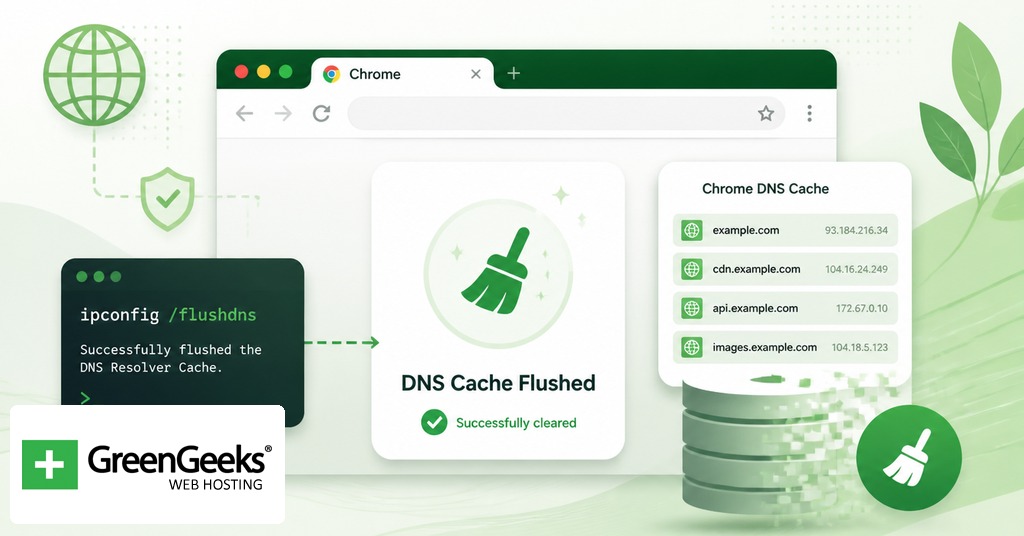
Chromium browsers maintain a DNS cache that sits separately from the operating system resolver cache. Flushing one does not touch the other, which is why this step is worth running even after a system-level flush.
Paste this into the address bar and press Enter:
chrome://net-internals/#dns
Click the host cache flush button. Then open the sockets page and flush the pool there too:
chrome://net-internals/#sockets
Click “Flush socket pools.” Reload the failing tab. If the page now loads, the browser cache was the cause and you are done.
Method 3: Flush the Operating System DNS Cache
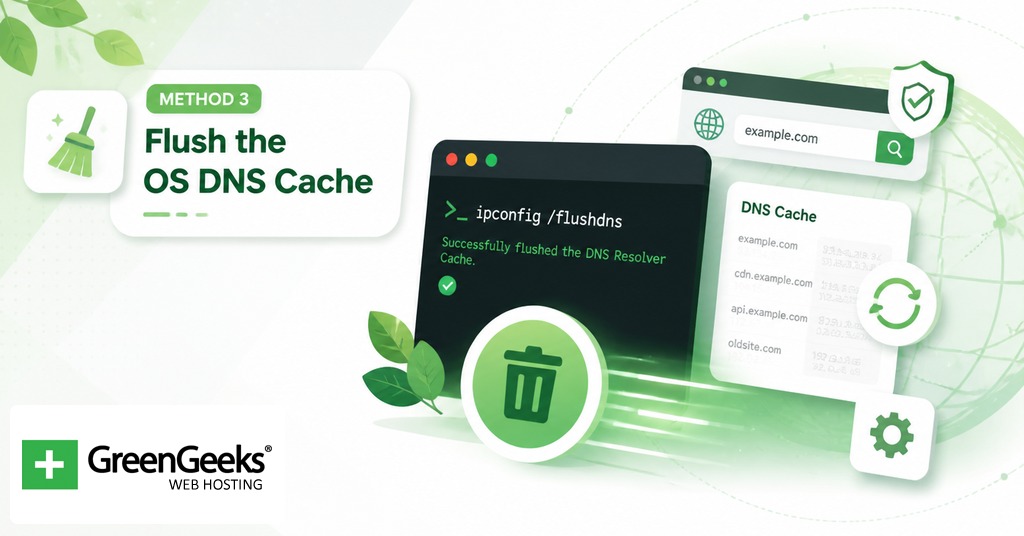
If the browser-level flush did not resolve the error, the OS cache is the next candidate. Each operating system uses a different command.
Windows
Open Command Prompt as Administrator (right-click, “Run as administrator”) and run:
ipconfig /flushdns
Windows confirms with “Successfully flushed the DNS Resolver Cache.” If you do not see that message, the command did not run with the privileges it needed.
macOS
Open Terminal and run both commands together:
sudo dscacheutil -flushcache; sudo killall -HUP mDNSResponder
The first command empties the resolver cache. The second restarts the multicast DNS responder, which macOS uses for local network name resolution. You will be prompted for your administrator password.
Linux
On modern Ubuntu, Fedora, and other systemd-based distributions, the command is:
sudo resolvectl flush-caches
On older releases running SystemD versions before 239, use the previous syntax:
sudo systemd-resolve –flush-caches
To confirm the flush succeeded, compare the cache size before and after:
resolvectl statistics
The “Current Cache Size” value should drop to 0 after the flush command runs.
Method 4: Switch to a Public DNS Resolver

ISP resolvers occasionally go stale, return cached NXDOMAIN replies long after a domain has been fixed, or apply filtering policies that block legitimate sites. Replacing them with a public resolver removes that variable from the chain.
The three resolvers most commonly used as alternatives are listed below. Set both addresses (primary and secondary).
| Provider | Primary | Secondary |
| Cloudflare | 1.1.1.1 | 1.0.0.1 |
| Google Public DNS | 8.8.8.8 | 8.8.4.4 |
| Quad9 | 9.9.9.9 | 149.112.112.112 |
Windows
Open Settings, go to Network and Internet, then Change adapter options. Right-click the active Wi-Fi or Ethernet adapter, select Properties, highlight Internet Protocol Version 4 (TCP/IPv4), and click Properties. Choose “Use the following DNS server addresses” and enter one of the resolver pairs above. Save and close.
macOS
Open System Settings, go to Network, select the active interface, and click Details. Open the DNS tab, click the + button, and add each resolver IP on its own line. Click OK and Apply.
If multiple devices on your network show the same error, configure the resolvers on the router instead. The setting usually lives under WAN or Internet Setup. Every device on the LAN inherits the resolver from the router by default.
Method 5: Release and Renew the IP Lease

When the device’s network lease has gone stale, a refresh sometimes clears DNS state along with it. On Windows, run these two commands in an Administrator Command Prompt:
ipconfig /release ipconfig /renew
On macOS, the equivalent is to run System Settings, go to Network, select the active interface, click Details, and use the “Renew DHCP Lease” button. On Linux, the dhclient command works on most distributions:
sudo dhclient -r && sudo dhclient
A brief loss of connectivity is normal while the lease is reissued.
Method 6: Restart the Router

Routers cache DNS responses and DHCP state in volatile memory. Power off the router for at least 30 seconds, then power it back on. The pause matters because some routers hold capacitor state for a few seconds after the plug is pulled, and a quick on-off cycle does not flush them. Wait for all status lights to stabilize before testing the connection.
If you have a separate modem and router, restart both. Power down the modem first, then the router. Wait the full 30 seconds, then power on the modem, give it a minute to acquire its WAN connection, and only then power on the router. The order matters because the router pulls its WAN address and resolver list from the modem during boot. Restarting in the wrong sequence can leave the router with no upstream resolver and reproduce the same NXDOMAIN behavior on every device on the LAN.
Method 7: Inspect the Hosts File
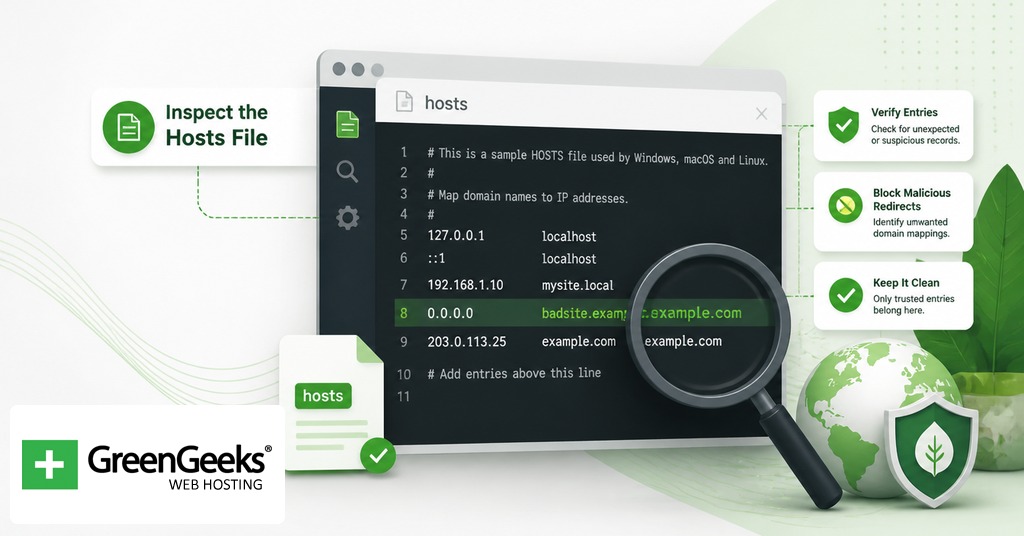
The hosts file maps hostnames to IP addresses locally and overrides DNS. A bad entry, added intentionally during testing or planted by malware, can make a domain appear to return NXDOMAIN even when DNS itself is fine.
The file lives in different places per OS:
Windows: C:\Windows\System32\drivers\etc\hosts macOS: /etc/hosts Linux: /etc/hosts
On Windows, open Notepad as Administrator, then File > Open and paste the path. On macOS or Linux, run:
sudo nano /etc/hosts
Look for any entry referencing the domain that triggers the error. If you see one and you did not put it there, comment it out by adding a # at the start of the line, save, and reload the page. Save the file in plain text. A word processor will inject formatting that breaks the file.
Method 8: Disable VPN, Proxy, or Antivirus DNS Filtering
VPN clients route DNS queries through their own resolvers, and some antivirus suites filter DNS as part of web protection. Either layer can return NXDOMAIN when its own resolver is unreachable, misconfigured, or actively blocking the domain. Corporate split-tunnel VPNs are a frequent source of this behavior because they route some domains through the VPN resolver and others through the local one, and a typo in the routing rules can send a public domain into the wrong path.
Disconnect the VPN entirely (closing the app may not be enough; some clients leave a network adapter active). Pause the antivirus DNS protection module, but leave the rest of the antivirus running. Browser-level proxy extensions can do the same thing, so disable them in the extensions menu before testing. Reload the page after each step so you know which layer was the cause. If the error goes away once a specific tool is disabled, the fix lives in that tool’s settings rather than on your network.
Confirming the Domain Itself Is the Problem

When every local fix fails on a single domain, the cause is usually on the domain side. Two command-line tools confirm this without changing any settings on your device.
Query a public resolver directly:
dig @1.1.1.1 example.com
Or with nslookup, which is available by default on Windows, macOS, and Linux:
nslookup example.com 1.1.1.1
If the response is NOERROR with an A record, the domain is fine and your local cache or resolver is at fault. If the response is also NXDOMAIN, the domain has no DNS record at the authoritative servers. From there, run a WHOIS lookup on the domain name. An expired registration, a domain in redemption period, or a domain with no nameservers assigned will all return NXDOMAIN to every resolver in the world, and no client-side fix will change that.
What This Error Is NOT
Two related Chromium errors get confused with this one. DNS_PROBE_FINISHED_NO_INTERNET means the browser could not reach a DNS resolver at all, which usually points to a broken network connection rather than a bad domain. ERR_NAME_NOT_RESOLVED is a more general DNS failure that does not specify NXDOMAIN; it can fire when the resolver times out, when DNS is blocked at the firewall, or when the system has no resolver configured. If the exact code on screen is DNS_PROBE_FINISHED_NXDOMAIN, the resolver answered and the domain is the part that came back missing. Reading the exact error string before assuming a cause saves time, because the fix sequence for each of these three errors is different. A no-internet error points you at the local network. A name-not-resolved error points at the resolver. NXDOMAIN points at the domain or at a stale local cache pretending to be the domain.
Knowing which one you have on screen tells you which method in this guide to start with, and skipping straight to the relevant fix is faster than running the full sequence top to bottom.
Frequently Asked Questions

What does DNS_PROBE_FINISHED_NXDOMAIN mean?
It means the browser sent a DNS query, the resolver answered, and the answer was NXDOMAIN, response code 3 in the DNS protocol. Per RFC 8020, that signals the domain does not exist in DNS. The probe completed successfully; the result was that there is nothing to connect to.
Is DNS_PROBE_FINISHED_NXDOMAIN the same as ERR_NAME_NOT_RESOLVED?
No, though both involve DNS resolution failures. ERR_NAME_NOT_RESOLVED is a generic Chromium error for any DNS failure, including timeouts and missing resolver configuration. DNS_PROBE_FINISHED_NXDOMAIN is specific: the resolver finished its lookup and replied that the domain does not exist.
Can a VPN cause DNS_PROBE_FINISHED_NXDOMAIN?
Yes. VPN clients send DNS queries through their own resolvers, and a misconfigured or unreachable VPN resolver will return NXDOMAIN for domains that resolve fine outside the tunnel. Disconnecting the VPN and reloading the page is the fastest way to confirm if the VPN is the source.
Why do only some websites show this error?
A site-specific NXDOMAIN response usually points to a problem with that specific domain rather than your network. The domain may have expired, lost its DNS records, or have an incorrect entry in your local hosts file overriding the real address. Use dig or nslookup against a public resolver to confirm if the authoritative servers also return NXDOMAIN.
How do I check if a domain has expired?
Run a WHOIS lookup on the domain name through any registrar’s WHOIS tool, which returns the registration status and expiration date. As a faster check from the command line, query the domain against 1.1.1.1 with dig or nslookup. If every public resolver returns NXDOMAIN and WHOIS shows the domain as expired, in redemption, or pending delete, the domain itself is the cause and only the registrant can fix it.