
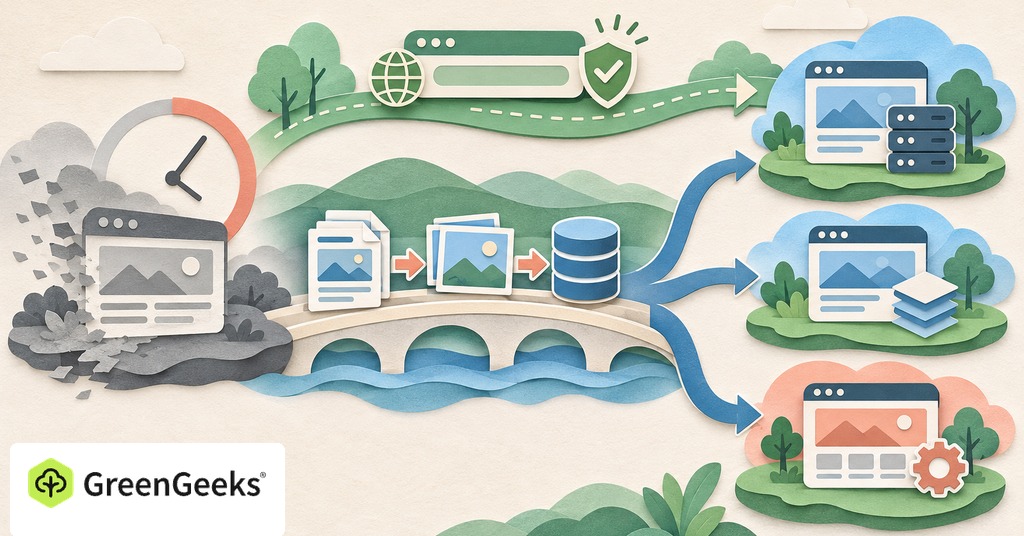
The pages you built during a trial may be worth keeping, even if the subscription isn’t right for you. Before choosing another host, find out what you can take with you.
Depending on the builder, you may get full website files or only selected content, with the design and working features left behind. You may also be using a builder that created a standard WordPress site, which gives you a different route out.
That distinction sets the size of the job, from a straight hosting move to a full rebuild. Check the export options while you still have access to the trial.

Complete WordPress files and database. Move them to compatible WordPress hosting, then migrate and test.
HTML, CSS, JavaScript, and images. Use hosting that serves those files, and replace any missing hosted features.
A content export. Pick a platform that can import that format, then rebuild the design and unsupported features.
Text and original assets. Build a new website and recreate the pages and connections.
Check what you can still access
Log in and check the trial’s exact status. Is it still editable? Can you download anything? Is the site public, or has it already gone offline? Trial rules differ, so an expiry notice doesn’t tell you everything you can do.
Save your original photos, logo, documents, and page text somewhere outside the builder. Keep a record of page addresses and take screenshots of layouts you want to recreate. Include mobile views and any settings that would take time to work out again. A screenshot captures how a page looks, so note its working parts separately, such as a form or booking system. Write down which outside services handle inquiries and payments.
If the trial has ended, look for an extension or ask support how to regain access. Squarespace offers a one-time, 7-day trial extension through its expiry email. Other builders have their own rules. Don’t assume an expired site will remain recoverable indefinitely.
Check billing separately too. A trial, a paid site plan, a domain registration, and an email service may have different renewal dates. Record what you have agreed to pay and which subscriptions you would need to cancel.
What can you take to another host?
Ask the builder what its export includes and what it excludes. The word “export” can describe very different files.
A complete WordPress website
If your builder runs inside WordPress, you may be able to move the whole installation to another compatible host. That normally means transferring its files and database, then checking the site at the destination.
A WordPress content export covers posts and pages only, so it helps with a rebuild on the new host.
Check if paid plugins or fonts need a separate license at the new host. Keep the account details and license terms with your migration notes. The site can depend on services beyond the files you copy.
Exported website files
An export containing HTML, CSS, JavaScript, and images may let you host a simple website elsewhere. You need a service that can serve those files and connect your domain. You also need a way to edit and republish future changes.
Check every feature that depends on the original builder’s servers. A form can look right after export while having nowhere to send its submission. Search and checkout can also depend on services that don’t come with the files.
Webflow makes this distinction explicit. Code export requires a paid Workspace subscription, which Site plans don’t include. The exported code excludes features such as CMS content, user accounts, ecommerce functionality, and form processing. You would need to replace or rebuild those parts before using the site elsewhere.
Content or screenshots only
A content export can reduce the typing involved in a rebuild, and the imported pages may look and behave differently.
Squarespace exports selected content to an XML file but leaves out style settings and custom CSS. Its current instructions require the site to be published and public, and they don’t allow exports from a trial. If you only have a few pages, copying your own text and original assets may be less work than paying to unlock a partial export.
Check images carefully after any import. Some imported pages reference images on the old platform. Confirm the files are stored in the new site’s media library before canceling the old service.
Choose hosting for what you have
For a complete WordPress site, look for WordPress hosting that supports the current software requirements and the features you use. Ask the host to review the existing platform and explain what its migration service will move.
GreenGeeks offers WordPress hosting with free migration by its support team, which moves an existing site and may not cover converting a proprietary builder’s pages. Give support the builder’s name and the kind of export available, and ask for a straight answer on what will transfer.
Exported HTML files can go on a static-only service or a standard hosting account. Choose based on how you will publish changes and handle forms afterward. If you need to rebuild, choose the editing method first. WordPress gives you control over content and where the site runs, while a hosted builder keeps editing and hosting with one service. GreenGeeks has its own website builder for that second approach. Staying with the current builder can make sense if its price and limits meet your needs, once you know what leaving would cost in work.
Compare the full cost of moving
Put the current builder’s ongoing subscription beside the replacement’s renewal price. Compare ongoing costs over the time you expect to keep the service. Don’t compare a regular subscription with another host’s temporary introductory rate. Include any paid theme, builder license, form service, mailbox, or booking tool the new setup requires. Some features you currently see in one bill may become separate subscriptions.
Allow for the rebuild itself. If you can recreate a small information site comfortably, the move may be straightforward. For a store or a site with complicated integrations, ask for a written scope and price before committing.
Your own time matters too. A cheaper monthly service is a poor fit if routine edits become difficult, so try creating and updating a test page in the proposed setup before paying for a long term.
Keep the files and notes you have saved regardless of the choice. They make a future move easier even if you decide to stay for now.
Build and test before changing your domain
Prepare the replacement while the existing site remains available, where the trial’s rules allow it. Use the new host’s testing route and keep the unfinished copy away from public visitors.
Keep your domain and email working
A domain can stay registered with its current registrar while pointing to a different website host. You don’t necessarily need to transfer the registration as part of the move. Find out where the domain’s DNS is managed and which records keep your email working. Save the current settings before changing them. Ask for help if you aren’t sure if a proposed change affects only the website or the whole DNS service.
If email is bundled with the builder, arrange its next home before canceling that subscription. A working replacement website doesn’t prove the mailboxes have moved.
Check the features visitors use
Open each important page on a phone and a larger screen. Check images, menus, buttons, downloads, and links. Submit a form and confirm the message arrives where you expect it.
Test bookings or payments using the relevant service’s safe testing method. Confirm that notifications and records appear in the right account. Review any feature that previously depended on the builder, since an export may leave those behind.
Keep existing page addresses when practical. If addresses change, plan redirects to the corresponding new pages. After connecting the domain, repeat the checks on the public address and make sure the site loads over HTTPS.
When is it safe to cancel the builder?
Cancel once the replacement works on your domain and visitors are reaching it. Check that email and other subscriptions have been accounted for. If you have access to traffic logs, use them to confirm the old host is no longer serving visitors.
Keep the export and your original assets, then follow the builder’s cancellation process and save the confirmation.
If the trial has already ended and you can’t recover its contents, use what you own and have saved to rebuild. Ask support about recovery before giving up the work. Before you invest time in the next platform, find out what you can download and how you would use it elsewhere.