
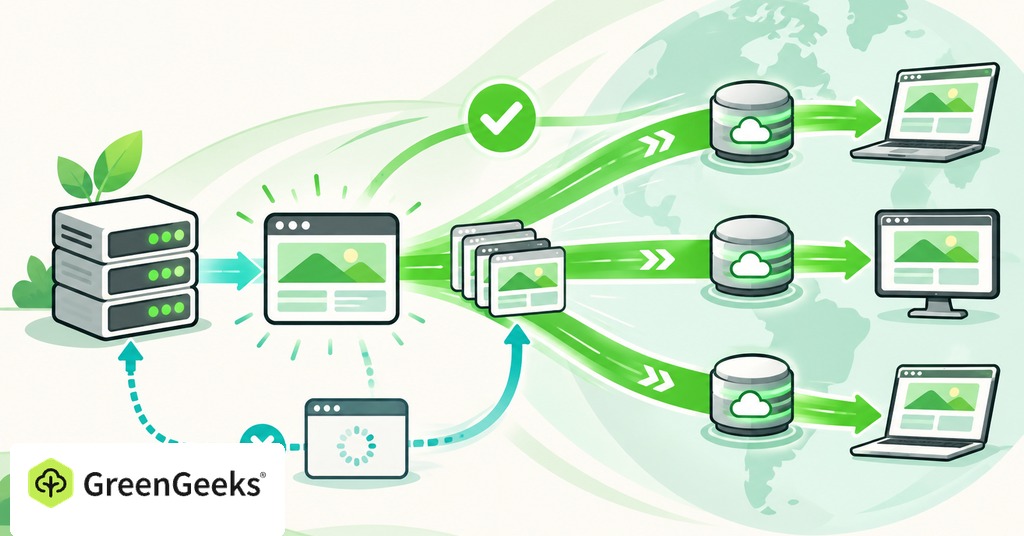
When you’re trying to speed up a website, caching can save your server from rebuilding the same page for every visitor. It keeps a reusable copy of work the site has already done. The next suitable request can use that copy and skip some of the waiting.
That makes caching useful even on a small site. Rules set what gets saved and who can receive it. A separate freshness rule says when each copy needs replacing. Those rules explain both the speed improvement and the occasional old page that refuses to disappear after an edit.
What happens when a page loads
On a WordPress site, opening a page can set several things in motion. The server runs application code and pulls information from the database to put the page together. The browser then downloads the page along with the files it references, such as images and scripts.

Some of that work produces an identical result for many visitors. Your public About page may not change all week. A page cache can store its completed response and serve it again when the request meets its rules.
A cache hit means the requested item is available and can be reused. A cache miss means that layer has no usable copy, so the request passes further along, eventually reaching the source. The new response may then be saved for later. A miss is normal. The first request after a purge may need to build the page before anyone can reuse it. A page that must stay personal may deliberately bypass the shared cache every time.
Where website caches store their copies
You can have several caches working together. Their locations matter because purging one leaves the others untouched.
The browser cache lives on the visitor’s device. It can store static files so the browser doesn’t download unchanged copies on every visit. A first-time visitor will not have those files yet. Someone returning to the site may already have much of what the page needs.
The server’s page cache keeps completed responses. It can help a first-time visitor because someone earlier may have triggered the stored copy. WordPress does not necessarily need to run through the whole page-building process again.
An object cache works with smaller pieces of data, including results the application would otherwise have to retrieve or calculate again. It can help when you can’t share a complete page, but it needs the right setup for the application.
A content delivery network, or CDN, can keep copies at locations closer to visitors. Its settings control what it stores, from images to whole pages. Connecting a CDN does not automatically mean every part of your site is cached.
How caching helps site speed
Caching can shorten response times and reduce repeated server work. When more requests use saved public pages, the server has more capacity left for work that needs a fresh response. That is helpful during a busy period. Many people asking for a popular public article can often share the result of one page build. Each visitor’s browser has to download the files either way, and the rest of the site needs enough resources to run.
When caching doesn’t fix a slow page
The speed gain depends on what was slow in the first place. Page caching may make a large difference when WordPress spends a long time building each response. It will do less for a page that arrives quickly but then loads oversized images or runs slow scripts on the visitor’s phone. Measure the change on your own pages. A percentage from another site’s test cannot tell you how much faster yours will become.
Which pages should stay out of shared cache?
A shared page cache needs particular care when the content includes information about one person. A copy intended for one customer must never reach someone else. WooCommerce’s Cart, Checkout, and My Account pages need to remain dynamic. Compatible caching tools often exclude them automatically, but check your own setup. Custom page addresses and extensions can change what needs special handling.
Personal details can appear elsewhere too. A cart total in the header or a member’s name on the homepage can make an otherwise public page personal. Those cases need their own exclusions beyond the checkout URL.
Keep these parts out of a general shared page cache unless the system has a tested way to separate users or load personal sections independently.
- Account information and order history.
- Shopping carts and checkout responses.
- Private member pages and customer-specific content.
- Forms or features whose changing values require fresh handling.
Public product descriptions and articles can benefit from caching. The decision depends on what the response contains and how the application handles sessions.
If you’re unsure, keep the personal response out of shared page caching and ask the host or developer to review it.
Keeping cached content up to date
A cached copy needs a freshness rule. The time to live describes how long it can be considered fresh under the chosen settings. After that, the system may ask if the original has changed or fetch a new response.
Expiry does not always mean the stored file is immediately deleted. Some systems validate an existing copy before reusing it. This is why a cache can quickly check a resource even when the visitor doesn’t download the whole thing again.
You may see no-cache and no-store in a report. A no-cache response needs validation before reuse, while no-store tells caches not to save it at all.
For routine publishing, your caching setup should also respond to changes. Updating a post may need to invalidate its own page and every listing that shows it, including the homepage. A product change may affect a category page too. You can purge a managed cache when needed. That removes saved copies so they can be rebuilt. Your original posts and products stay untouched, and a cache is no substitute for a backup.
For styles and scripts, a changed filename or version can make browsers request the new file. That helps prevent visitors from keeping an old stylesheet while the page uses a new layout. Your theme or build system should manage those references consistently.
Set up caching without adding conflicts
Start by asking your host which caching system is already active and which WordPress tool it supports. GreenGeeks’ WordPress hosting uses LiteSpeed’s server-level cache, LSCache. Start with that supported setup, since a second page-cache plugin can conflict with it.
A host cache and a plugin can be designed to work together. Problems arise when independent tools try to control a single page response without coordinated exclusions or purges. You may purge one copy while another keeps serving old HTML.
Make one change at a time. Keep a note of the settings you changed and check the site afterward. Leave other speed settings, such as image compression, alone while you are checking the effect of page caching. Otherwise, a broken layout or faster test becomes harder to explain.
How to check that caching works
Choose a public page and test it while logged out. Your administrator session may bypass caching, so it can give a different result from a normal visitor’s request.
Load the page twice under comparable conditions. Check if the host’s cache indicator or the response headers show a hit, if the system provides that information. Compare several runs, since a single unusually quick result can mislead.
Then publish a small content change and confirm that a fresh visitor sees the update. If the old content remains, check the page cache and CDN as well as your own browser.
Finally, test the parts that must stay personal with 2 separate sessions. Check that carts and account information stay with the correct visitor. Submit a test form and confirm that it reaches its destination.