
Are you interested in selling eBooks in WordPress? If so, the Ebook Store plugin is the perfect tool for the job. This plugin specializes in creating a storefront to sell digital books as easily as possible.
Digital books continue to gain traction and now account for 24% of all reading in the US. This number is expected to grow in the future, so building an online store for eBooks is a great idea.
This tutorial will demonstrate how to use the Ebook Store plugin to sell digital books in WordPress.
Why Are eBooks Gaining Traction?
Digital books are gaining traction because they benefit both readers and writers in a variety of ways.
Readers will find that digital books are much easier to store. As a result, they are also easier to find. Just imagine trying to find a book in a crowded bookshelf compared to searching for the title on your reading device.
And unlike physical books, readers can adjust the font size of the book. This can help in situations where the reader forgot their glasses or to alleviate eyestrain. They are simply more convenient to read.
Likewise, for writers, it is much simpler to create an eBook than it is to find a publisher willing to publish your book. There are fewer costs associated with digital books. This has opened the door for more people to write their own and get them published.
This has become more important, especially for content creators who may want to make it seem like they are an authority on a specific subject. Naturally, having a book on the topic does just that.
Even if you are not a writer yourself, you can always hire someone to do the writing for you. Or, and this is a great alternative, take a few writing classes to improve your writing prowess. You’ll feel a great swell of pride by learning and growing as a creator.
As the digital book market continues to grow, so too will the benefits they present users.
How to Make an Ebook Store in WordPress
The Ebook Shop plugin is a terrific tool for anyone who plans to sell or distribute ebooks on their website. It supports the most popular payment options like PayPal and Stripe, supports multiple languages, and is very easy to use. This is all available for free.
It is important to point out that if you want to distribute an eBook for free, then you will need to purchase the Pro version of this plugin. It includes a variety of additional features like more file type support, watermarking, and more.
On top of this, you can also integrate WooCommerce with your eBook store.
Note: I will only be covering the free version in this tutorial.
Step 1: Install Ebook Shop
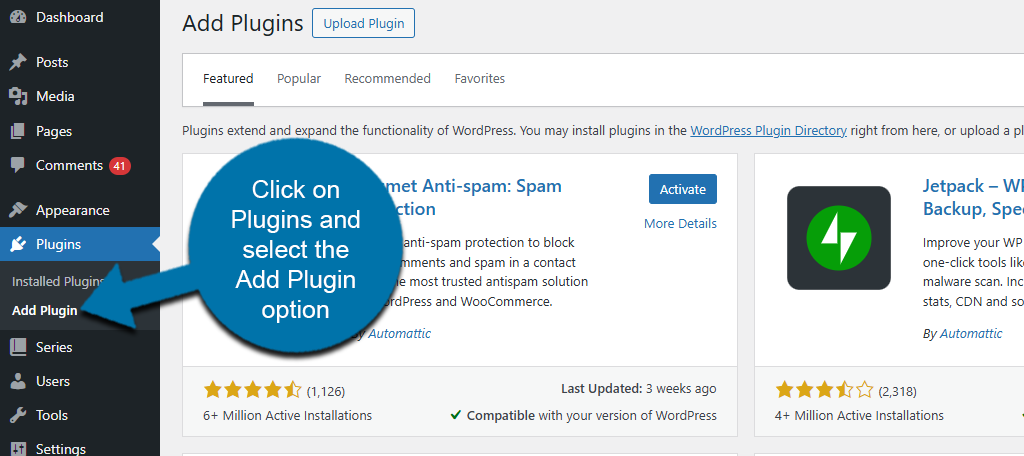
Let’s start by clicking on Plugins and selecting the Add Plugin option on the left-hand admin panel.
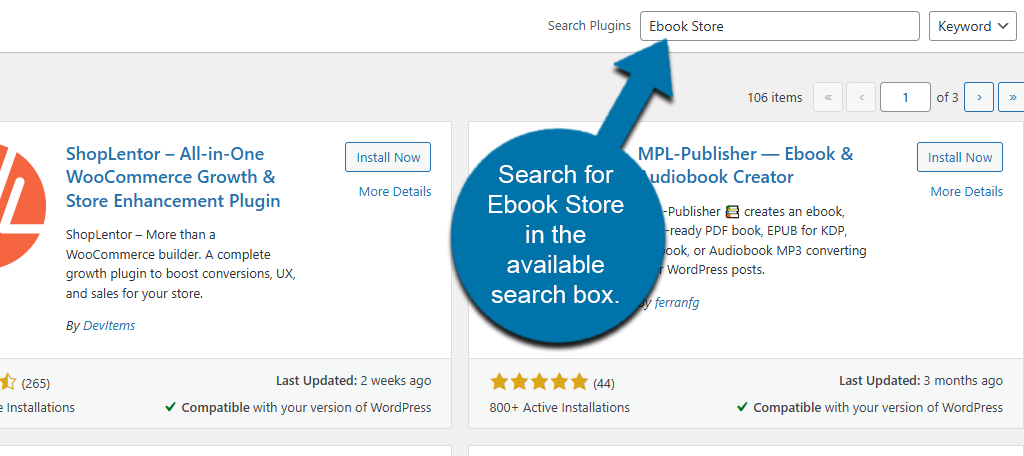
Search for the Ebook Store in the available search box. This will pull up additional plugins that you may find helpful.
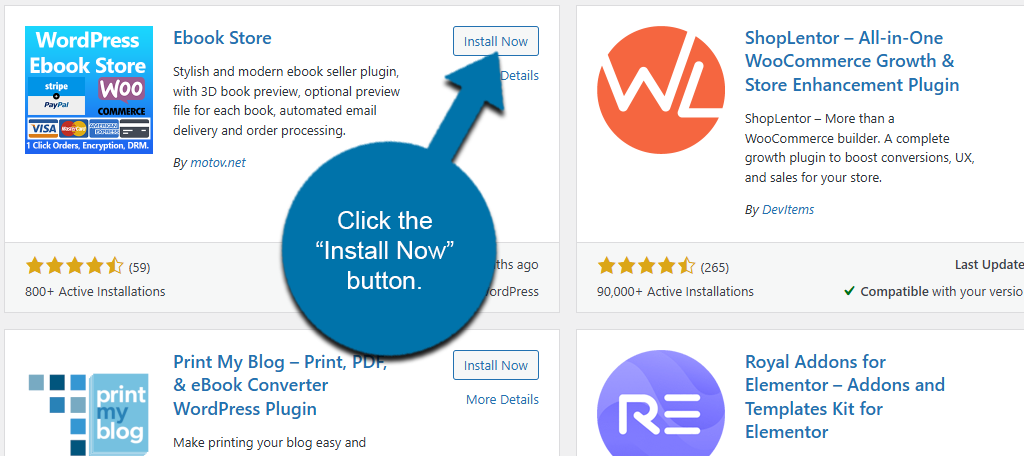
Find the Ebook Store plugin, click the “Install Now” button, and activate the plugin.
Step 2: Configure the Settings
You can immediately start uploading ebooks, but before that, I recommend configuring the settings. After all, you don’t want to mistakenly put an ebook up for sale without setting up a payment method.
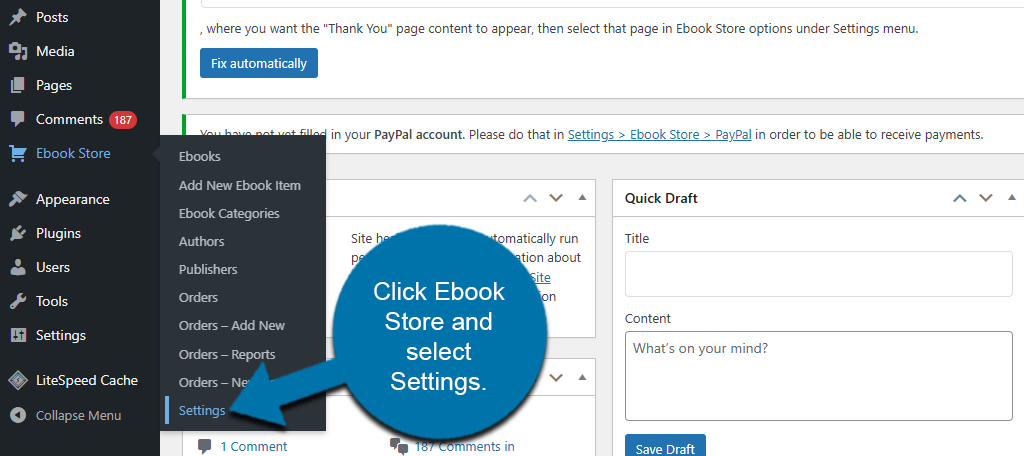
In the left-hand admin panel, click on the Ebooks Store and select the Settings option.
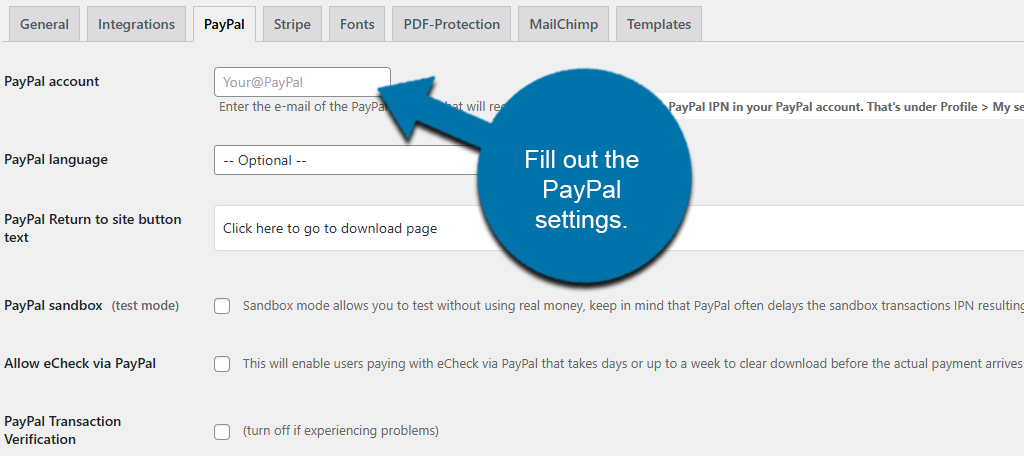
The settings section for this plugin consists of 8 tabs that include: General, Integrations, PayPal, Stripe Fonts, PDF-Protection, MailChimp, and Templates. The majority of these settings are not available in the free version.
However, the one you absolutely need to set up is the PayPal settings. This is because you cannot distribute eBooks for free in the free version of this plugin. Luckily, it is easy to link to your PayPal account.
Be sure to save the changes you make here.
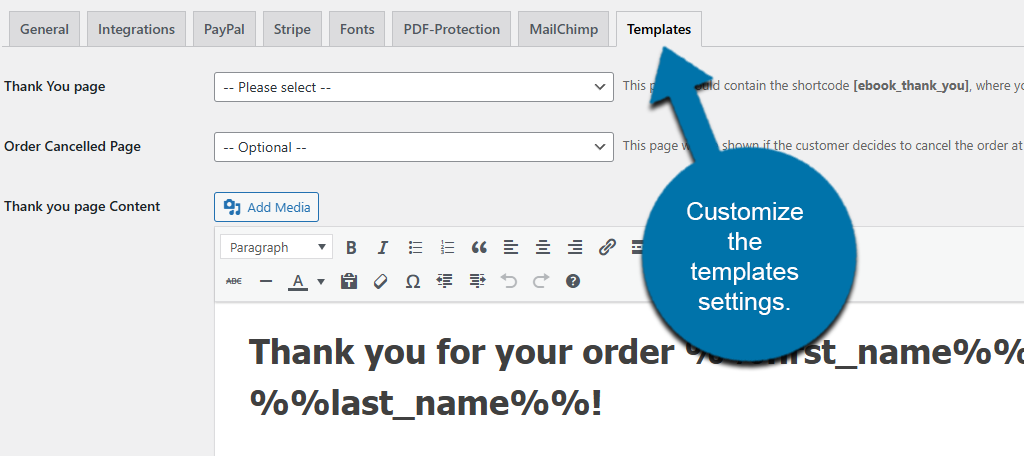
You should also check out the Templates tab. Here, you can customize the email messages that customers receive, which include a link to the ebook. You might also notice at the top of the page that the plugin is asking you to create a “Thank You” page.
If you have already done this, you can also customize the message displayed on it here, as well as any order cancellation messages.
There are some other settings, like font size, link download limit, language, and more, that you can configure. But for the most part, the rest of the settings are locked behind the Pro version.
After customising these settings, you are now ready to add ebooks to the website.
Step 3: Add eBooks
Adding ebooks to your store is very simple, which is a great thing if you plan on uploading a lot of books. That said, you must do so individually; you can expect to spend a lot of time doing this if you plan on having a big catalogue.
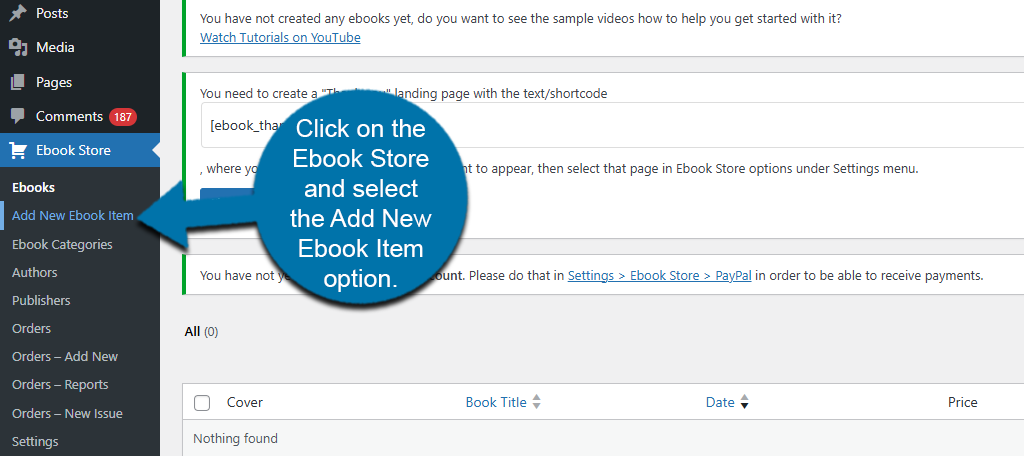
Click on the Ebook Store and select the Add New Ebook Item option.
At the top, you can add a title, and you will see a text editor where you can input the description. It can also be used as an excerpt, but the goal should be to make readers interested in downloading or purchasing the ebook.
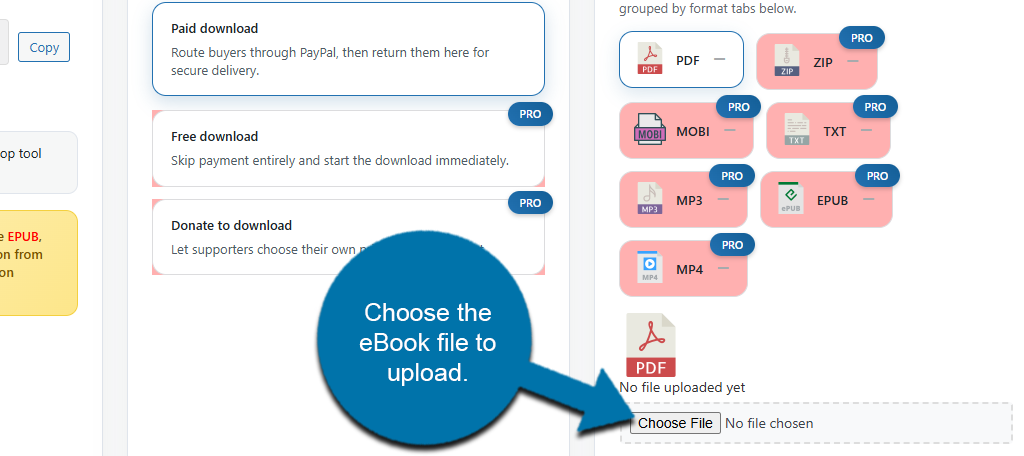
Scroll down below the editor, and you will see some options regarding uploading your eBook. In the free version, the only choice available is the PDF option, which is selected by default.
Click on the “Choose File” button and select the ebook you wish to upload.
Note: All ebooks you upload are subject to the upload limit of your website. If your file exceeds the upload limit, you must increase it.
You will need to set a price for the eBook. Again, you cannot distribute eBooks for free with the free version of this plugin.
In the Additional Options section, you will need to select the currency, set the publication date, enter the number of pages, author, and publisher. There is also a section dedicated to the cover image, so be sure to upload a high-quality cover.
Simply fill out all of the information in this section and click on the “Publish” button when you are done.
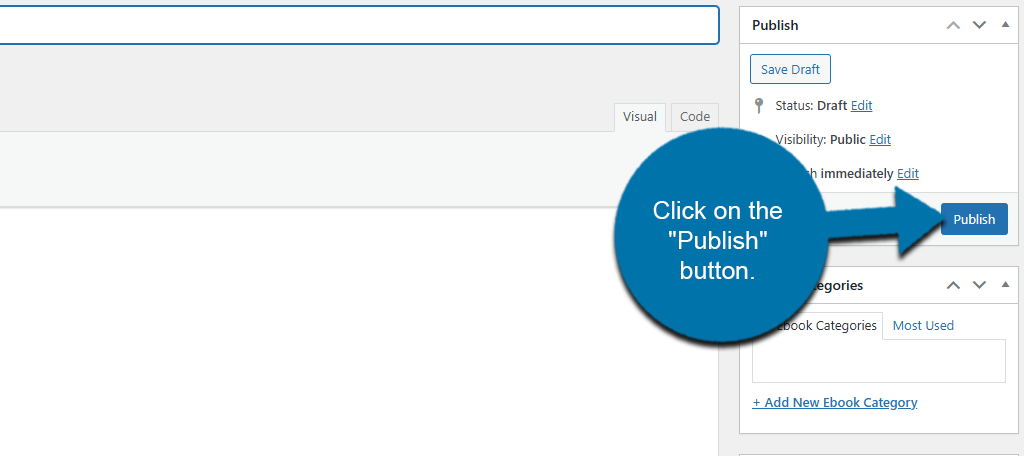
Repeat this step for each eBook you want to include. There is no limit on the number of eBooks you can add.
Step 4: Display the Ebooks
Once you have uploaded all of the eBooks to the plugin, it is time to display them. Like most plugins, this is done via shortcode, thus it doesn’t take very long.
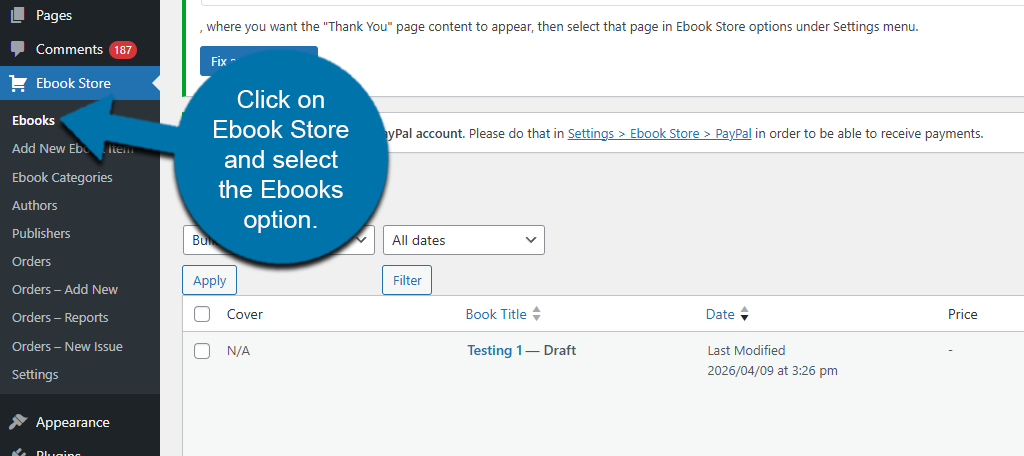
To locate the shortcode for your ebooks, click on Ebook Store and select the Ebooks option.
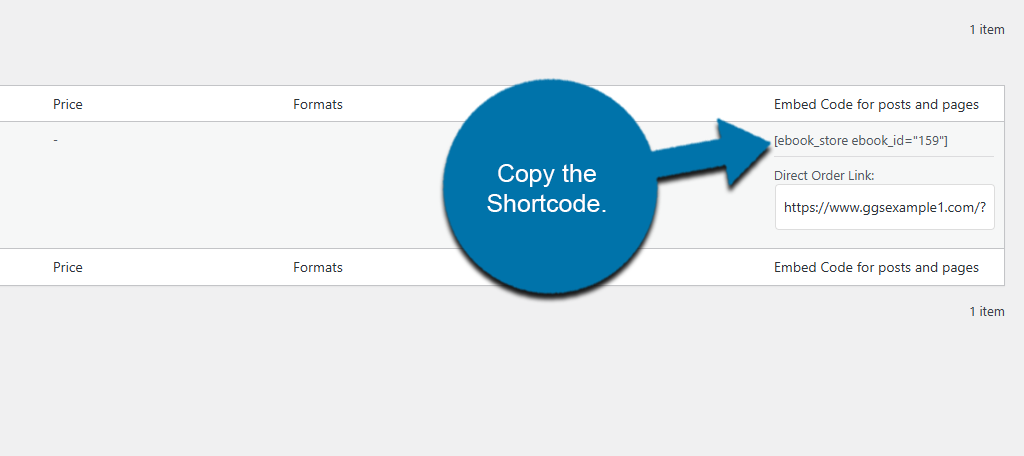
On the right side of the page, you will see an “Embed Code for posts and pages” column, which contains the shortcode. Copy the shortcode and paste it into a shortcode block on the appropriate post or page.
Congratulations on learning how to sell ebooks in WordPress with the Ebook Store plugin.
FAQs
The free version only supports the PDF file type, but if you upgrade to the Pro version, you will gain the ability to upload Zip, Mobi, TXT, MP3, EPUB, and MP4 files.
No. The plugin does not have any limitations; however, keep in mind that if the file sizes are on the larger side, you may run into memory limits with your web host. Be sure to check how much space your server has available.
It really depends on your goal. If you were freely distributing an eBook, you probably do not want to include it, as there is no loss if someone distributes it themselves, but the choice is there if you want it.
The Integration allows you to add your eBooks as WooCommerce products to sell on your storefront. It is very simple to implement if you already have a WooCommerce store set up.
Yes, the Ebook Store is not the only option. While it offers WooCommerce support, the truth is WooCommerce already offers this functionality, so you could choose to use WooCommerce by itself to meet your needs.
Yes. Simply upload the new version of the eBook in place of the original. You can do this as often as needed, but be sure to message users about updates; they may not know that they were made.
Yes. Simply upload a new cover image to the eBook, and it will replace the original. Be sure to use a high-quality image as it will appear on the sales page.
Start Selling eBooks Today
As you can see, it is easy to sell eBooks using the Ebook Store plugin for WordPress. All you need is a great web host like GreenGeeks, a fresh WordPress installation, and the plugin to get started.
Just keep in mind that the plugin is very limiting if you choose to use the free version. Consider upgrading to the Pro version, or trying out a different plugin to handle your digital book sales.
Do you write your own eBooks to sell? How easy did you find the Ebook Store to use?
This plug in is now broken on our site and no one has responded to our support emails.
Hello, sorry to hear that. Normally, I find the forums on WordPress.org for the plugin to be far more effective at getting the developer’s attention. Perhaps you can try there?