
The fastest way to check your Ubuntu version is to open a terminal and run lsb_release -a. The Description line in the output shows the release, for example Ubuntu 24.04.1 LTS, which means you are on Noble Numbat, the long-term support release issued in April 2024.
Knowing the exact release matters for several practical reasons. Package compatibility lists are written against specific Ubuntu versions, and a .deb built for Jammy may refuse to install on Noble. Bug reports filed against the wrong release get closed without action. Upgrade decisions depend on the LTS status of your current release and how close it sits to end of life. Cloud images, container base layers, and CI runners all need to match documented runbooks, and a mismatch is the first thing a reviewer will flag. The five methods below cover terminal commands, system files, the desktop Settings panel, and a third-party tool. Pick the one that fits your access and the level of detail you need.
The lsb_release Command
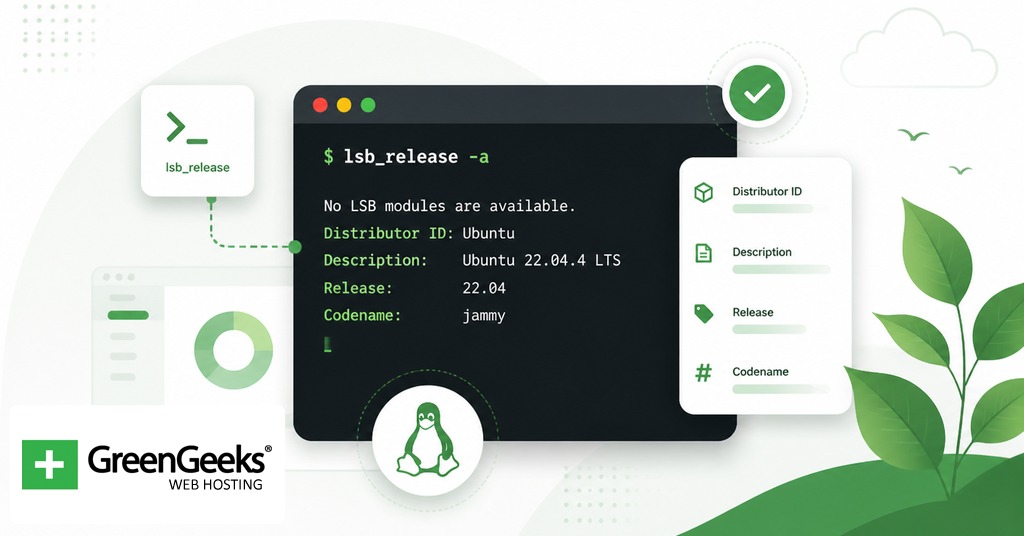
lsb_release -a returns the canonical Ubuntu release information in a single command.

$ lsb_release -a No LSB modules are available. Distributor ID: Ubuntu Description: Ubuntu 24.04.1 LTS Release: 24.04 Codename: noble
The Description line is the human-readable version with the LTS suffix when applicable. Release gives the numeric version in YY.MM form. Codename is the lowercase animal name from Canonical’s release naming pattern. If you only want one of these, use the short flags: lsb_release -d for description, lsb_release -r for release, and lsb_release -c for codename. The lsb-release package ships preinstalled on Ubuntu Desktop and Server, so the command works on a stock system without setup. On a minimal container image you may need to install it yourself with sudo apt install lsb-release before the command resolves. Output goes to standard output, which makes it convenient inside shell scripts: version=$(lsb_release -rs) captures the release number alone with no leading label.
The /etc/os-release File
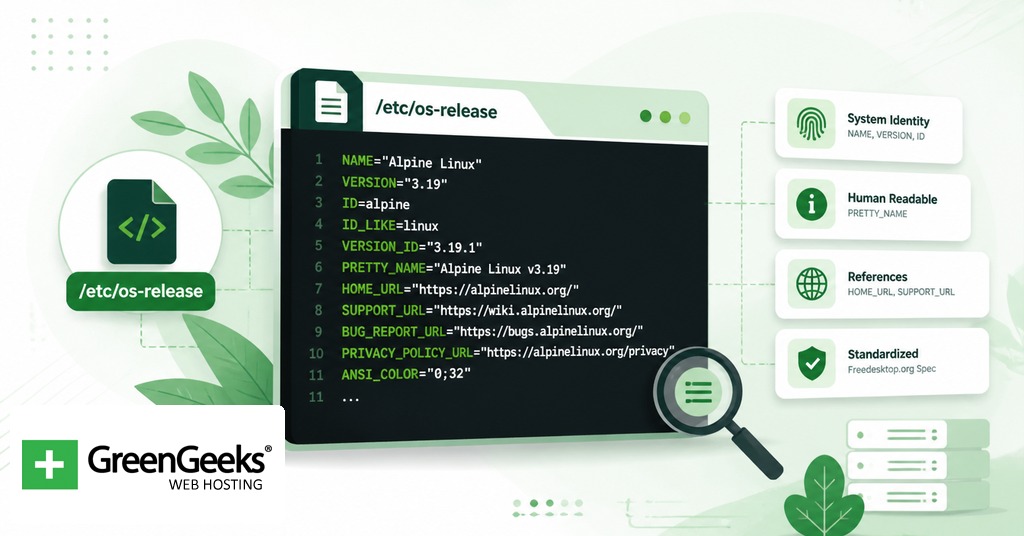
Every Ubuntu install includes /etc/os-release, a plain-text file that any user can read.
$ cat /etc/os-release PRETTY_NAME="Ubuntu 24.04.1 LTS" NAME="Ubuntu" VERSION_ID="24.04" VERSION="24.04.1 LTS (Noble Numbat)" VERSION_CODENAME=noble ID=ubuntu ID_LIKE=debian HOME_URL="https://www.ubuntu.com/" BUG_REPORT_URL="https://bugs.launchpad.net/ubuntu/" UBUNTU_CODENAME=noble
This file follows the freedesktop.org os-release specification, which most modern Linux distributions support. The key=value layout makes it parseable from shell scripts with one line: . /etc/os-release && echo "$VERSION_ID". That sourcing approach is the recommended pattern in the spec because it avoids fragile awk or cut parsing. Two related files exist on Ubuntu and are worth knowing about. /etc/lsb-release carries DISTRIB_ID, DISTRIB_RELEASE, and DISTRIB_CODENAME in a similar shape but is Ubuntu-specific. /etc/issue is the pre-login banner and is editable by an administrator, so it is not a reliable source of truth. A common mistake is reading /etc/debian_version, which exists on Ubuntu but reports the upstream Debian release the system tracks, not the Ubuntu version itself. When in doubt, read /etc/os-release.
The hostnamectl Command
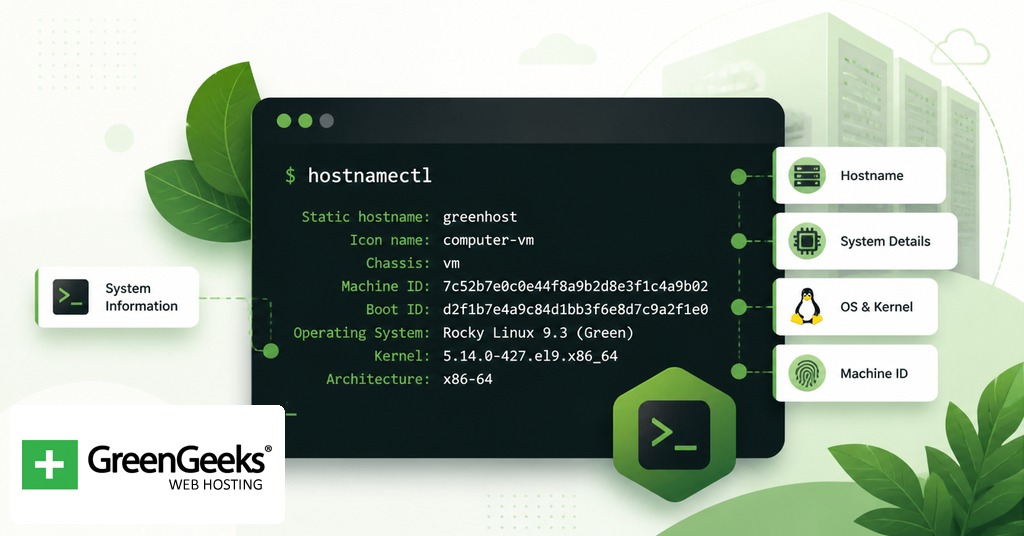
The hostnamectl command, part of systemd, prints system identity in one block.
$ hostnamectl Static hostname: web-01 Icon name: computer-vm Chassis: vm Machine ID: 9c3b2a7e8f4d4b1bb1ab0ce2c9d1f0a3 Boot ID: 3a17e4c4a4be4f5b9b0a2f8b2c1e5d7a Virtualization: kvm Operating System: Ubuntu 24.04.1 LTS Kernel: Linux 6.8.0-45-generic Architecture: x86-64 Hardware Vendor: QEMU Hardware Model: Standard PC (Q35 + ICH9, 2009)
The Operating System line answers the version question directly. Kernel and Architecture come along in the same output, which saves a follow-up command when you are documenting a server or filing an inventory record. hostnamectl does not require root and works on any systemd-based Ubuntu, meaning anything from 16.04 forward. For scripted use, hostnamectl –json=short returns the same data as JSON, which parses cleanly with jq. The command also reports the chassis type and virtualization vendor, which helps when you are identifying the hypervisor a VM runs under, such as KVM, Hyper-V, or bare metal.
The uname Command and Its Limits
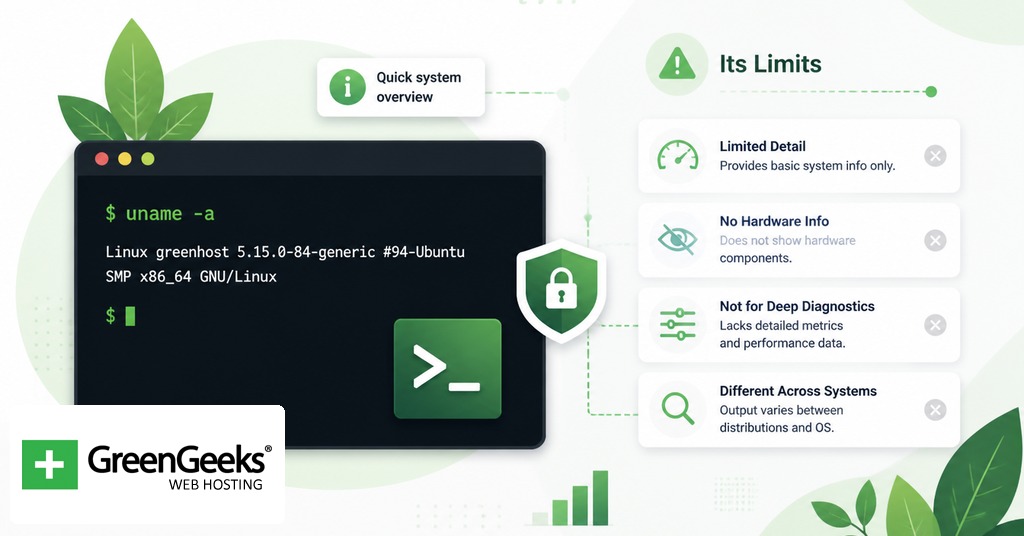
uname reports kernel data, not the Ubuntu distribution version. The distinction trips up many users.
$ uname -r 6.8.0-45-generic $ uname -a Linux web-01 6.8.0-45-generic #45-Ubuntu SMP PREEMPT_DYNAMIC \ Mon Sep 30 10:00:00 UTC 2024 x86_64 x86_64 x86_64 GNU/Linux
uname -r returns the kernel release string. uname -a adds hostname, build date, architecture, and the kernel name. Neither output contains the Ubuntu version number on its own. Confusion arises from the Hardware Enablement (HWE) stack, which rolls newer kernels onto older LTS releases. A 22.04 system that has installed the HWE stack may run kernel 6.8, the same kernel shipped on 24.04. Reading the kernel string alone tells you nothing definitive about the distribution. There is one indirect signal in the verbose output of uname -a: the build banner contains the string Ubuntu, which at least confirms the kernel was packaged by Canonical. That confirmation does not include a release number. Use uname for kernel-specific debugging or driver compatibility, then check the distribution release with one of the other methods.
The Settings App on Ubuntu Desktop
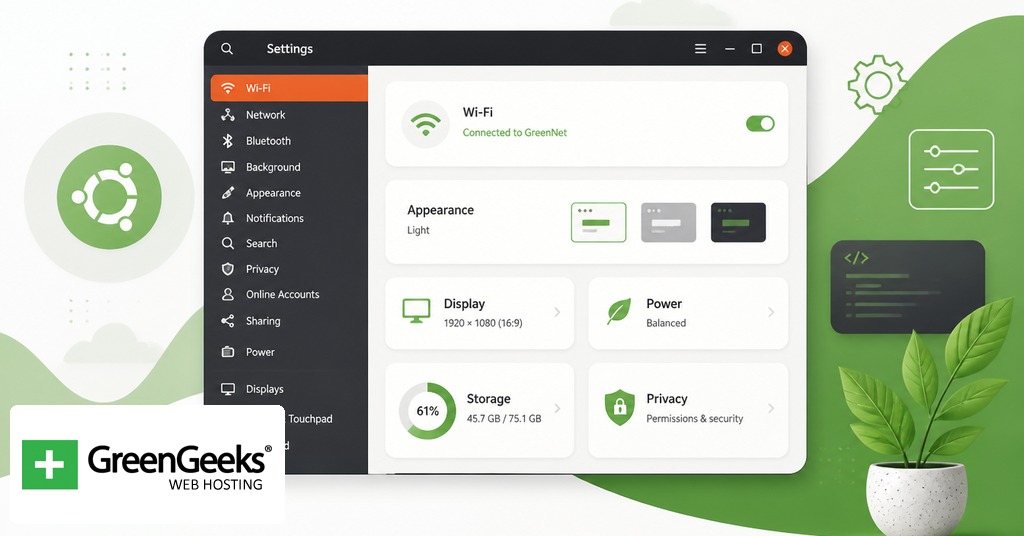
If you are on the GNOME desktop and prefer not to open a terminal, the version appears in the Settings panel.
Click the system menu in the top-right corner of the screen.
Open Settings.
On Ubuntu 24.04 and later, scroll the left sidebar to System, then click About. On 22.04 and earlier, the entry is About directly in the sidebar.
Read the line labeled OS Name or OS, which shows the version string such as Ubuntu 24.04.1 LTS.
The same panel lists the GNOME version, the OS type (64-bit), the hardware model, processor, memory, and disk capacity. This is the most direct route for users on a desktop install who want to confirm the release before initiating an upgrade through Software Updater. On Ubuntu flavors that ship a different desktop environment, the path varies. KDE Plasma exposes the version under System Settings > About this System, and Xfce uses Settings > About Xfce plus lsb_release -a for distribution information. The terminal methods above work on every flavor regardless of desktop.
Third-Party Tools: fastfetch and screenfetch
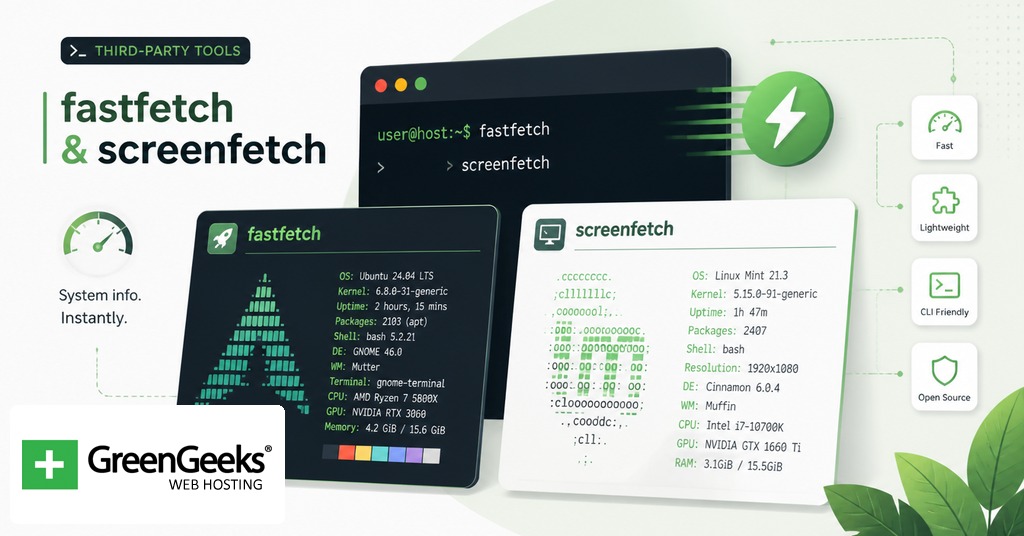
System-info utilities print release data alongside an ASCII logo. They are popular in screenshots and convenient at a glance.
$ sudo apt install fastfetch $ fastfetch .-/+oossssoo+/-. user@web-01 `:+ssssssssssssssssss+:` ———- -+ssssssssssssssssssyyssss+- OS: Ubuntu 24.04.1 LTS x86_64 .ossssssssssssssssssdMMMNysssso. Kernel: 6.8.0-45-generic /ssssssssssshdmmNNmmyNMMMMhssssss/ Uptime: 3 days, 4 hours +ssssssssshmydMMMMMMMNddddyssssssss+ Shell: bash 5.2.21 DE: GNOME 46.0 CPU: Intel Xeon E5-2690 v4 Memory: 4.2 GiB / 16.0 GiB
Run fastfetch for the most actively maintained option as of 2026. screenfetch works similarly and is available with sudo apt install screenfetch. The original neofetch project was archived by its maintainer in April 2024; it still installs from older repositories but no longer receives updates, and reports for newer hardware can be inaccurate. Any of these tools pulls the same version string that the system files expose, with the bonus of a tidy summary block. They add no information that the earlier methods do not already provide, but they do package it for quick visual scanning, which is the reason they show up in screenshots and forum posts.
Reading the Output
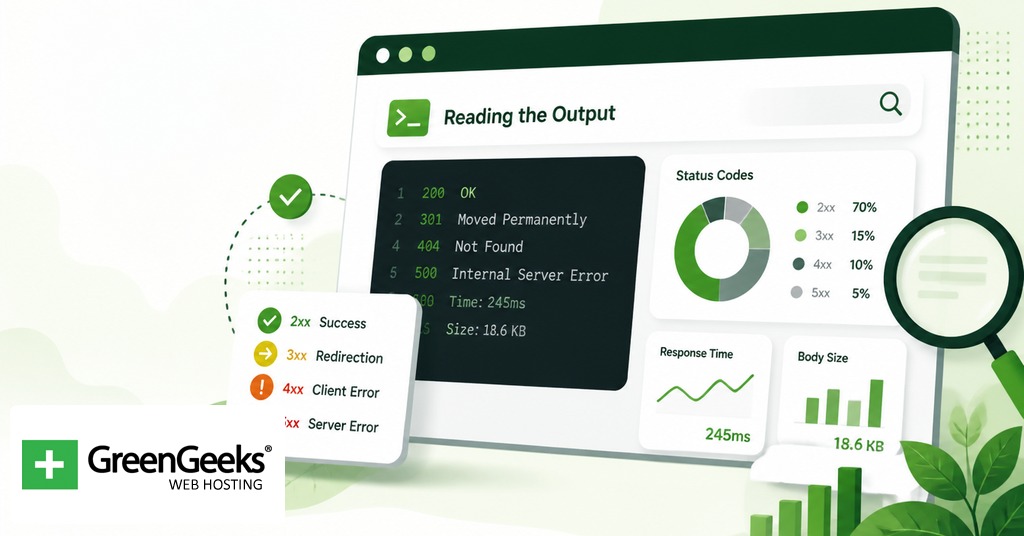
The version string follows a consistent pattern once you know what to look for.
The number is in YY.MM format. 24.04 was released in April 2024. 22.10 was released in October 2022.
The LTS suffix marks long-term support releases, which ship every two years in April and receive 5 years of standard updates. Releases without the suffix are interim, with 9 months of support.
The codename pairs an adjective and an animal beginning with the same letter, advancing alphabetically. Recent codenames in order: Focal Fossa (20.04), Jammy Jellyfish (22.04), Noble Numbat (24.04), Oracular Oriole (24.10), Plucky Puffin (25.04), Questing Quokka (25.10).
A trailing point number, like 24.04.1, indicates an LTS point release that bundles cumulative updates and refreshed kernel stacks. Point releases ship roughly every six months for the first two years of an LTS.
The table below maps each method to the situation it fits.
| Method | Best for |
| lsb_release -a | Quick terminal check, scripts wanting parsed fields |
| cat /etc/os-release | Portable across distributions, shell-script parsing |
| hostnamectl | Combined OS, kernel, and architecture in one output |
| uname -r | Kernel debugging only, not distribution identification |
| Settings > About | Desktop users without a terminal open |
| fastfetch | At-a-glance summary with system info |
For a one-shot answer in a script or remote SSH session, lsb_release -d returns a single line and is the lightest call. For machine-readable output across distributions, source /etc/os-release and reference the variables you need. For a quick visual check on a desktop, the Settings panel is faster than opening a terminal.
Frequently Asked Questions

How do I know if Ubuntu is 22.04 or 24.04?
Run lsb_release -d or cat /etc/os-release and read the version number. 22.04 is Jammy Jellyfish, released April 2022, with standard support through April 2027. 24.04 is Noble Numbat, released April 2024, with standard support through April 2029. Both are LTS releases.
Does uname show the Ubuntu version?
No. uname returns kernel information. uname -r gives the kernel release string like 6.8.0-45-generic, and uname -a adds hostname, build date, and architecture. The kernel version can be the same across two different Ubuntu releases when the older release runs the Hardware Enablement stack, so it is not a substitute for lsb_release or /etc/os-release.
Is my Ubuntu LTS or non-LTS?
Look for the letters LTS at the end of the description line in lsb_release -d or in PRETTY_NAME from /etc/os-release. LTS releases come every two years in April and receive 5 years of standard support. Interim releases ship every six months and receive 9 months of support, after which the system must be upgraded.
What does the number after Ubuntu mean, like 24.04?
Ubuntu uses a YY.MM versioning scheme based on the release date. 24.04 means the release came out in April 2024. 22.10 came out in October 2022. The pattern lets you read the release date directly from the version number without consulting a table.
Can I check the Ubuntu version on WSL?
Yes. Inside the Windows Subsystem for Linux terminal, run lsb_release -a or cat /etc/os-release. The output reflects the Ubuntu image you installed under WSL, not the Windows host. If you have multiple WSL distributions, run wsl –list –verbose from PowerShell to confirm which Ubuntu image you are launching into.