
Cached data is a set of temporary files your browser, apps, and operating system keep on hand so they can reload pages and screens faster the next time you open them. The short answer to the title question is yes, you should remove it occasionally, but only for specific reasons. A site rendering wrong, a phone running low on storage, a shared device being passed along, or a stuck login screen are all good prompts. Routine monthly housekeeping is not. Removing the cache does not sign you out, does not delete saved passwords, and does not touch your bookmarks unless you also tick those boxes in the deletion dialog.
Cached Data, Defined

When you load a page, your browser downloads a long list of files. The HTML for the page itself, the CSS that styles it, JavaScript bundles that handle interactivity, images, fonts, and sometimes fragments of API responses. Sending and parsing all of that takes time and bandwidth. The cache exists so the browser does not have to repeat the work on every visit. On the second visit, it pulls a copy from disk instead of the server, and the page paints in a fraction of the time.
This pattern repeats at almost every layer of the network stack. Your phone caches recent app screens. Your operating system caches DNS lookups so it does not ask the resolver about the same domain twice in five minutes. Your home router holds DNS records for the devices on your network. Your internet provider runs its own DNS cache. Content delivery networks place edge copies of popular files in data centers around the world. Even Progressive Web Apps run a local cache through a service worker, which is what allows certain web apps to keep working when you go offline.

The end result is a layered system where the same byte may exist in five places at once. Every layer is opt-in to remove individually, and most users only ever interact with one or two of them.
Cache Locations Across the Stack

The table below covers the most common cache types a regular user will encounter, where they sit, and how to remove each one.
| Type | Where it lives | Survives a browser restart | Typical size | How to remove |
| Browser cache | Disk, inside the browser profile | Yes | 50 MB to a few hundred MB | Browser settings, “cached images and files” |
| DNS cache (OS) | Operating system memory | No on reboot, yes on restart of browser | A few KB | ipconfig /flushdns (Windows), dscacheutil (macOS) |
| Mobile app cache | Per-app storage on the device | Yes | A few MB to over 1 GB across many apps | Settings > Apps > Storage and cache (Android) |
| CDN edge cache | Provider data center | Yes | Not your concern as a visitor | Cannot remove from your end |
| Service worker cache | Browser, separate from regular cache | Yes | App-defined | Browser settings or the app’s reset option |
| OS file/thumbnail cache | Disk, in user folders | Yes | Tens of MB to several GB | Storage settings or maintenance utilities |
Most of the troubleshooting impact comes from the first row. The browser cache is the one that holds an outdated stylesheet that breaks a page layout, or a stale script that prevents a login form from working.
The Honest Answer to “Should You Delete It”

Removing cached data is a targeted fix, not routine hygiene. Most users do it without a reason and end up making their own browsing slightly slower for the rest of the day. Below are the situations where removal does pay off.
A site looks wrong after a redesign. Layouts overlap, images are missing, buttons sit in the wrong place. Old CSS or JavaScript is still being served from disk.
A login form keeps looping or failing in the same browser. Cached scripts may be out of sync with the live version.
You are debugging a layout or content issue and want to rule out a stale local copy.
The device is low on storage. App caches in particular can balloon past 1 GB on a phone with a heavy social or streaming app.
You used a shared or public machine. Wiping cached pages reduces the chance the next user can reconstruct your activity.
You are about to sell, gift, or recycle a device. A factory reset is the right step, and removing app and browser caches before that is a sensible first pass.
You suspect a malware or phishing incident. Resetting cached pages and stored site data limits exposure and avoids loading a poisoned resource on the next visit.
If none of those apply, leave the cache alone. The performance benefit it provides on every revisit is real, and tossing it weekly throws that benefit away.
Cache Headers and the Freshness Question
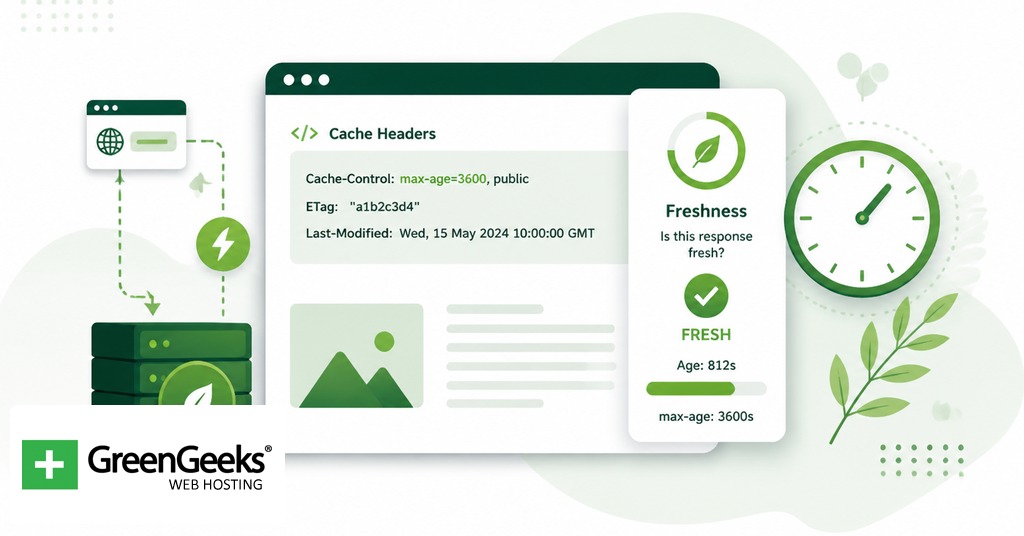
How long a file stays cached is decided by the server, not the browser. The HTTP Cache-Control header carries the rules. A response with Cache-Control: max-age=3600 is treated as fresh for an hour. After that the browser will revalidate before reusing it. Other directives include no-cache, which forces revalidation on every use, and no-store, which tells the browser not to keep a copy at all. Pages with login forms, banking interfaces, and personally identifiable information should be served with no-store so they never sit on disk.
ETag is the second half of the system. An ETag is a short fingerprint that identifies the exact version of a file. When the browser checks back in, it sends the stored ETag in an If-None-Match header. If the server’s current ETag still matches, the response is 304 Not Modified and the browser keeps using its local copy without redownloading the body. This is how a 2 MB image can be revalidated with a few hundred bytes of network traffic.
Service workers handle their own cache layer. They sit between the page and the network and decide what to do with each request, using strategies like cache-first (use the local copy first), network-first (try the server first), and stale-while-revalidate (serve the local copy and refresh in the background). This is the mechanism that allows a Progressive Web App to load on a flaky train Wi-Fi connection or while offline.
Removing Cache in Major Browsers

Each browser exposes the same idea behind a slightly different menu. A standard hotkey opens the deletion dialog directly in Chrome, Firefox, and Edge. On Windows the keys are Control, the upward-arrow modifier, and Delete pressed together. On macOS the Command-key version of the same trio does the job.
Chrome (desktop)
Click the three-dot menu in the top right.
Choose More tools, then the browsing-data removal option.
Pick a time range. All time removes everything; Last hour is enough for fixing one stuck site.
Tick Cached images and files. Leave passwords and autofill unticked unless you want those removed too.
Confirm the action.
On Android, open Chrome, tap the three-dot menu, choose History, then the browsing-data removal option, and follow the same checkbox logic.
Firefox
Open the menu and select Settings.
Go to Privacy and Security.
Scroll to Cookies and Site Data and choose the data-removal button.
Tick Cached Web Content, leave Cookies and Site Data unticked if you want to stay logged in.
Confirm to finish.
Safari
On macOS, the cache option is hidden by default. Open Safari, go to Settings > Advanced, and tick Show Develop menu in menu bar. The Develop menu now sits in the top bar. Choose Develop > Empty Caches to remove cached files. The shortcut Option+Cmd+E does the same once the menu is on.
On iOS, Safari does not separate cache from history. Go to Settings > Safari and pick the option to remove history and website data. This wipes browsing history, cookies, and cached files in one step. If you want to keep cookies, the iOS option is to switch off Block All Cookies and instead use private browsing tabs.
Microsoft Edge
Open the three-dot menu in the top right.
Go to Settings > Privacy, search, and services.
Under the browsing-data section, choose what to remove.
Pick a time range and tick Cached images and files.
Confirm to remove.
The same hotkey from the browser overview above opens this dialog without the menu hop.
Removing Cache on Phones and Laptops

The browser dialog covers web cache, but apps and the operating system hold caches of their own.
Android apps
Open Settings and tap Apps.
Pick the app that is misbehaving or eating storage.
Tap Storage and cache.
Tap the cache-removal option to delete cached files only.
Use the storage-reset option only if you want a full reset; that signs you out and removes app preferences.
iOS apps
iOS does not offer a system-wide cache button per app. Two paths exist. The first is Offload App under Settings > General > iPhone Storage > the app, which removes the binary while keeping documents and data. Reinstalling rebuilds the cache from scratch. The second is to delete the app outright and reinstall it from the App Store, which removes everything. Some apps include their own in-app cache controls under their settings; check there before reaching for offload.
Windows
The command ipconfig /flushdns, run from Command Prompt, removes the operating system’s DNS cache. Windows file caches and temporary files can be reduced through Settings > System > Storage > Temporary files.
macOS
The Terminal command sudo dscacheutil -flushcache; sudo killall -HUP mDNSResponder flushes the DNS cache. User-level caches sit in ~/Library/Caches. Removing folders there reclaims space, though most apps will rebuild what they need on next launch.
Items Kept and Items Removed

Removing cached data is more limited than people assume. The cache itself only holds reusable page assets. Saved passwords, bookmarks, autofill entries, browsing history, and cookies are all stored separately. Unless you tick those boxes in the deletion dialog, they remain untouched. Cookies are the one item people most often delete by mistake; doing so signs you out of every site you were logged into. The browser’s password manager survives a cache purge unless you also opt to remove sign-in data.
Expect a small slowdown the first time you visit a site after removal. The browser has to download images, scripts, and stylesheets again. By the second or third visit the cache is rebuilt and load times return to normal.
Frequently Asked Questions
Does removing cache delete passwords?
No. Cache and saved passwords are stored separately. As long as you only tick “cached images and files” in the deletion dialog, your passwords stay. They are only removed if you also select “passwords and other sign-in data.”
Does removing cache speed up my phone?
It can, when an app has corrupted cached files or has accumulated more than a gigabyte of cached media. The next launch will be slightly slower because the cache has to rebuild, then performance returns. Doing it too often is counterproductive, since the cache is what makes apps and pages load quickly in the first place.
How often should I remove my browser cache?
For most people, once or twice a month is plenty. Beyond that, do it when a website stops behaving correctly after an update or when storage is genuinely tight. Setting it as a weekly habit removes the performance benefit caching exists to provide.
What is the difference between cache and cookies?
Cache holds page content such as images, scripts, stylesheets, and similar assets that the browser reuses on later visits. Cookies hold identifiers and preferences, including the tokens that keep you signed in. Removing cache does not log you out. Removing cookies does.
Is it safe to remove my cache?
Yes. The cache only stores copies of files that can be redownloaded from the source. Removing it has no permanent consequences other than a slightly slower first visit afterward. The action is reversible by the simple act of using the web normally.
