
In 9 out of 10 sudden outages the cause comes from a short list, anything from the visitor’s own connection to an expired domain, broken DNS, or a server problem that includes its SSL certificate.
Diagnosis runs in a fixed order. The first check is whether the site is down for anyone but the owner. A stale browser cache or a sleeping router produces the same blank page. Next come the domain and its DNS records, then the hosting account and its certificate. Each of those four layers fails on its own and takes the whole site with it.
Confirm the Site Is Down for Everyone Before Changing Anything
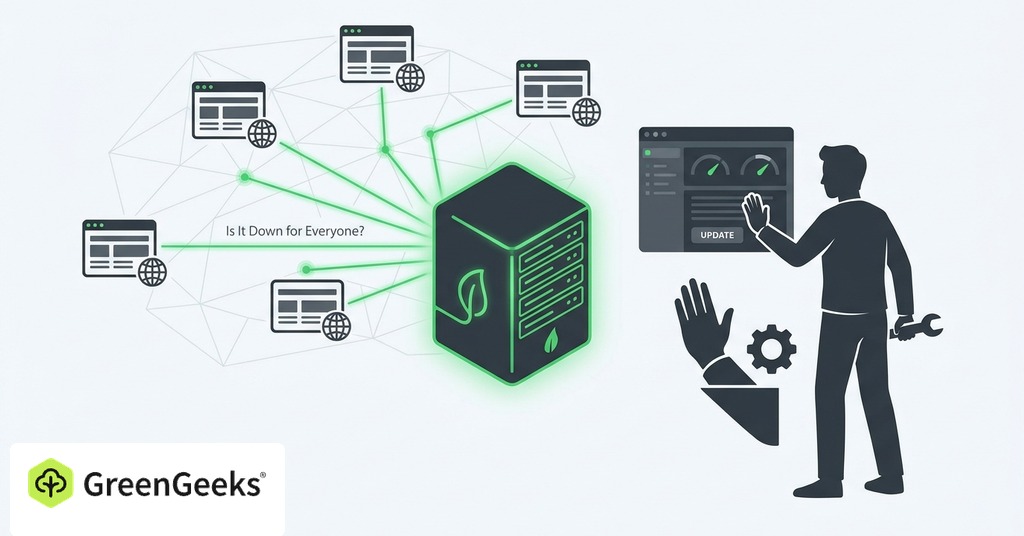
A large part of reported downtime never reaches the server. The site was up the whole time. The real cause was a stale browser cache or a router that needs a restart, sometimes an office firewall. Before touching any setting, run the site through a multi-location down checker and load it on a phone with Wi-Fi turned off. Mobile data uses a completely different network path.

Images and scripts started failing across a WordPress site. Support checked the CDN and the pings along with global DNS resolution. All of it came back clean. The cause was a small DNS change cached on the client’s own computer, cleared as soon as the local DNS cache was flushed.
Owners who skip the confirmation step routinely fix settings that were never broken and stay offline anyway. If the checker reaches the site but you cannot, restart your router and flush your device’s DNS cache. On Windows that is ipconfig /flushdns in an admin Command Prompt. Switching the device resolver to 1.1.1.1 bypasses a cached or poisoned local record.
If the site loads on mobile data but not over your Wi-Fi, stop there. No hosting change will fix it. The problem belongs to the local network or the ISP.
What the 5xx Codes Tell You
A site needs its domain, its DNS records, its hosting server and a valid certificate. Break any one of them and the whole site is unreachable while the other three stay healthy. The text the browser prints is the first evidence of which one failed.
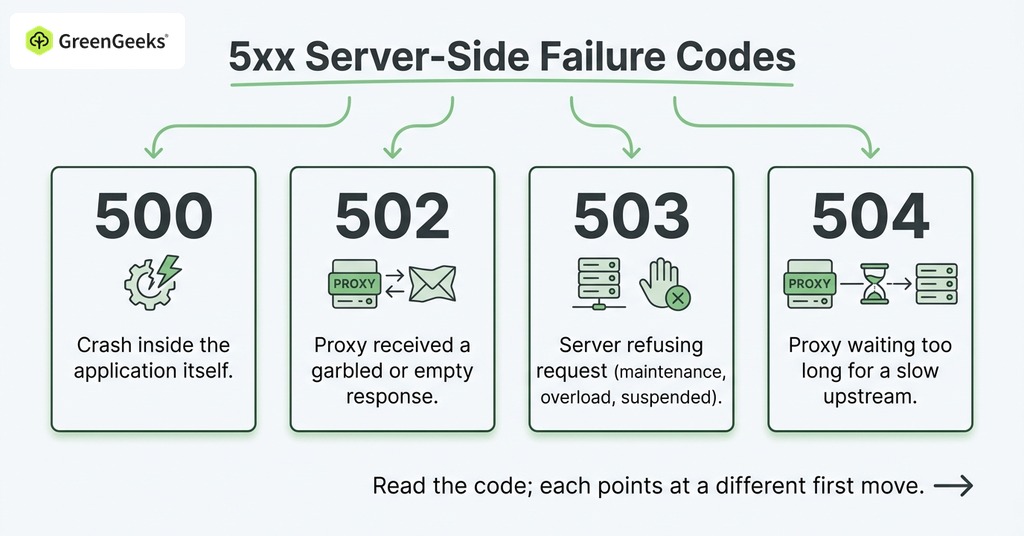
The 5xx codes each describe a different server-side failure:
A 500 reports a crash inside the application itself.
A 502 means a proxy received a garbled or empty response from the server behind it.
A 503 is the server refusing the request on purpose, through maintenance or overload, or because the account was suspended.
A 504 follows a proxy waiting too long for a slow upstream.
Read the code before changing anything, since each one points at a different first move.
Check the Domain and DNS First
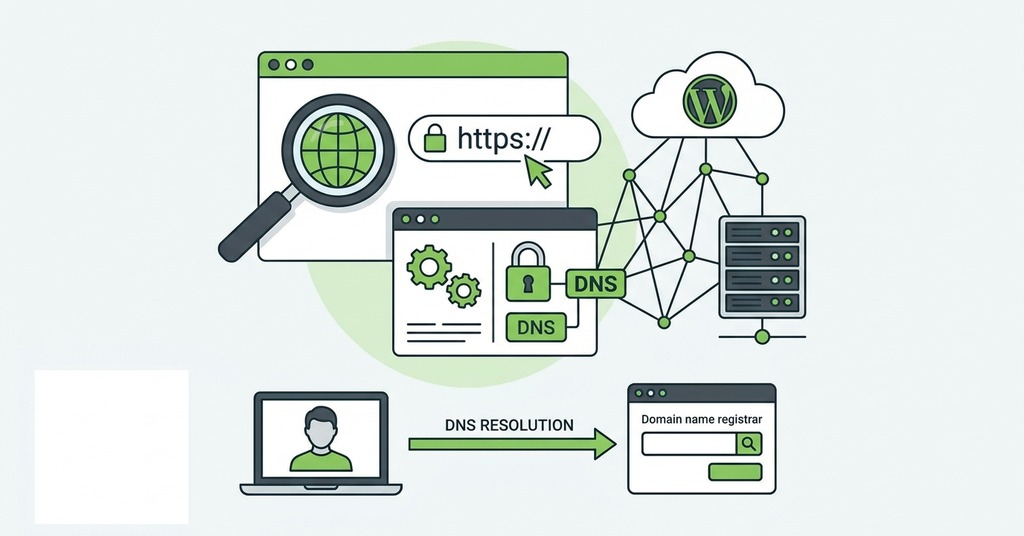
An expired domain is a more common cause than most owners expect. The renewal charge fails on an expired card, or the renewal notice gets caught by a spam filter. Either way the domain lapses and the site stops resolving, sometimes with a parking page in its place. The expiration date is visible from inside the registrar account. Most registrars offer a grace period during which renewal restores the domain, and the site returns within a few hours as DNS re-propagates.
When the free-domain provider Freenom shut down its free registrations in March 2024, millions of domains stopped resolving at once. Database backups were no help to the owners affected, since the domain that pointed to them no longer resolved.
Most DNS changes complete within 1 to 4 hours, though the standard worldwide propagation window is 24 to 48 hours. During that window a site can load for some visitors and fail for others, which is normal behavior for propagation. Making further DNS changes mid-propagation resets the clock. The only useful move is to leave the records alone until the window closes. A tool like whatsmydns.net shows resolution from multiple global locations.
The classic failure after a hosting migration is nameservers still pointing at the old host. Verify the nameserver settings in your registrar panel against what the new host specifies. One extra check tells you which layer is at fault. If email for the domain is also down, the problem is wider than the website and belongs to the domain or account level.
How to Tell When the Host Is the Problem
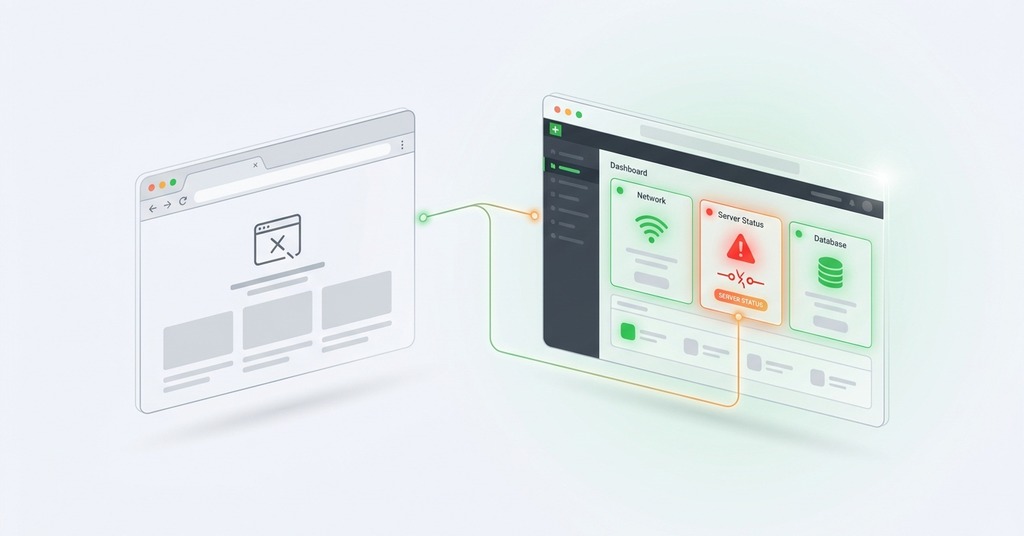
Three signs point at the hosting provider. The site worked fine and you changed nothing recently, the hosting control panel itself is unreachable too, or the provider’s public status page shows an active incident.
Accounts are suspended for non-payment, for exceeding resource limits, and sometimes for detected malware. The control panel login states the reason. Non-payment suspensions typically resolve within about an hour of settling the invoice. Resource-limit suspensions need an upgrade or site optimization, and shared hosts reset those counters on an interval, so a site that recovers on its own after a traffic spike is running close to its resource limit.
Shared hosting always carries some exposure to a neighboring account’s traffic spikes. A 99.9% uptime guarantee still permits under an hour of downtime in a month, which is the ceiling every provider that publishes the figure is working against. GreenGeeks publishes its uptime numbers and staffs support around the clock, and a provider that also runs a real status page with auto-renewing SSL removes several failure points outright.
When the problem belongs to the host, give support your domain name and the exact error message. The approximate start time, any recent changes and anything already tried belong in the same message.
WordPress Crashes: White Screens and 500 Errors
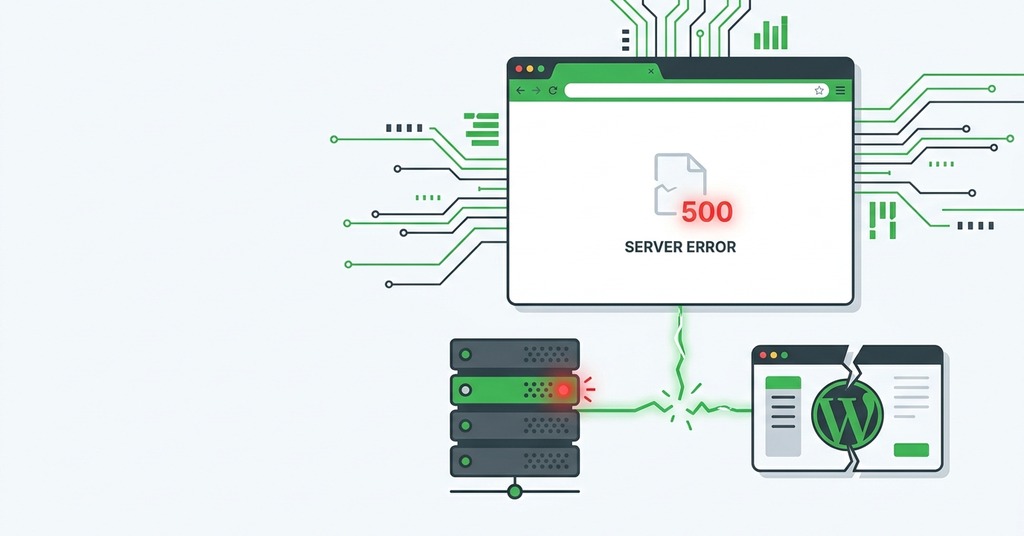
A plugin or theme conflict is the most common WordPress-specific cause, especially when the site was fine until a recent update. WordPress 5.2 replaced the blank page with “There has been a critical error on this website” and added an emailed recovery-mode link for the admin. Older or server-level failures produce the pure white screen.
Disable Every Plugin at Once
Connect by FTP or the hosting file manager and rename the /wp-content/plugins folder to plugins_old. WordPress skips every plugin it cannot find, so if the site loads, a plugin caused the crash. Rename the folder back and toggle individual plugin folders to identify which plugin broke it. Work in halves if there are many. The mu-plugins folder needs the same check, since those plugins load automatically and never appear in the dashboard.
The .htaccess Reset
The site returns a 500 on every URL including the homepage, and nothing in the plugins folder explains it. A syntax error in the .htaccess file produces exactly that, and redirect, caching and security plugins all write conflicting lines into it. The check applies on Apache-family hosting only. NGINX servers ignore .htaccess entirely and LiteSpeed reads most Apache-syntax rules. Rename .htaccess to .htaccess_old and reload the site. If it loads, log into wp-admin and re-save Settings > Permalinks to generate a clean file. The whole fix takes about two minutes.
Update Leftovers and Memory
An interrupted update leaves a hidden .maintenance file in the WordPress root, and deleting it lifts the maintenance-mode lock. A failed auto-update can also truncate core files. Uploading fresh wp-admin and wp-includes folders from a wordpress.org download repairs those, with wp-content and wp-config.php left untouched. If none of that clears it, raise the memory limit by setting WP_MEMORY_LIMIT to 256M in wp-config.php, then check the error log in your hosting panel for the exact file and line.
SSL Certificate and CDN Blocks
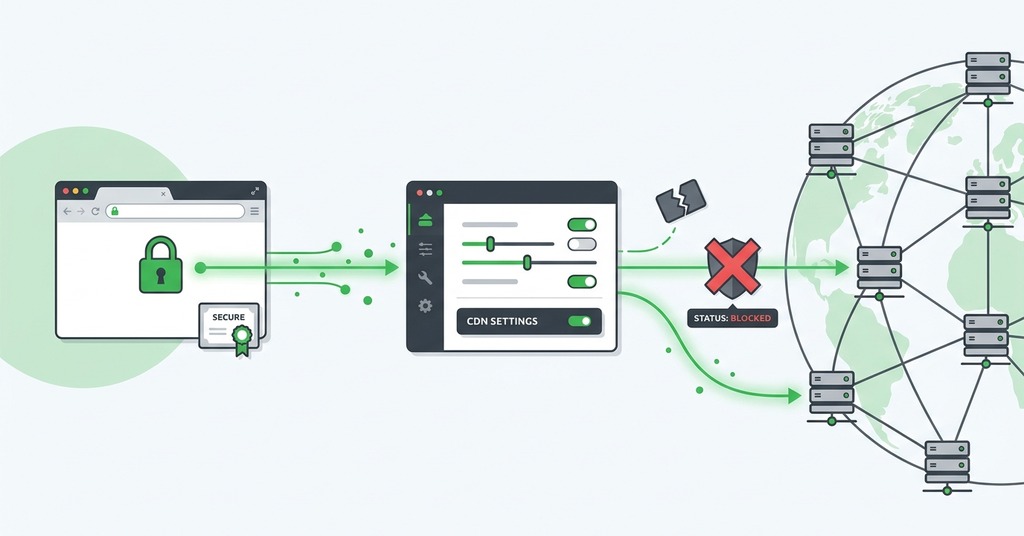
The server keeps answering requests when a certificate expires. The browser refuses to render the response and shows a full-page “Your connection is not private” warning instead, which most visitors will not click past, so the site is unreachable in practice. Free certificates last 90 days and are built to auto-renew. When the renewal job breaks, nobody notices until the lapse day. Renewal through your host’s SSL tool usually brings the site back in 5 to 15 minutes.
Run the phone test from the first section before changing anything in the SSL panel. If the phone loads the site fine, the certificate is valid and the visiting computer’s clock is wrong, which makes a valid certificate look expired. Checking the system date takes ten seconds and rules out the certificate entirely.
Cloudflare’s 5xx errors isolate the link between the edge and the origin server. A 521 means the server refused Cloudflare outright. Timeouts produce a 522. A 523 means the origin address in your Cloudflare DNS no longer matches the server. Most of the time the origin firewall is blocking Cloudflare’s IP ranges, and whitelisting them restores the connection.
Why the Next Outage Costs Less to Prevent
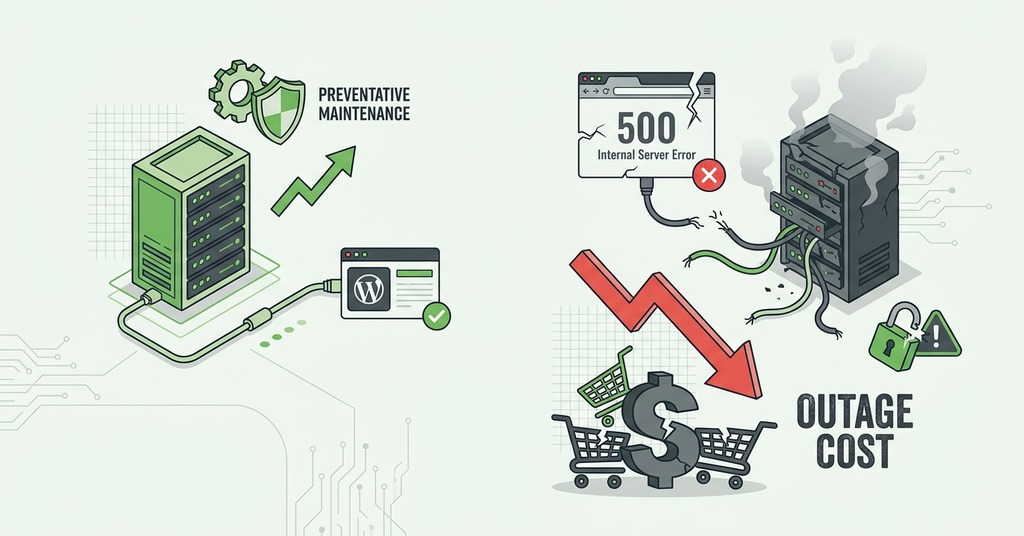
Most of these outages cost less to prevent than to diagnose. A lapsed domain and a broken SSL auto-renewal job both have a date attached long before anyone notices them, which puts both within reach of a calendar reminder or an automated check. Outside monitoring covers the remainder, since it reports a server that has stopped answering before the first customer email arrives. Set up once, it turns the next outage into a notification rather than a complaint.
Frequently Asked Questions
Why Is My Website Suddenly Not Loading?
The cause is usually somewhere in a short list. A local network or cache problem accounts for a share of reports that never reach the server at all, and beyond that an expired domain or a DNS fault is the most frequent real cause. A server issue or suspension covers another part, and a lapsed SSL certificate or a bad plugin update most of the rest. Checking them in that order identifies the cause in about 5 minutes.
How Do I Check If My Website Is Down for Everyone or Only on My Device?
Load the site through a free multi-location down checker, then load it on a phone using mobile data with Wi-Fi off. If every location fails, the outage is real. If the tool loads the site but your own browser cannot, the problem is local to that network, its DNS resolver, or the browser cache.
Why Is My Website Down When My Hosting Bill Is Paid?
A paid hosting bill rules out only one cause. The domain is billed separately and may have expired on its own. The SSL certificate may have lapsed, or a plugin update may have crashed the site with a 500 error, and DNS mid-propagation is one more possibility.
How Long Does DNS Propagation Take?
Most DNS changes complete within 1 to 4 hours. The standard worldwide window is 24 to 48 hours, and mixed results during it are normal.
Can an Expired SSL Certificate Make My Site Unreachable?
Effectively yes. The server stays online, but browsers show a full-page warning that most visitors will not click past. Reissuing the certificate through the hosting control panel usually restores access within 5 to 15 minutes.
What Is the Difference Between a 500, 502, 503, and 504 Error?
Each code names a different failure point. A 500 means the application itself crashed, while a 502 means a proxy got an invalid or empty response from the upstream server. A 503 is the server refusing requests on purpose or suffering overload, and a 504 means the proxy waited too long for a slow upstream. A 429, less common, means rate limiting from too many requests.
Why Does My Website Say “This Site Can’t Be Reached”?
That error is generated by the browser itself, and it means the connection could not be established at all. The usual causes are an expired domain or wrong nameservers. DNS that is mid-propagation and a hosting server that is down or suspended account for the rest.
How Do I Fix the WordPress White Screen of Death?
Rename the /wp-content/plugins folder over FTP to disable all plugins at once. If the site loads, reactivate them one by one to find the culprit. If plugins are not the cause, rename the active theme folder to force a default theme, then check for a leftover .maintenance file or a corrupt .htaccess.
What Does Cloudflare Error 522 Mean?
It means Cloudflare reached your server’s network but the server timed out before responding, most often because the origin firewall is blocking Cloudflare’s IP ranges.
Will Website Downtime Hurt My Google Rankings?
For a day or two, no, but persistent 5xx errors or SSL warnings block crawlers and erode indexing over a longer stretch, so fixes should happen within hours.
How Do I Prevent My Website from Going Down Again?
Set up free uptime monitoring so you learn about downtime within minutes instead of from a customer. Choose a monitor that alerts by SMS or a second channel, since email alerts can stall in a delayed queue. Keep the domain on auto-renew with a current card. Keep off-server backups, and confirm the SSL auto-renewal job runs.