
The homepage is gone and a white screen shows “Error establishing a database connection.” The dashboard and the content are both unreachable behind that one message, and the site looks lost. The cause is usually a wrong password in one configuration file. That file is wp-config.php. Wrong credentials in it account for about 70% of database-connection errors. A migration service exists to handle it, and most new hosts will run the whole thing for you free.
What a Migration Service Covers
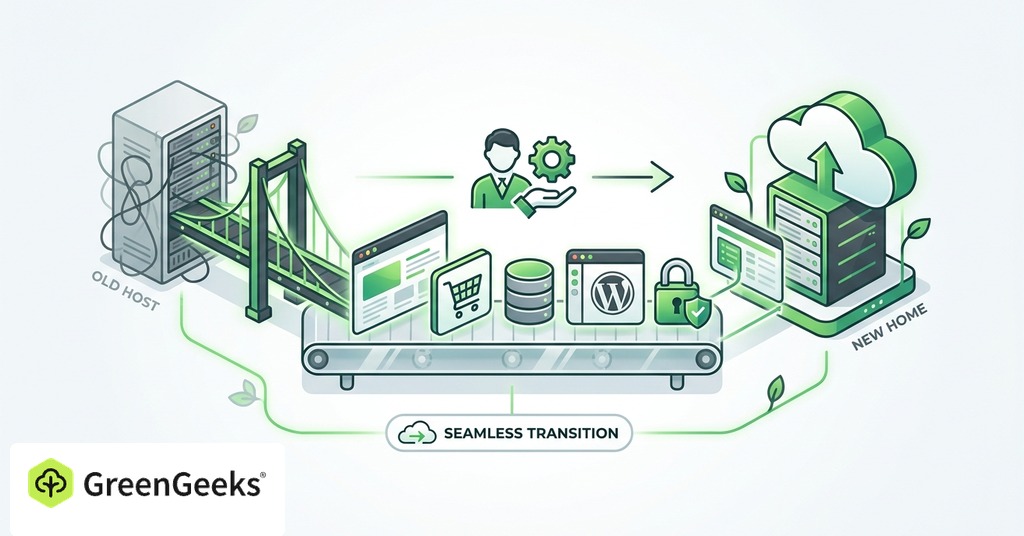
A migration moves two separate assets. The files hold the application, the theme, the plugins and every image ever uploaded. The database holds the posts, pages, comments, user accounts and every setting, and a copy that leaves it behind gives you an empty site. A complete migration moves both. Email accounts, the SSL certificate, DNS records, scheduled cron jobs and application settings have to come across too.
When a host advertises free migration, the phrase has a precise scope. It means an exact copy of the site on the same domain, which excludes a redesign, content changes or a new URL. Several hosts state this in their terms outright, and at some providers a domain change during the move converts the free service into a paid one.

Most reputable hosts now include free human-led migration. GreenGeeks offers it on every plan, handled by its support team. SiteGround, WPX, KnownHost, ChemiCloud and FastComet all provide it in some form. Both the cap on free sites and the queue time are stated in the terms. The common window is 24 to 48 hours. Read the terms before signing up.
What to Prepare Before You Hand Over Credentials
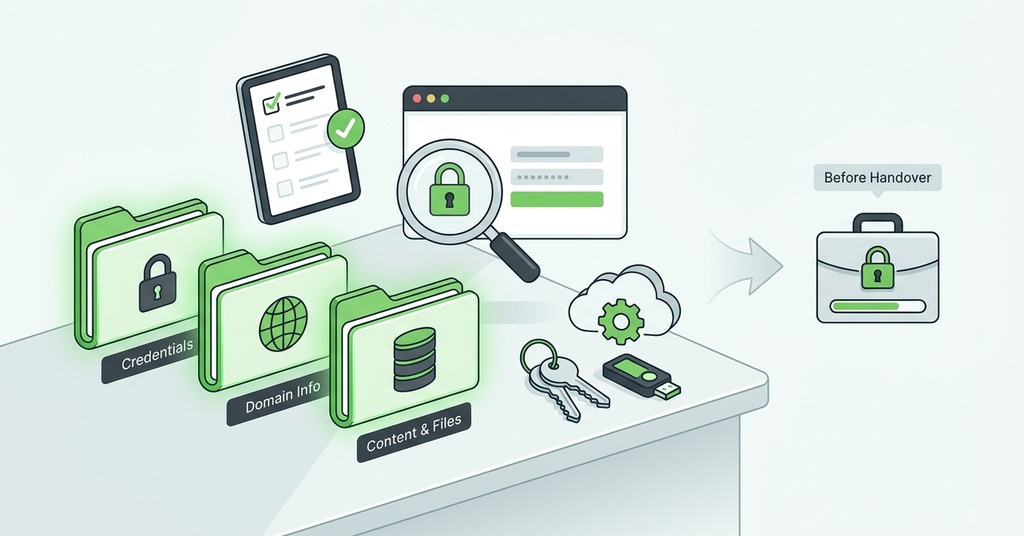
Your Own Backup and a Written Inventory
Take your own full backup first, even when the new host’s team is doing the work. That means the files and a standalone database export, plus your email settings and a copy of every current DNS record. The backup is what lets you stop worrying during the two days the move takes. Then write down the facts the migration team will ask for. They will want the current PHP version, the SSL certificate type, the nameservers, every DNS record including the mail-related ones, and a list of email accounts with their forwarders. Know, too, that your domain registrar is a different company from your host, and the DNS change at the registrar is usually yours to make or approve. More transfers fail on that confusion than on any technical fault in the files.
How to Share Access Safely
The credential anxiety people feel about migration is justified. Credentials should never be entered into a third-party migration website, whoever runs it. Share access only through the host’s official ticket system, and reset the passwords once the work is done. Ask what the free service excludes. Do it before you agree to anything. Automated tools exclude cron jobs and custom SSL certificates, and in some cases DNS records and email accounts too.
How a No-Downtime Move Is Sequenced
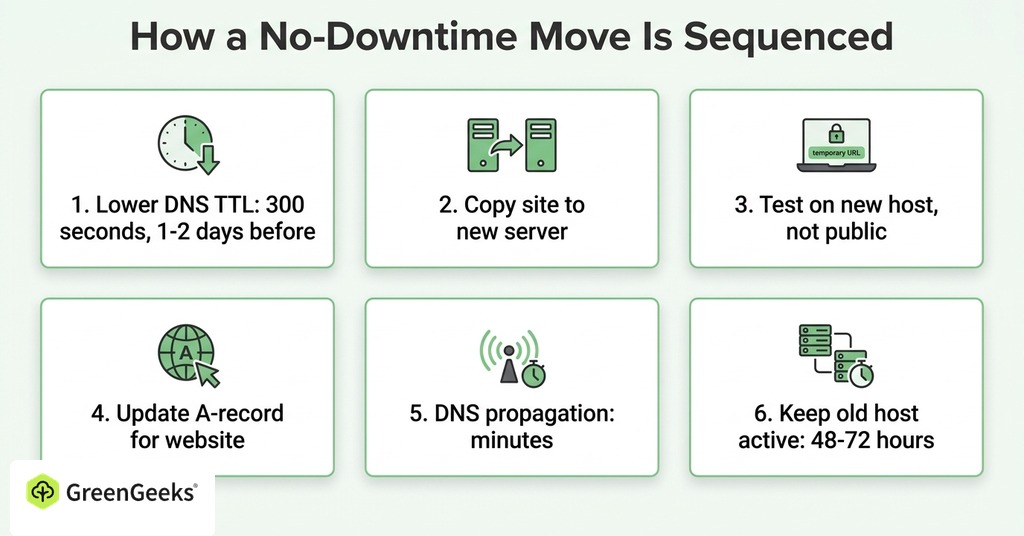
The site is built and fully tested on the new host before anything public changes, using a temporary URL or a hosts-file edit that lets only you see the new server. DNS is touched last, after verification. The old hosting account stays active for 48 to 72 hours afterward, giving stragglers and slow DNS caches time to reach a working site. DNS records have a time-to-live value. It tells resolvers how long to cache them. Lowering it to 300 seconds a day or two before the switch shrinks propagation from a day or more down to minutes.
Miss a single mail or verification record during a nameserver switch and it simply stops working. Neither host warns you. Because an A-record update repoints only the website’s address and leaves every other record untouched, it is the safer instrument for a hosting-only move. A nameserver switch hands the entire DNS zone to the new provider. Every mail and verification record has to be recreated there before anything changes.
With GreenGeeks, the owner opens a ticket and shares access through the official channel. The support team copies the site onto the new servers and hands back a preview to check before anything switches. On the preview you check the pages and forms, then try a login. Only after that do you approve the DNS change at your registrar, and visitors never see a gap.
If your plan involves a new domain, a redesign, or a platform change, that is a different project with its own price.
What Usually Breaks
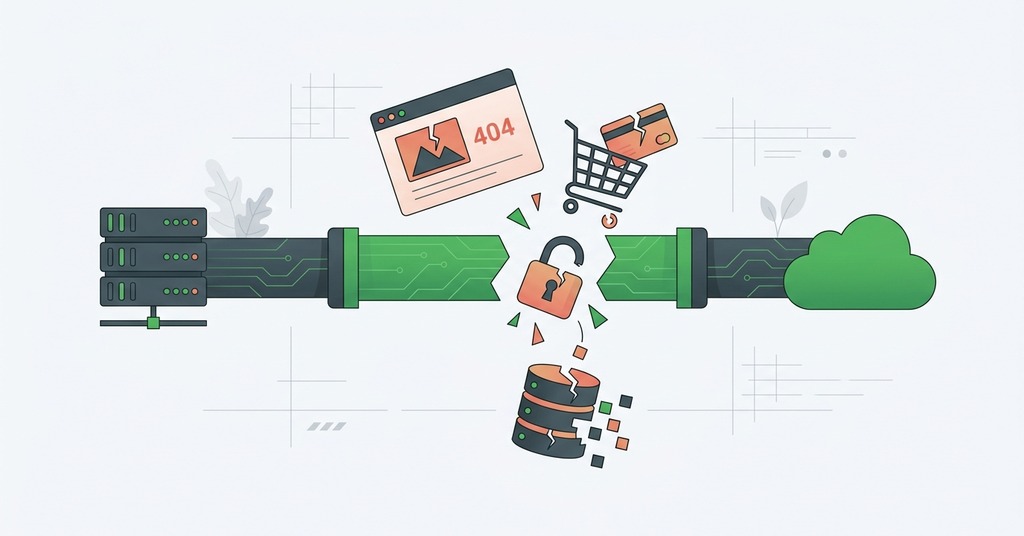
Silent failures cost the most, and email is the standard case. MX records do not follow a nameserver change automatically. Switch nameservers on a Tuesday and a client’s signed proposal sent that morning never arrives and never bounces. The client assumes you received it, and you find out on Wednesday, after the deadline. SPF, DKIM and DMARC records fail the same way in the outbound direction. Your own mail then starts arriving in recipients’ junk folders.
A 404 on every post is the easiest failure to spot, and it is one of the most common WordPress migration problems. Logging in and re-saving the permalink settings rebuilds the rewrite rules. The database-connection error in the opening example is usually old credentials in wp-config.php or a changed table prefix.
Other failures need a checklist to catch. Hidden files like .env, .htaccess and wp-config.php get missed in file transfers. A site built for one PHP version can break on another, with errors surfacing only after real visitors arrive. Payment webhooks are the worst of these, because the store shows “Order confirmed” while the gateway points at the old server’s address, and the missing payments only surface two days later in the payout report.
The do-it-yourself route has a size limit. Migration plugins handle sites up to 1 to 2 GB, and past that the free versions stop at the host’s PHP upload limits of 256 to 512 MB. Larger sites need a server-to-server transfer tool, or the host’s team. About half of the one-star reviews these plugins collect come from users who hit that ceiling mid-import and blamed the tool.
None of these are arguments against moving. A competent migration team checks every one of these items as a matter of routine. That routine is the reason to let the host run the move.
After the Switch
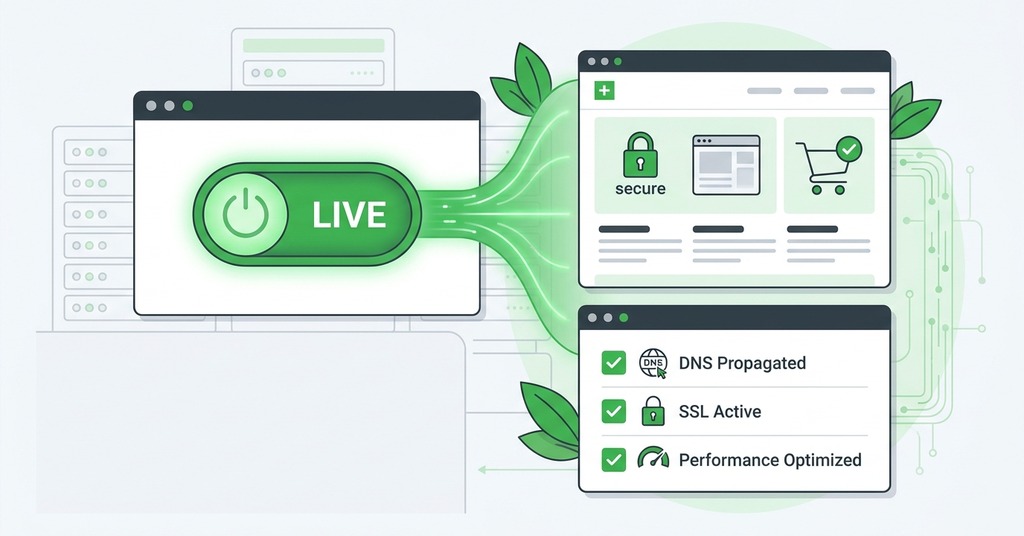
Once DNS changes, the internet updates unevenly. Some visitors see the new server while others reach the old one, and certain internet providers cache longer than the time-to-live suggests. Your phone can show the new site while a customer across town gets the old one, and that is expected during propagation. Watch it through public resolvers and propagation checkers rather than your own browser, which may be showing a cached answer. Verify the new server while the old one is running as a fallback. Load the pages and forms, try a login, send and receive a message on each email account, and put a test payment through. Anything wrong is faster to fix now than after the old account closes.
Cancel the old hosting account last. Ending it early is the most common cause of migration downtime, and every remaining problem then has to be solved without a working fallback. Give the move its full window, confirm the site on the new server, then close the old account and keep the backup you took at the start.
Frequently Asked Questions
What Is a Website Migration Service?
A new host’s technical team transfers your site’s files and databases, and usually the email accounts, from the old host to their servers on your behalf. Many hosts do this free for incoming customers. The team verifies everything works before your domain is pointed over so visitors see no gap.
How Much Does It Cost to Migrate a Website?
Host-to-host moves are free at many providers for new customers. On the paid market in 2026, a simple WordPress or small business site runs $100 to $2,500. Freelancers charge $200 to $1,000. Redirect mapping alone is quoted at $300 to $3,000. Agencies handling SEO preservation charge $2,000 to $20,000 for complex or ecommerce projects.
How Long Does a Website Migration Take?
A few hours for the transfer of a simple site. Most host-led migrations complete within 24 to 48 hours.
Will Migrating My Website Affect My SEO?
Not if URLs stay identical and downtime is avoided. Keeping the same domain and URL structure is the safest migration type for search rankings. A domain change is different, since it needs 301 redirects for every old URL and can cause a temporary 10 to 20% ranking fluctuation for a week or two. The other risk is the preview URL from the build phase getting indexed, which is why the staging copy stays blocked from search engines until the switch.
Which Hosting Providers Offer Free Migration?
Free migration is widely offered as of 2026. GreenGeeks and SiteGround advertise it, as do Hostinger and WPX. KnownHost and Cloudways for WordPress offer it too, and ChemiCloud and FastComet round out the list. Read the terms page before committing, since the number of free sites and exactly what is included varies by host and plan.
Does a Free Migration Include My Email Accounts?
Often yes when both hosts use cPanel, since full account transfers include mailboxes. Automated tools are a different story. Confirm the scope in writing before assuming anything moves because some of them explicitly exclude email, DNS records, cron jobs or custom SSL.
What Is the Difference Between Changing Nameservers and Updating an A Record?
An A-record update is the right tool when only the website moves and email stays where it is. A nameserver switch is for moving DNS hosting itself, to the new host’s DNS or to a provider like Cloudflare, and in that case every mail and verification record must exist at the new provider before the switch. The registrar’s 60-day lock after a registration or transfer is a separate mechanism and blocks neither kind of change.
Can I Move My Site from Wix or Squarespace to Another Host?
No, not as a true migration. Wix gives no access to the underlying code, while Squarespace exports blog posts but not pages. Shopify does not export themes either, so moving off these platforms means rebuilding the site on the new one.
Why Are All My Pages Showing 404 After Moving to a New Host?
The rewrite rules did not regenerate on the new server. Log into WordPress and go to Settings, then Permalinks, then Save Changes. This fixes the large majority of cases. No edits are needed. The act of saving rebuilds the rules on its own.
Why Is My Site Showing “Error Establishing a Database Connection” After Migration?
The usual cause is wp-config.php holding the old database credentials or table prefix. Updating the database name, user, password and host values in wp-config.php to match the new server fixes most cases. Wrong credentials cause roughly 70% of these errors, making the credentials the first thing to check.