
A WordPress page loads as an empty white screen, and the dashboard may be unavailable with it. A blank response shows that the request failed before WordPress rendered content. Identify which request fails and match it to the newest error entry before disabling software or editing configuration files.
The order matters because plugin and theme failures can produce the same result. PHP or database errors can also end in a blank response, as can a failed update. WordPress Recovery Mode or a private error log can identify the responsible file. When neither is available, reversible isolation tests should narrow the cause one component at a time.
Protect the current state before troubleshooting
Record when the failure began and what changed immediately beforehand. Relevant events include a plugin update or a theme edit. A PHP version change and a deployment also matter, along with an interrupted WordPress update. Ask anyone with administrator access about changes that may not appear in the WordPress activity history.

A usable backup must cover the period before the failure without erasing newer orders or submissions. Establish the time covered by the copy and the data that a restore would remove. Take an appropriate backup before editing wp-config.php or moving files. Reproduce risky tests on staging when the outage allows it.
Change one variable per test. Disabling plugins and changing PHP during the same attempt destroys the causal evidence. A simultaneous cache purge adds further uncertainty.
Keep a short incident record open during the work. Reverse one recent change or run one isolation test, then enter its time and result.
Read the scope of the failure
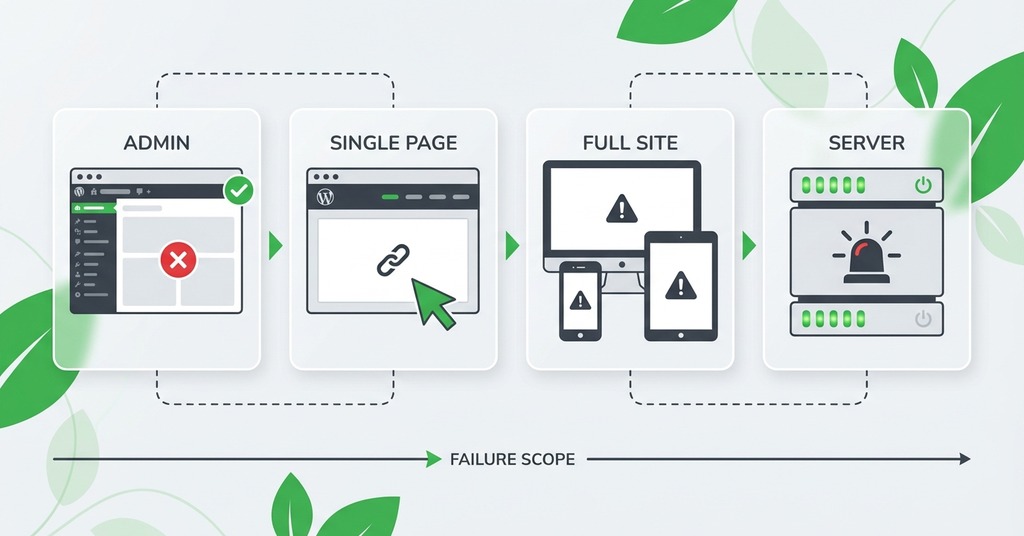
Open the site in a private browser window and check several known URLs. Try the public homepage and the original failing page, then try the dashboard login. A single blank interface has different likely causes from a failure across the hosting account.
Only one page or editor is blank
A single-page failure points toward code or content unique to that request. Compare the page with a working page that uses the same theme. A custom template or shortcode may be involved. A page-builder component can fail because its scripts are stale in one cache layer, even though WordPress itself continues to serve other requests.
Check the log entry produced when that URL is requested. If the log names a template file or extension, investigate that component before changing site-wide memory settings. For a blank block editor or page builder, test in a private browser and purge the relevant cache after recording its current state.
wp-admin or the public site is blank
When wp-admin fails but public pages work, code attached to administrator requests deserves attention. A plugin may register an incompatible admin function. An error can also occur while the dashboard loads. The PHP log should identify the file and line even when the browser shows nothing.
When public pages fail but wp-admin remains available, start with the active theme and frontend cache. Disable only the component supported by the evidence. Use the working dashboard to preserve a record of the active versions before applying updates or rollbacks.
Every site on the account fails
A failure across separate WordPress installations indicates an account or server layer. Check the hosting status and available disk space. Review the current PHP service with any account-level configuration. Contact the host before editing each WordPress installation independently, especially when server logs or file ownership are inaccessible.
Use Recovery Mode and private error logs
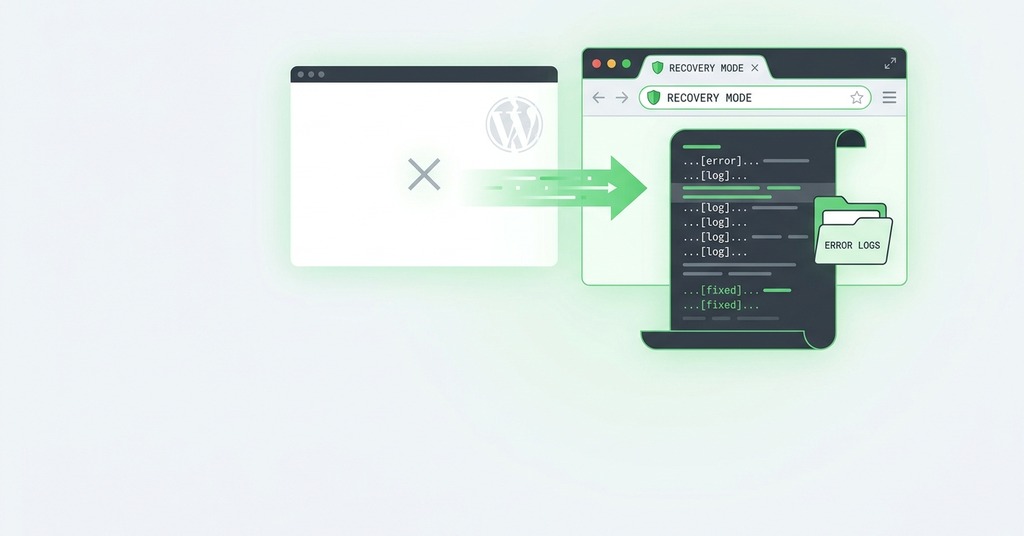
WordPress can send the administrator a Recovery Mode email after a fatal PHP error during a normal page load. The special link starts a protected administrator session in which the failing plugin or theme may be paused. Read the reported component and error before deactivating anything. Recovery Mode pauses the failing component for that protected session. Repair or replace the component before returning the site to normal operation.
If the message does not arrive, check the administrator address and spam folder. Background-task failures do not trigger Recovery Mode, so the absence of an email does not rule out a fatal error. Hosting support may be able to locate the relevant PHP error when WordPress cannot send mail.
WordPress debugging can write errors to wp-content/debug.log. Enable WP_DEBUG on the public site for the diagnostic period. Then enable WP_DEBUG_LOG and set WP_DEBUG_DISPLAY to false. Visitors should not see a stack trace that exposes server paths or component details. Apply the setting for the shortest useful period and remove temporary debugging after diagnosis.
Request the failing page again, then inspect the newest log entry. The useful entry usually supplies an error type and a file path. It may also include a line number. Repeated warnings that predate the outage deserve less weight than a fatal error produced at the incident time.
Stop and contact the host when you cannot access files safely or the log names a provider-level service. The same step applies when every site on the account is affected. Support should receive the incident time and the exact failing URL. Include the error text without sending credentials.
Isolate the most likely component
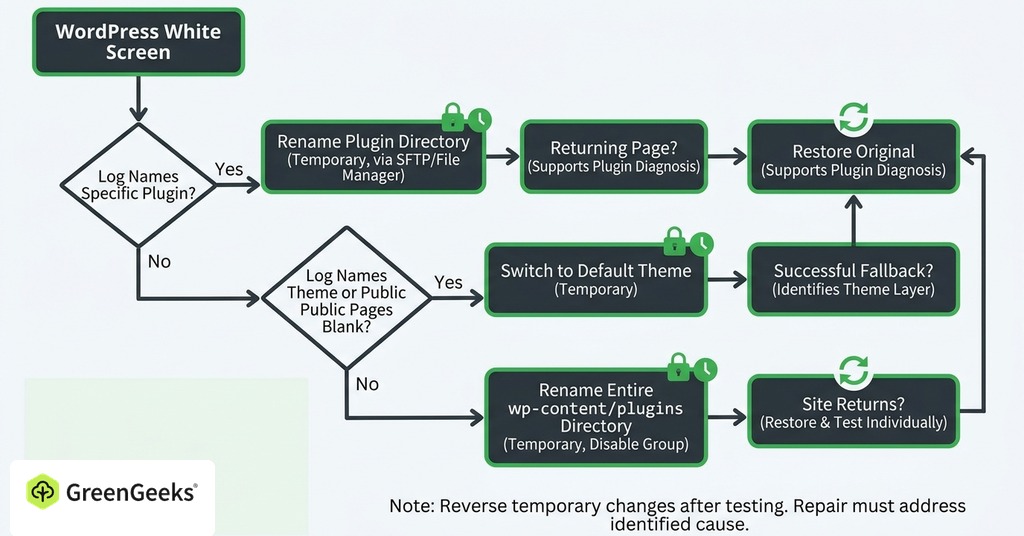
An isolation test answers a narrow question. Its temporary result should be reversed before components are tested individually, and the eventual repair must address the identified cause.
Test plugins without wp-admin
If the log names a plugin, rename that plugin's directory through SFTP or the hosting file manager. WordPress will treat the plugin as unavailable until its directory name is restored. Reload the failing request once. A returning page supports the plugin diagnosis. Record the plugin and its version as the likely source. A remaining blank screen calls for the next logged lead.
When no specific plugin is named, rename the entire wp-content/plugins directory to disable normal plugins as a group. If the site returns, restore the original directory name. Disable individual plugins and activate them separately until the error returns. Record the failing plugin and version. The repair may be an update or rollback. Replacement or a code correction may be necessary for abandoned software.
Restore the original plugin state after the group test. Test forms and access controls because a homepage request does not exercise either feature. A must-use plugin may remain active in a different directory, so a failed group test does not exclude every extension.
Test the active theme
When the log names the theme or public pages alone are blank, switch temporarily to an installed default WordPress theme. If wp-admin is unavailable, confirm that a default theme exists before renaming the active theme directory through file access.
A successful fallback identifies the theme layer. Use the saved error entry and a staging copy to locate the exact defect. The cause may be custom code or an outdated template. An incompatibility with the current PHP version is another possibility. Repair the theme before activating it again.
Review recent edits to functions.php and any custom template named in the log. A missing character in PHP can stop rendering before WordPress sends page content to the browser.
After correcting the file, test the repaired theme while the default theme remains available. Keeping the fallback installed gives the next administrator a known isolation route if the error returns.
Check memory and WordPress files later
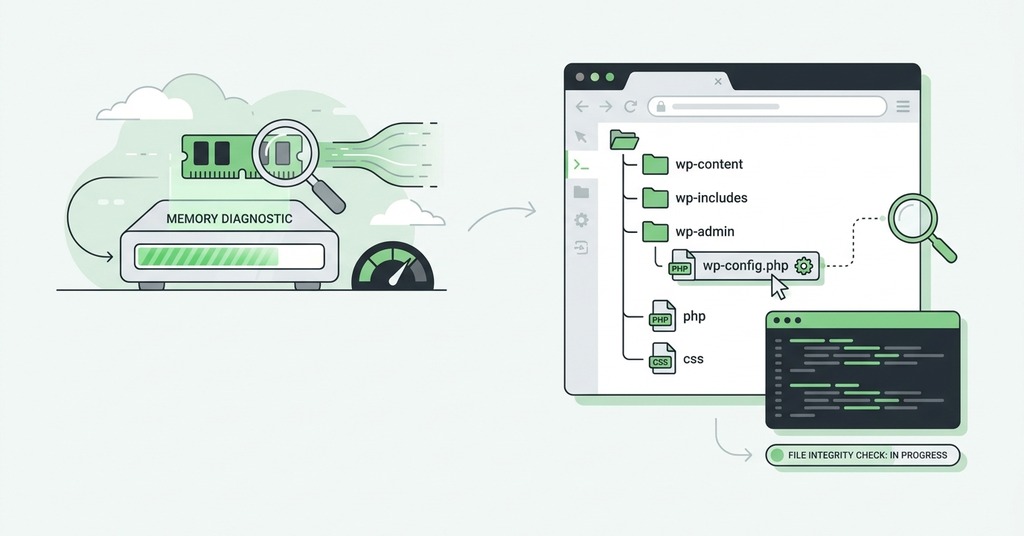
Memory is a supported diagnosis when the log reports that the allowed memory size was exhausted. Ask the host for the applicable server limit before raising the WordPress value. A higher constant cannot exceed a provider ceiling. Extra memory cannot correct a syntax error or an endless loop.
A recent PHP change can expose an old plugin or theme incompatibility. Use a PHP rollback only to regain access during correction of the incompatible component. Return production to a supported PHP branch after the update, then test the site's extensions against that version.
Corrupt core files or an interrupted update become plausible after plugin and theme causes have been excluded. Core replacement is a late step because it changes many files. Preserve wp-config.php and the complete wp-content directory, then use a clean WordPress release through a documented update process. A known-good backup may be faster when its age and data-loss window are acceptable.
Repair the cause without losing the evidence
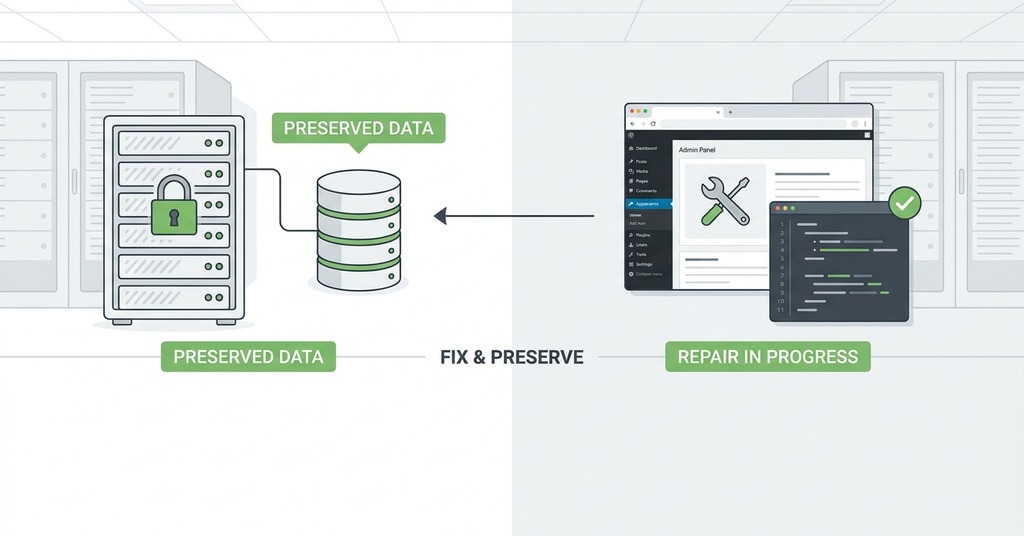
Choose a repair that addresses the named component. Update compatible software or roll back a faulty release. An abandoned extension may require replacement, while reported custom code needs correction. If a memory failure is genuine, identify the process consuming memory and use a host-approved limit. Keep the relevant error entry and the version change in the incident record.
Exit Recovery Mode after the repair and restore normal directory names. Re-enable components that were disabled only for testing. Purge caches after the underlying correction so that a stored error page does not obscure the result.
Verify recovery beyond the homepage
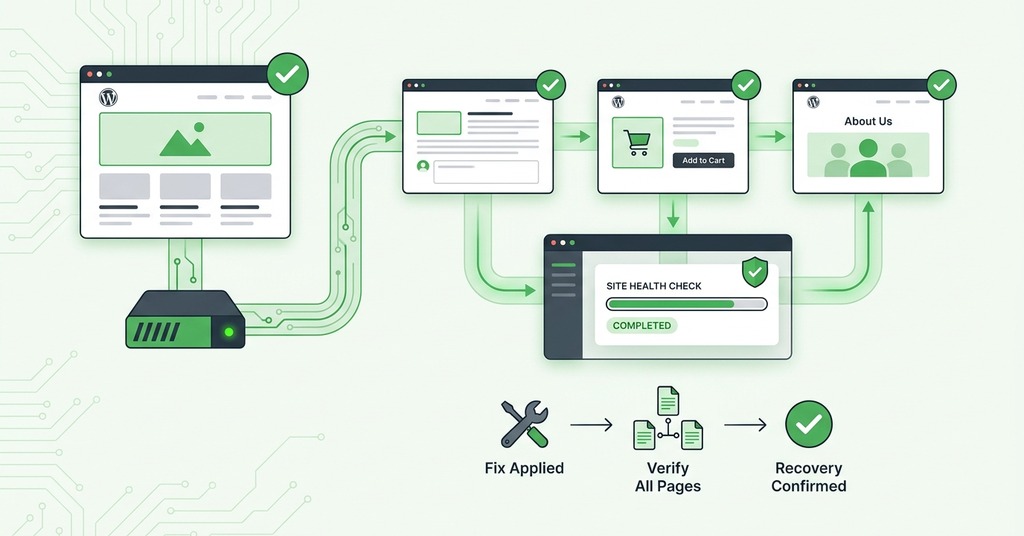
Run a final check after leaving Recovery Mode and restoring normal component states:
- Open the original failing request, a logged-out page, and wp-admin.
- Submit an important form or complete a test checkout.
- Confirm that media and scripts load.
- Review scheduled functions when the incident affected them.
- Inspect the current error log and confirm that caches rebuild normally.
- Remove temporary debug settings and record the repaired component version.
- Check the same route again after normal traffic has reached the site.
The full operating path should work without reproducing the fatal error.
