
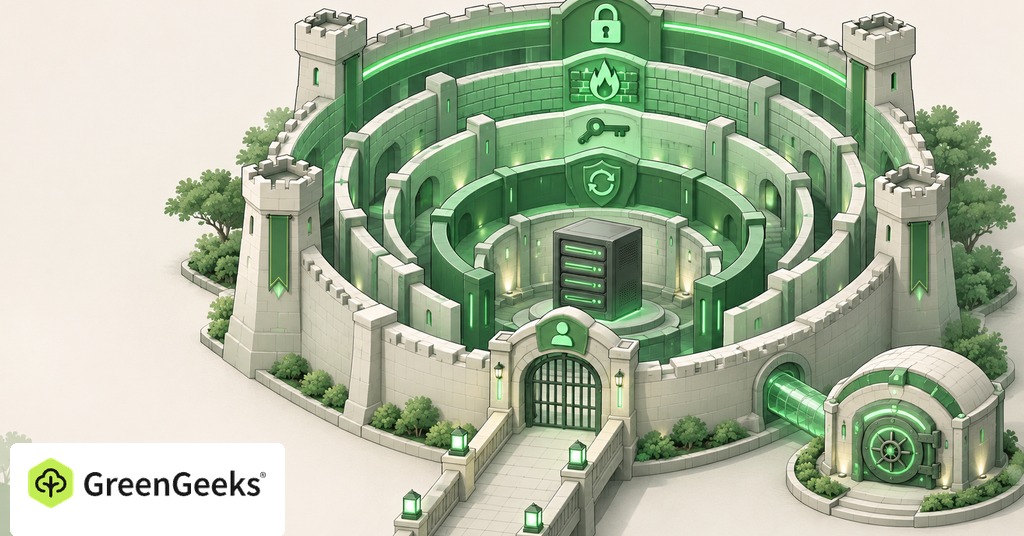
A hosting plan can list a firewall, malware scans, secure access, and backups without saying which ones you control. Some are handled by the company running the server, and others depend on how you manage your website and accounts.
Start by finding that boundary. If you use shared hosting, you generally won’t be setting up the server’s operating system or changing its network rules. Your part is the website itself, starting with secure logins and current software.
Find out who manages the server
On shared hosting, the provider manages the computer and the server software that your website uses. You manage your site within the access the provider gives you. That usually means your files, installed applications, website users, and account settings. An unmanaged virtual server gives you much more responsibility. Someone must maintain the operating system, configure access, patch services, and review what is exposed to the internet. A managed server transfers some of that work to the provider, according to its support terms.

Before buying a plan, ask these questions.
- Who installs security updates for the operating system and web server?
- Who maintains the software my website needs to run?
- What happens if a scanner finds suspicious files?
- Will support help restore the site, investigate the cause, or both?
Keep the answers with your hosting details. A feature called malware protection could mean scanning, blocking, cleanup, or a combination. GreenGeeks shared hosting, for example, scans new files in real time with Imunify360, and its support includes one free malware cleanup, subject to its terms.
If server administration is outside your skills, choose a service that includes it. Following a Linux setup guide you don’t understand can leave you responsible for settings you won’t know how to maintain.
Protect your hosting and recovery accounts
Your hosting account can provide access to the files, databases, and mailboxes behind your website. Give it a strong, unique password and turn on two-factor authentication where available. Also protect the domain registrar and the email account used for password resets. A password manager helps you use different passwords without trying to remember them all. Keep its own recovery details somewhere you can reach if your main device fails.
Two-factor authentication adds another check when you sign in, often a code from an authenticator app. Set it up while your current access works, then save any recovery codes the service supplies. Check that your recovery email and phone number are current. Know where that protection applies. Turning it on for a hosting dashboard doesn’t automatically add it to WordPress, email, or every connected application. Each service may have its own setting.
Automated tools need attention, too. A developer or backup tool may connect through an access token without using your normal login screen. Keep those tokens private. Revoke ones that belong to old tools or people who no longer work on the site.
For help requests, open the hosting company’s dashboard or support site directly. An unexpected email asking you to sign in should be checked before you enter your password.
Keep website software supported and updated
A host can patch its server, but an outdated website plugin can remain vulnerable. Check the application you use, its extensions, and its theme. Each has its own updates and support history.
For WordPress, review core updates separately from plugins and themes. Find out which updates your host applies and which are left to you. GreenGeeks applies WordPress core updates automatically, while testing and repairing third-party plugins remain your job or your developer’s.
Use software from sources you trust. A paid theme offered as a free download on an unrelated site may contain changed code, and you may have no dependable way to receive updates. Remove plugins you no longer use.
Automatic updates can reduce delays, especially for routine security fixes. Someone has to notice when a change causes trouble, so after an update, check the parts that matter to the site, such as signing in, submitting a form, or completing a test order.
For a larger change, keep a usable backup and test on a staging copy where possible.
Your own computer matters here. Keep its operating system and browser supported and updated. If malware captures the credentials you type, changing settings on the server won’t solve the whole problem.
Give each person only the access they need
Someone writing posts usually doesn’t need permission to install plugins or change hosting settings. Create an individual account with the appropriate role. Give wider access only when the job requires it. Individual accounts also make it easier to remove access later. When a contractor finishes, deactivate their account and review any file-transfer credentials or integrations they used. A shared administrator password makes that cleanup harder because changing it affects everyone.
Apply the same care when a troubleshooting guide tells you to loosen file permissions. Permissions control who can read, change, or run a file. A setting that lets everything write to a folder may remove an error while creating another problem. Ask support which setting the application needs before making a broad change.
If you run several websites, ask how they are separated. Extra domains in one hosting account usually share its files and logins, so a breach on one site can reach the others. The right arrangement depends on who owns the sites and how much access each person needs.
What firewalls and HTTPS protect
A network firewall filters traffic reaching the server. A web application firewall checks web requests for patterns it is configured to block. Both can reduce unwanted traffic and certain attacks. A vulnerable plugin or a stolen administrator login needs its own fix.
Ask your host which protection it provides and what you need to configure. Several security tools with overlapping jobs can block legitimate forms or logins, leaving you to figure out which one did it.
HTTPS protects information traveling between a visitor’s browser and your website. Use it throughout the site and keep certificate renewal working. Encryption covers the connection only, and the site’s files and account permissions need their own checks.
Keep a recovery copy and watch for changes
Backups let you recover after a bad update, deletion, or compromise. Check what your host saves and how far back the copies go, since a compromise can go unnoticed for weeks. A copy stored beside the affected site can be lost with it, so keep one of your own elsewhere.
Review new administrator accounts, unexplained plugins, and changes to important settings. Keep security notices going to an address someone checks, and put the host’s support details somewhere you can reach without signing in to the website.
What to check first when something looks wrong
Unexpected redirects, new users, or mail you didn’t send deserve investigation. They don’t, by themselves, tell you how someone got access. A website infection and a full server takeover are different incidents.
Contact the host and describe what changed, when you first saw it, and which pages or accounts are affected. Save screenshots and relevant messages. Ask if they can preserve logs before you delete files or replace the site.
Use a trusted device to secure affected accounts. Review users and active access with the person investigating. Restoring a clean copy may bring the site back, but you also need to address the weakness that allowed the change.
Once the immediate problem is handled, confirm who will apply the repair and who will check the site afterward. Record that decision with your hosting details so the next update or warning has a named owner.
